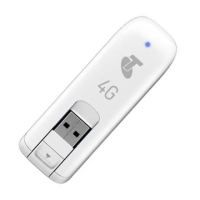
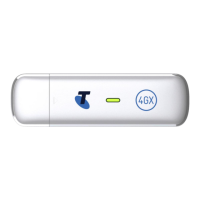
This document describes the ZTE MF833V Telstra 4GX USB Modem, a plug-and-play 4G USB modem designed for easy internet access.
Function Description
The ZTE MF833V is a portable USB modem that provides 4G internet connectivity. It functions as a plug-and-play device, meaning it is designed for immediate use upon connection to a computer without extensive setup. The modem allows users to access the internet via Telstra's 4GX network and can also be used as portable USB storage if a microSDHC card is inserted. It features a web-based interface for configuration and monitoring, including network connection status, data usage, SMS management, and phonebook access.
Important Technical Specifications
- Network Compatibility: LTE Cat 4, Bands 1, 3, 7, 8, 28; UMTS 850, 900, 2100 MHz.
- Chipset: QUALCOMM MDM9207.
- Dimensions: 93.8 x 28.6 x 13.5mm.
- Weight: 28g.
- Data Rates: LTE download speeds up to 150Mb/s; HSPA+ Downlink up to 42Mb/s.
- Operating Systems: Windows 11, 10, 8, 7; MAC OS X 10.7 and above.
- SIM Card: Micro SIM, 3FF.
- Temperature: -5°C to +40°C.
- USB Connector: Standard USB.
- Storage: microSDHC™ card slot for optional portable USB storage.
- Indicators: LED for network status (Red: No Network; Green: 3G Connection; Blue: 4G Connection; Green/Blue alternate flashing: Software upgrading).
Usage Features
Getting Started:
- SIM Card: Requires a Telstra micro SIM card.
- SIM Insertion: Slide open the front cover, insert the micro-SIM, and then replace the cover.
- Optional Storage: A microSDHC card can be inserted for use as portable USB storage.
- Connection to PC: Connect the modem to your computer's USB port. The operating system will automatically detect the modem and establish a new connection.
- Internet Access: After successful connection, the browser should automatically launch, allowing internet access.
- Modem Homepage: The modem automatically opens its homepage in the default browser upon insertion. Alternatively, users can access the configuration page by entering
m.home or 192.168.0.1 in the browser's address bar.
Web Interface Features:
- Home Tab: Displays device and connection status, including network type (4G Connected), message count, and data usage (MB/time). It also shows PIN status and offers a "Disconnect" button.
- Settings Tab:
- Quick Settings: A wizard for quickly reviewing and configuring default settings.
- Network Settings:
- WAN Connection Mode: Allows selection between Automatic and Manual connection modes. Includes an option to connect to the internet while roaming (with a warning about potential data charges).
- Network Selection: Default is Automatic, but can be set to Manual to search for available networks.
- APN: Allows users to view, add, or modify Access Point Names. The modem is locked to Telstra, and unlocking may be required for other carriers.
- Device Settings:
- USIM PIN Management: Enables or disables PIN, changes PIN, and handles PUK codes.
- Reset: Resets the device to factory defaults.
- Software Update: Checks for and installs software updates.
- Firewall (DMZ): Enables or disables DMZ (Demilitarized Zone) settings, allowing specific ports to be opened from the WAN side to the LAN side for a particular allocated IP address.
- SMS Tab: Allows users to send and receive SMS messages, view conversations, and manage SMS settings (e.g., delivery reports, SMS centre number).
- Phonebook Tab: Manages SIM card contacts and device contacts. Users can view, edit, add new contacts, and choose to save contacts to the device or SIM card.
- Information Tab: Displays device details such as IMEI number, IMSI, signal strength, frequency, LAN domain, IP addresses (WAN IPv4 and IPv6), software version, and firmware version.
Troubleshooting:
The manual provides solutions for common issues, including:
- User interface not starting: Suggests manually starting the program.
- No signal: Recommends moving to a location with better reception or adjusting modem orientation.
- SIM card locked: Advises contacting the service provider for PIN/PUK or checking SIM insertion/activation.
- Data connection failed: Suggests moving to a location with better network coverage.
- Cannot connect overseas: Recommends consulting the service provider to enable international roaming.
Maintenance Features
- Software Updates: The device supports automatic software updates. Users can also manually check for updates via the "Settings > Device settings > Software Update" section in the web interface.
- Reset to Factory Defaults: The modem can be reset to its original factory settings via "Settings > Device settings > Reset."
- General Precautions:
- Avoid exposing the modem to liquids, high temperatures, or shock.
- Store out of reach of children.
- Use only original or authorized accessories.
- Do not disassemble the device.
- Avoid touching the antenna area unnecessarily during connection to maintain signal quality.
- Unplug the modem and allow 30 minutes for cooling if it experiences a sudden temperature change or humidity outside.
- Electromagnetic Interference: Be aware that the modem can cause interference with sensitive electronic equipment (audio systems, vehicle systems, medical devices). Maintain a distance of more than 20 centimetres from medical devices.
- RF Safety: The USB modem is a low-power radio transmitter. The transmit power level is optimized for best performance and automatically reduces when there is good quality reception. Maximum power is only used at the edge of network coverage.

 Need help?


 To Next Page
 General