
 Need help?
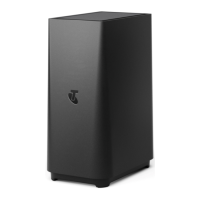
Do you have a question about the Telstra Smart Modem GEN 2 and is the answer not in the manual?
Login to your Telstra modem's access page via web browser to configure network settings.
Turn off band steering in modem Wi-Fi settings to ensure compatibility with Genio devices.
Verify and select the 2.4GHz Wi-Fi network for connecting Genio smart products.
Instructions for various Genio devices to achieve slow blinking (1 blink/2 sec) for AP mode pairing.
Genio Smart Cameras lack AP mode; use QR code scanning for pairing instead.
Start the pairing process by adding a new device within the Genio app interface.
Choose your Genio product and confirm the 2.4GHz Wi-Fi network and password.
Navigate from EZ Mode to AP Mode and reset the device if necessary for pairing.
Connect your mobile phone to the Genio device's Wi-Fi hotspot (SmartLife-XXXX) to proceed.
Once connected, the app initiates pairing. Click Done after the countdown to finish.
Diagnose time-out errors by checking Wi-Fi signal, blinking lights, and network settings.
Instructions to enable the 'Local Network' permission for Mirabella Genio on iOS 14.
This document provides detailed instructions for pairing Genio Smart Devices with a Telstra NBN modem, specifically addressing common issues like time-out errors, device not found errors, or connectivity problems with the Genio app. The process is broken down into several steps, starting with network setup and progressing through device pairing using the AP (Slow Blinking Method).
The primary function of this guide is to enable users to successfully connect their Genio Smart Devices to their home Wi-Fi network via a Telstra NBN modem. It outlines a systematic approach to configure the modem's Wi-Fi settings and then pair various Genio devices, such as lighting devices, smart plugs, smart power boards, and LED strips. The core mechanism involves disabling band steering on the Telstra modem to ensure that Genio devices connect to the 2.4GHz network, which is essential for their operation. The guide also details how to prepare Genio devices for pairing by setting them to a "slow blinking" mode, indicating they are ready for AP mode connection.
Modem Access and Configuration:
http://mymodem or http://192.168.0.1.admin, password: Telstra) are provided, simplifying access.Device Preparation for Pairing (Slow Blinking Method):
Genio App Pairing Process:
Troubleshooting and Error Resolution:
While the document doesn't explicitly detail ongoing maintenance, the troubleshooting section implicitly guides users on how to maintain a stable connection:
 General
| Wi-Fi Standard | 802.11ac |
|---|---|
| Wi-Fi Bands | Dual-band (2.4GHz and 5GHz) |
| Wi-Fi Speed | Up to 1733 Mbps |
| Ethernet Ports | 4 x Gigabit Ethernet |
| USB Ports | 1 x USB 2.0 |
| Backup Connectivity | 4G LTE |
| Backup Battery Support | No |
| Voice Support | Yes |
| DSL Compatibility | ADSL2+/VDSL2 |


 To Next Page