
 Need help?
Do you have a question about the Telstra Bigpond and is the answer not in the manual?
Details the status of the Power LED indicator on the device.
Details the status of the Data LED indicator on the device.
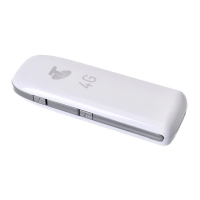
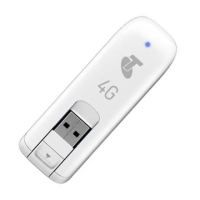
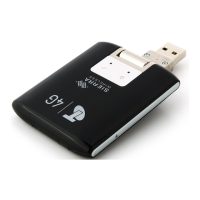
Steps for inserting the SIM card and connecting the USB device.
Guide to following prompts and manually installing the Connection Manager software.
How to open the Mobile Broadband Manager software after installation.
Steps for users without a pre-existing username and password.
Steps for users with an existing username and password.
Option to set up your BigPond® email after registration.
Final confirmation page after completing all previous setup steps.
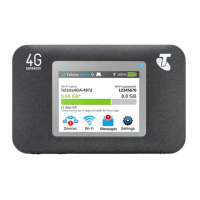
Instructions on how to connect to the internet using the Connection Manager.
Explanation of icons used within the Connection Manager application.
Information on how to check for and download software updates.
Troubleshooting steps for common connection issues.
Troubleshooting steps when the device has no power or the Power LED is off.
Troubleshooting steps when no service is available or the Data LED is off.
Guidance on when to use the USB extension cable and laptop screen clip.
Instructions on how to insert a microSD card into the device.
 General
| Connectivity | Wireless |
|---|---|
| Wi-Fi Standards | 802.11b/g/n |
| Ethernet Ports | 4 |
| USB Ports | 1 |
| ADSL Ports | 1 |
| Security | WPA, WPA2 |


 To Next Page