Page 4 of 14
Connect to Your PC
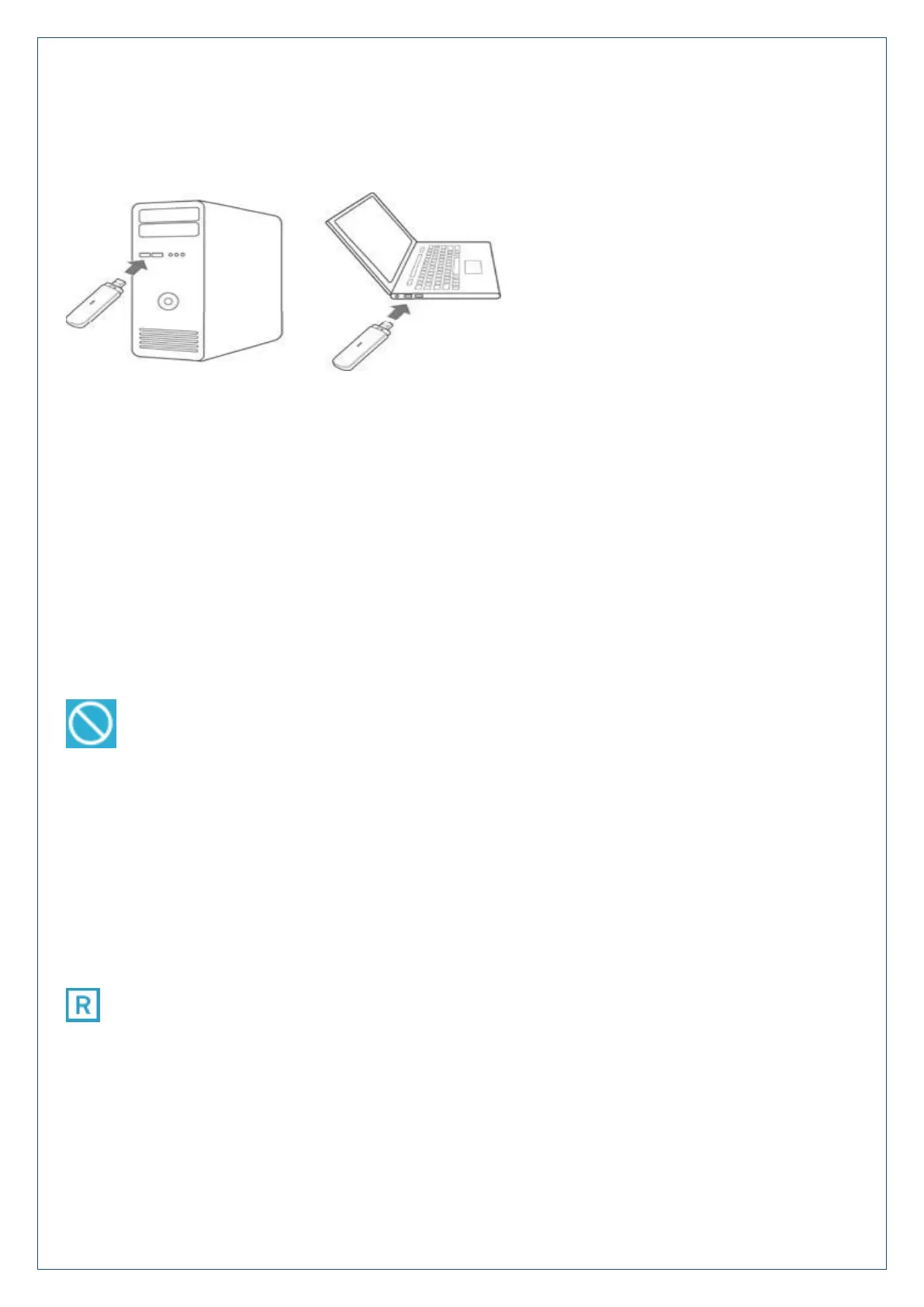
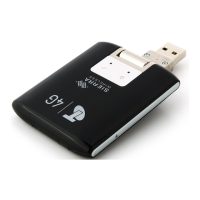
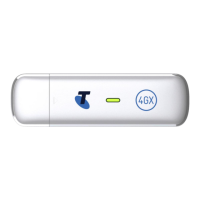
Connect the modem to your computer’s USB port. The operating system automatically detects and identifies your
modem and creates a new connection.
7. Access the Internet
After the modem is connected to your computer successfully the browser will automatically launch, you can now
access the Internet.
8. Check the modem homepage to make any configuration changes
When you insert the modem it automatically opens your default browser at the modem homepage.
You can make any settings changes through the modem homepage. Open a browser and enter m.home or
192.168.0.1 in the address bar to open the modem configuration page.
NO NETWORK ACCESS
No Network Access can be any of the following conditions:
A missing, faulty or incorrectly inserted SIM. Check you have inserted your SIM card the right way and
pushed it fully home until it clicks into place.
A Non-Telstra SIM card. This device is network locked to Telstra. In order to use alternate carriers you may
need to unlock the device and set the new carrier APN. See Settings > Network Settings > APN for more details.
A PIN locked SIM card. Log into the web interface then enter the PIN code for your SIM card.
A PUK locked SIM card. You may have entered the wrong PIN code too many times. Contact Telstra to obtain
your PIN Unlocking Key (PUK) code. Log into the web interface to enter your PUK and PIN code
A PUK blocked SIM card. Contact Telstra to replace your SIM.
SIM card is not activated or you have no network coverage.
INTERNATIONAL ROAMING
The Roaming icon indicates you are connected to a foreign network.
If Roaming is enabled on your data plan then roaming data charges will apply when connected via a roaming
network.
Contact your carrier to discuss your data charges and roaming options.



 To Next Page