Oh no! Something went wrong?
Here are a few tips to help you, but rst, have you tried the following?
2
3
1
Switch it off and back on and then wait a few minutes, you would
be amazed how many times this can sort a problem out.
Wi-Fi speed and other reception-related issues can be caused
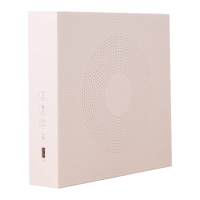
by the placement of your modem. Like your mobile phone, your Telstra
Smart Modem needs good 4G reception to work in backup mode.
Make sure your modem is elevated and not placed near items like
fridges, sh tanks, microwaves, etc, that can interfere with your Wi-Fi.
Still having issues?
?
Try our online troubleshooting tool,
which can be found at x.telstra.com
If you are still stuck then we are more than happy to help, just
visit telstra.com.au/support where you can chat
with us online.
For Telstra Smart Modem FAQ, please go to tel.st/smartmodem
Get support at telstra.com/help
Message us via the My Telstra app, available for download through
Apple App Store and Google Play Store.
If you require more assistance, please call 133 933 (English).
For other languages, please visit:
telstra.com.au/contact-us/multilingual-services
To recycle your old modem: telstra.com.au/climate/recycling
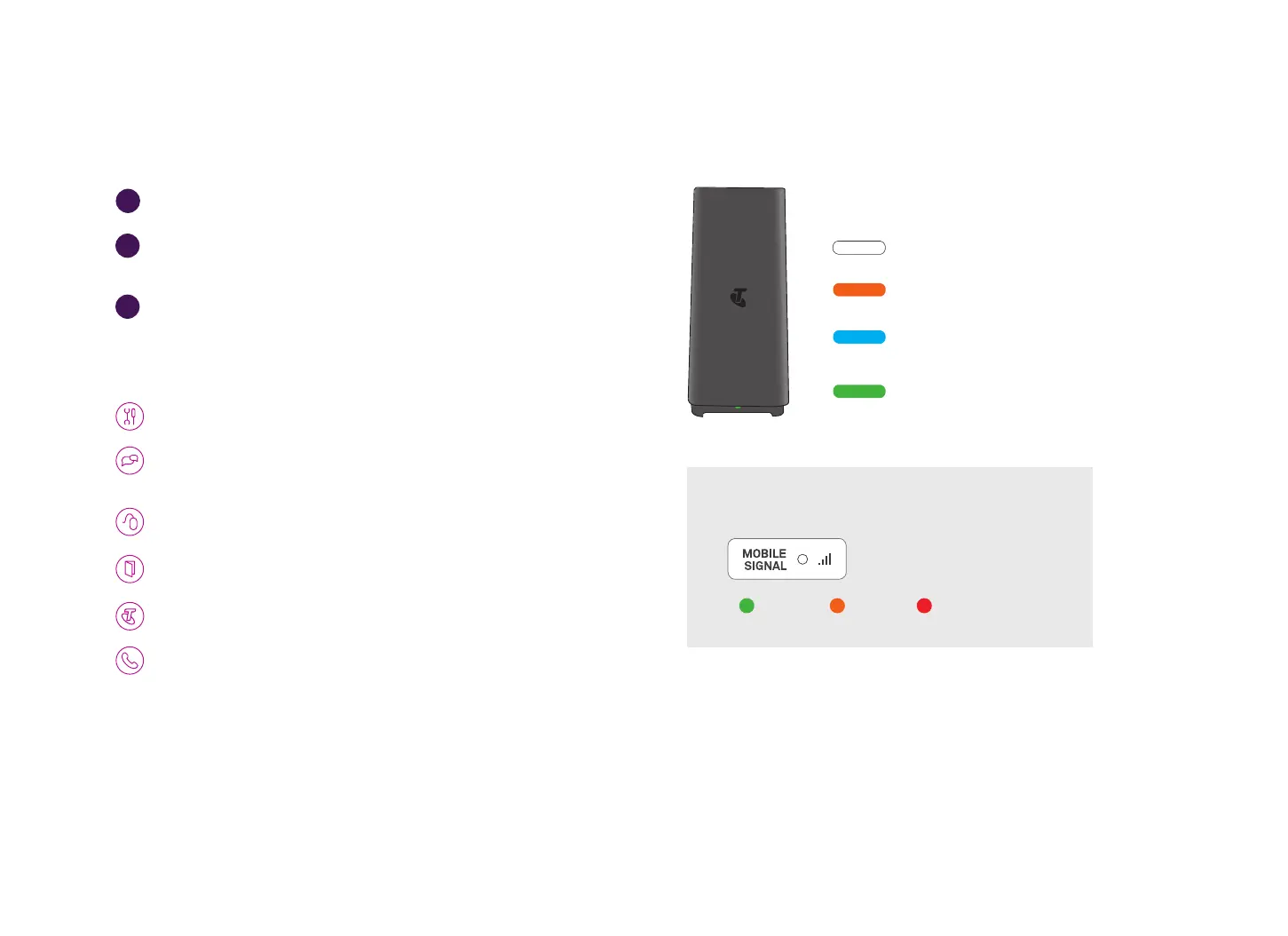
What do the lights mean on the
Telstra Smart Modem?
Front Light Indicators
Powered on and booting up.
Connecting.
MOBILE BACKUP connection
(Data + Voice calls).
Opticomm access network.
‘Mobile Signal’ strength indicator
Indicator lights on the
back of the modem
Great Good Limited Access
*Please move the modem for stronger signal strength on mobile
backup connection. When you’re in mobile backup mode, you may
receive notications from us via SMS or email.
17



 To Next Page