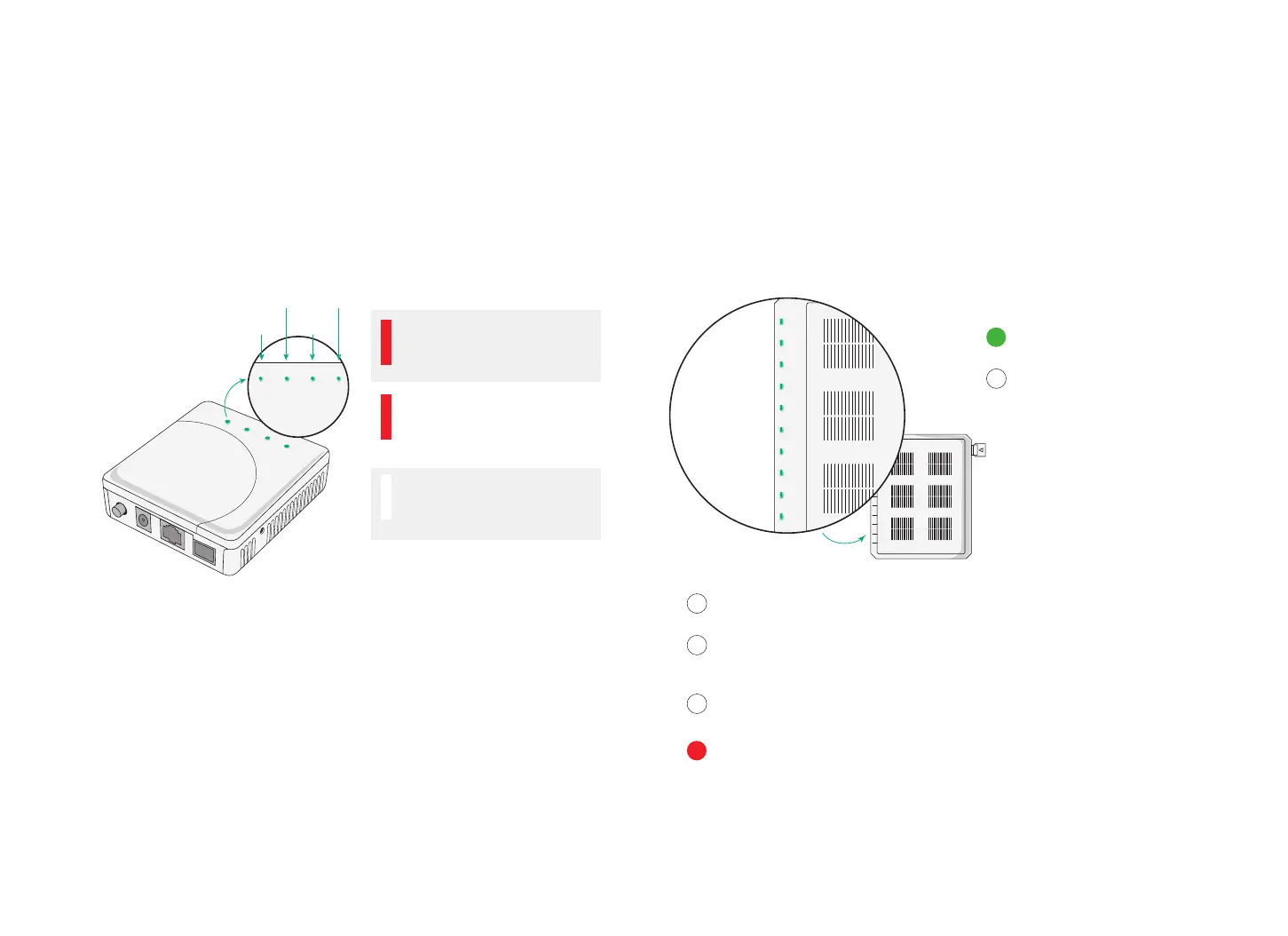
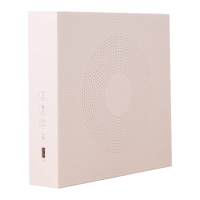
What do the lights on the Opticomm
Indoor device mean?
If the following lights on the Indoor device are red, you may need to contact us
for help. Before you do, we recommend that you switch the power to the Indoor
device off, wait a few seconds and then switch the power back on. If the lights
are still red, contact our support teams through telstra.com.au/support or on
the My Telstra app.
LAN (Ethernet
Alarm
connection)
PON
(fbre optic
Power
Power
Alarm
PON
LAN
ON/OFF
PWR
SC/APC
RESET
Power Alarm PON
LAN
Power
connection)
No green light, device is not
working correctly.
Alarm
Solid red light, device is not
working correctly, restart may
be required.
PON or LAN
No light, device is not working
correctly, recheck connections.
Are your cables plugged into the correct port on the
Opticomm Indoor device?
Make sure you’ve connected the cables to the correct ports on the Indoor
device. Check that the power supply is connected, and the device is switched
on. If your Opticomm connection still doesn’t work, contact our support teams
through telstra.com.au/support or on the My Telstra app.
What do the lights on the
Opticomm Outdoor device mean?
If the Status Indicators on the Outdoor device are red or have no lights, follow
the recommendations below. If your device still doesn’t work, contact our
support teams through telstra.com.au/support or on the My Telstra app.
PWR
BTRY
FAIL
DATA 1
DATA 2
DATA 3
DATA 4
NTWK
MGMT
POTS
Power Indicator
Green
Power on.
No Power
Check Opticomm device is
plugged in and switched on.
MGMT
No light - Not working correctly, turn device off and on and recheck.
NTWK
No light - Not working correctly, check connections are plugged in
correctly.
DATA 1 No light – devices not connected correctly.
DATA 2, DATA 3, DATA 4 – Not in use for Residential installations.
Fail - Device not working, turn device off and on and recheck.
Note: BTRY/POTS not in use
18



 To Next Page