5
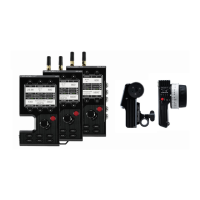
Ranger sets (TX and RX), are paired by default, requiring no additional configuration. Ranger devices
purchased separately need to be paired using the device's front panel (OLED) menu, Launchpad, or
the Launchpad App. NOTE: Before starting any pairing process, ensure that both the transmitter and
receiver have the same firmware version and have Bluetooth enabled.
PAIRING VIA THE FRONT PANEL MENU
Select Pairing to begin the pairing process. The transmitter will automatically pair to the receiver.
PAIRING
2
1
3
PAIRING VIA LAUNCHPAD
Open Launchpad, select the Pairing tab, then tap the Wired Pairing button.
2
1
3
Select the devices you want to pair, then click the Pair Devices button. Launchpad will indicate whether
or not Pairing is successful.
PAIRING VIA THE LAUNCHPAD APP
Select the transmitter you wish to pair, then tap the Next button.
2
1
3
Select the receiver(s) you wish to pair with the transmitter, then tap the Pair! button. The Launchpad
App will indicate when the pairing process is completed.
Using the Menu Joystick, navigate to the Pairing menu on both the transmitter and the receiver.
Once paired, the front panel will indicate whether or not Pairing is successful.
Connect both the transmitter and receiver(s) to your computer (Windows/Mac) via USB.
Open the Launchpad App from your iOS or Android device, then tap the Pairing button.



 To Next Page