52 TesVOlT bATTeRy MONITORINg sOfTwARe – bATMON
© TESVOLT We reser ve the right to make technical changes. Version RD.TI.015.E.ENG_Installation_Manual_TS48V_v.C.01 Last revised 06/2020
TESVOLT BATTERY MONITORING SOFTWARE BATMON
. VIEWS AND FUNCTIONS
TESVOLT BatMon is a piece of software that can be used to analyze and visualize batteries down to
cell level.
NOTE: The software can be found on the supplied TESVOLT USB-Stick
8
and must be installed in a
writable directory, e.g. on the “C:” drive, for start-up.
To obtain an overview of the battery using the BatMon software, the service laptop’s LAN connection
must be connected to the switch (see also “7.1 System structure”, page 37). In addition to this, the
switch must be connected to a DHCP enabled router.
After installation, launch the file “BatMon.exe”. Tick all the boxes in the firewall query about full access
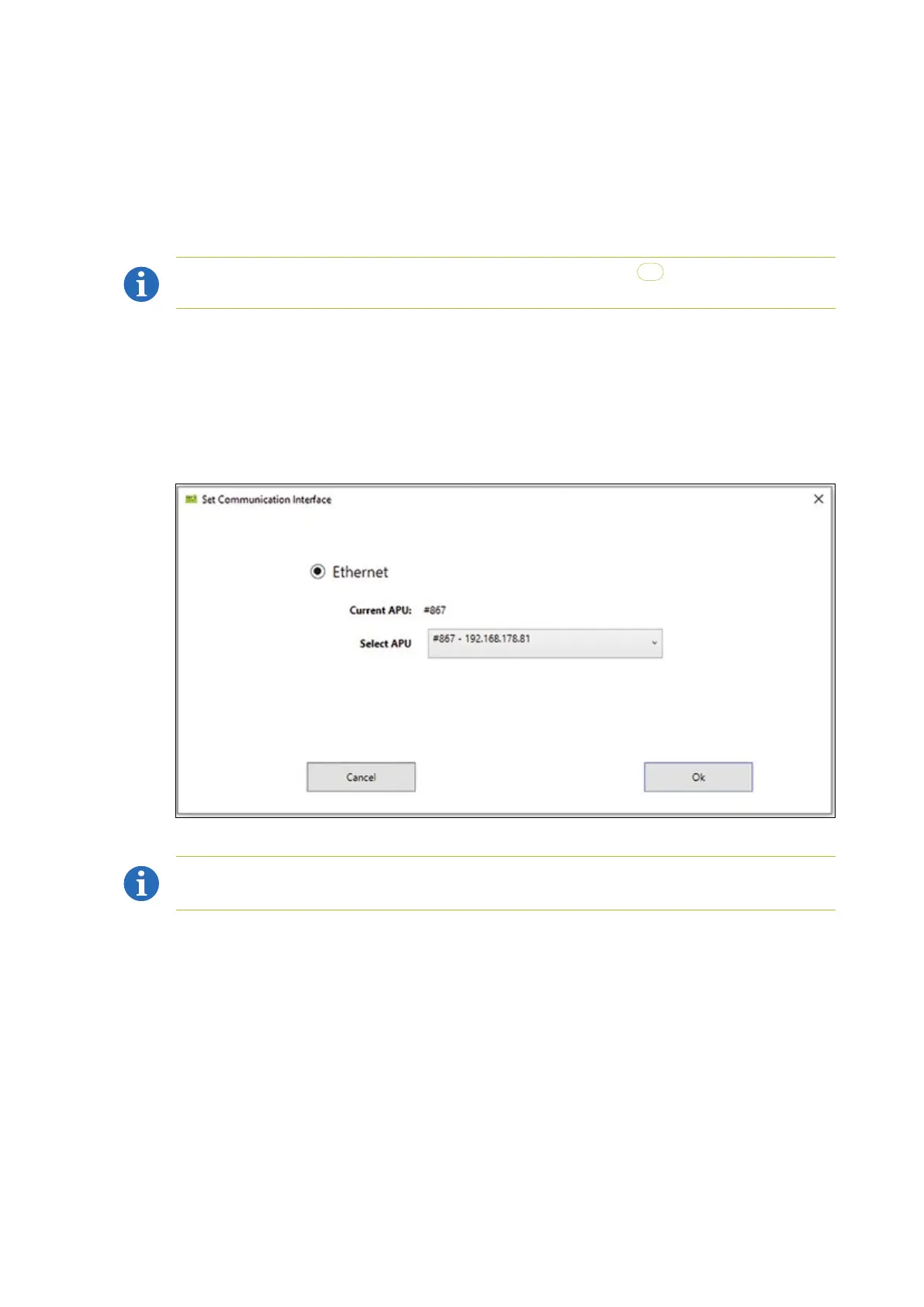
to the network. The “System” menu item at the bottom of the BatMon interface includes a “Communi-
cation Port” button. Here, the APU LV serial number (see note or sticker on the underside of the
APULV’s housing) and the IP address of the master (see display) must be selected under “Select APU”.
Figure 11.1 Screen for setting the network configuration
NOTE: If the configuration is correct and the battery is successfully connected, a continuous green
circle and the “online” icon will appear in the bottom right-hand corner of the BatMon interface.


 To Next Page