Therm-App MD User Manual
-------------------------------------------------------------------------------------------------------------------------------------------------------------------------
------------------------------------------------------------------------------------------------------------------------------------------------------------
Page 10 of 23
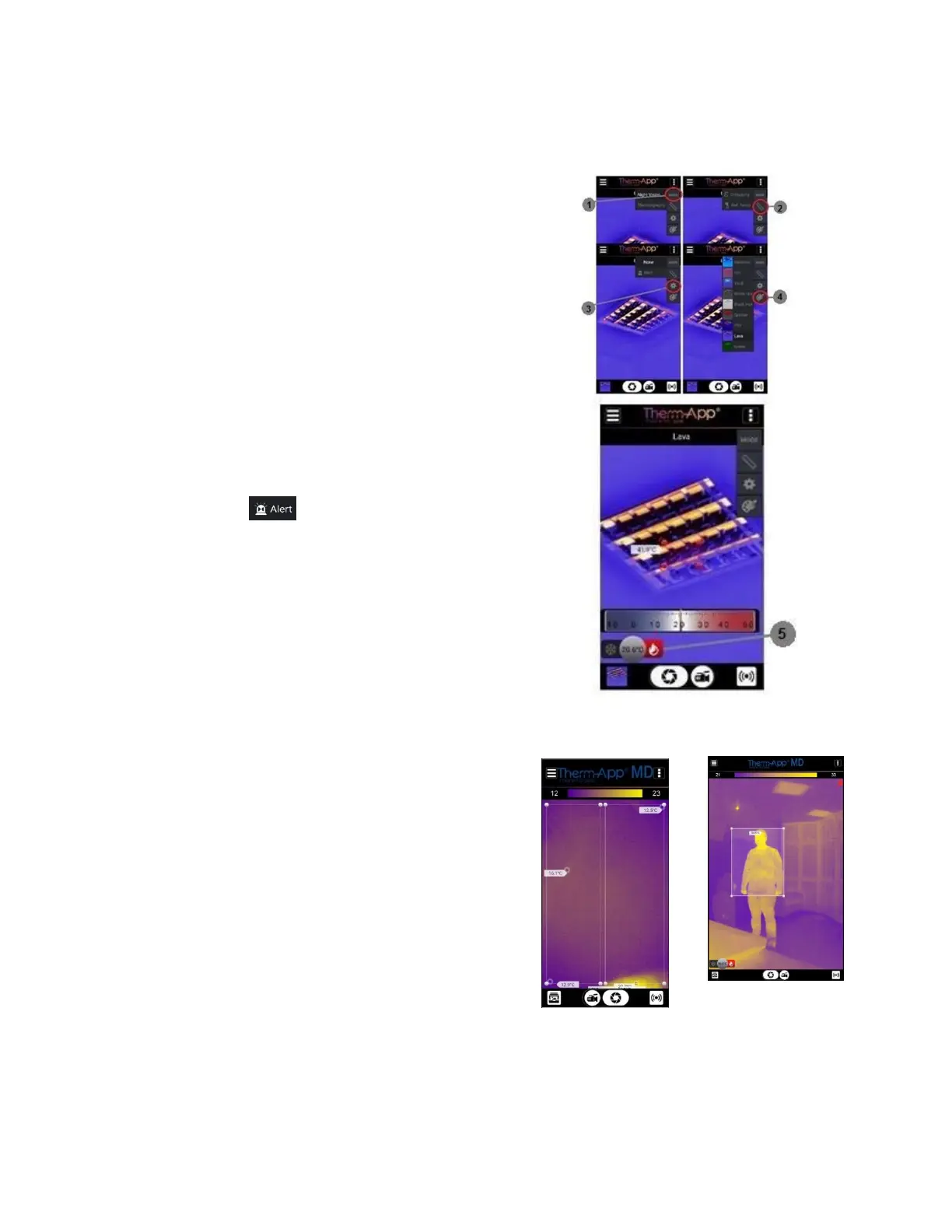
5.2 Quick Access Menu
This menu allows you to quickly select:
◼
Imaging Mode [1] – Thermography or Night Vision mode.
◼
Emissivity and Reflected Temperatures [2]
(see thermography settings).
Turn on Temperature alerts [3]
◼
Configure Temperature Alerts [5]
After you have turned on temperature alerts [3], you can set the
Therm-App® to flash a red alert when it finds something below a
certain temperature (snowflake icon) or above a certain
temperature (flame icon). The box flashes red once a subject inside
it crosses the preset temperature. In the image, the temperature
alert has been set to go off for anything above 20.6°c (69.08°F), and
the box is red because the subject/area inside the box is 41.9°c
(107.42°F).
Click on Alert
Two boxes will appear on the screen with small circles on each
corner.
◼
Click and drag the boxes to the region of interest. Each box can
be dragged to any position on the screen.
◼
Click and drag the corners of the boxes to resize the area of
interest.
◼
In case of overlap between the boxes, the alert will function
mutually in the overlapped area.
◼
To cancel alerts, press the NONE option.


 To Next Page