Thinklink - Connections
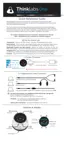
There are 4 jacks on Thinklink, two on the left, two on the right. The arrows (>,
<) show their positions. Follow the connection steps very carefully:
Before you start:
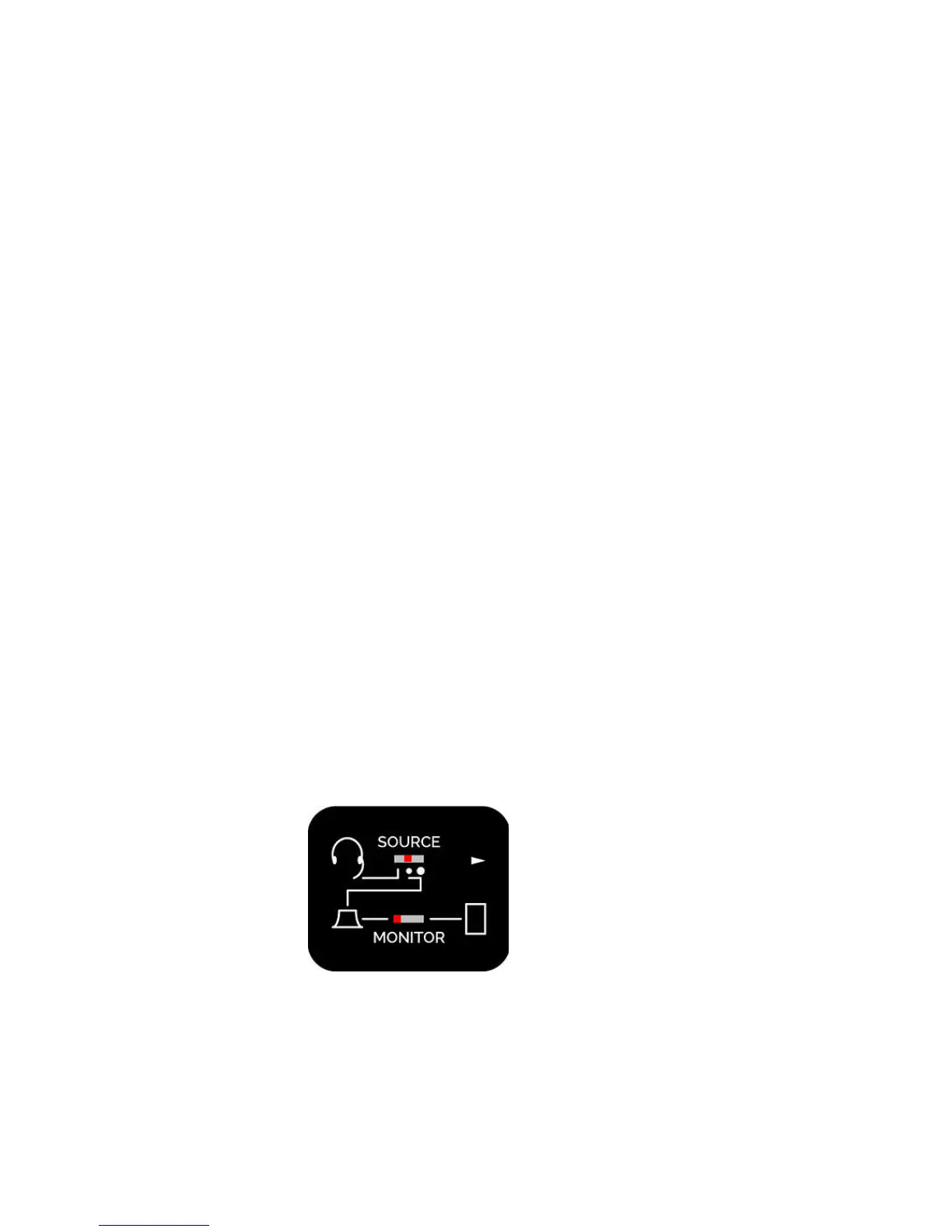
a. Set the SOURCE switch to the MIDDLE position.
b. Set the MONITOR switch to the left.
(1) Connect Headphones to the upper left jack.
(2) Connect Thinklabs One to the lower left jack via the long male-male cable
supplied with your One.
(3) a. Plug a short 3.5mm male-male right angle connector or short cable to the
lower right jack (3). Do NOT connect to iPhone or iPad yet.
(3) b. Turn on your Thinklabs One and set to a medium volume. Make sure all
switches are set correctly.
(3) c. Launch the Thinklabs Stethoscope App on your iPhone or iPad. If needed,
download the App and start these steps again.
(3) d. Once the App is running, and the One is ON, only NOW, plug the connector
or cable you plugged into jack (3) into your iPad or iPhone. AS YOU PLUG IT IN, a
message on the upper left corner should say "Headset". This tells you that the
iPad or iPhone is recording from your One, rather than recording from its built-in
mic. If the message instead reads "Built-In mic", unplug from the iPhone/iPad and
try again and if it doesn't want to cooperate, turn up the One and tap on the
diaphragm as you plug it into the ipad/iPhone. (What's going on is that the
iDevice makes up its own mind as to whether to use built-in mic or external, and
the only way to coax it to use external is to have a sound signal active AS the
plug is inserted.)
ToHeadphones(1)>
<PCMicJack
(NotReq'dforMobiles)From
ThinklabsOne(2)>
(3.5mmmalemale) <(3)ToMobileDeviceHeadsetJack
(RightAngleconnect./short3.5mmcable)
19


 To Next Page