Info Menu
13
EN
Press the INFO button on the remote control while a
disc is playing to display the Info menu.
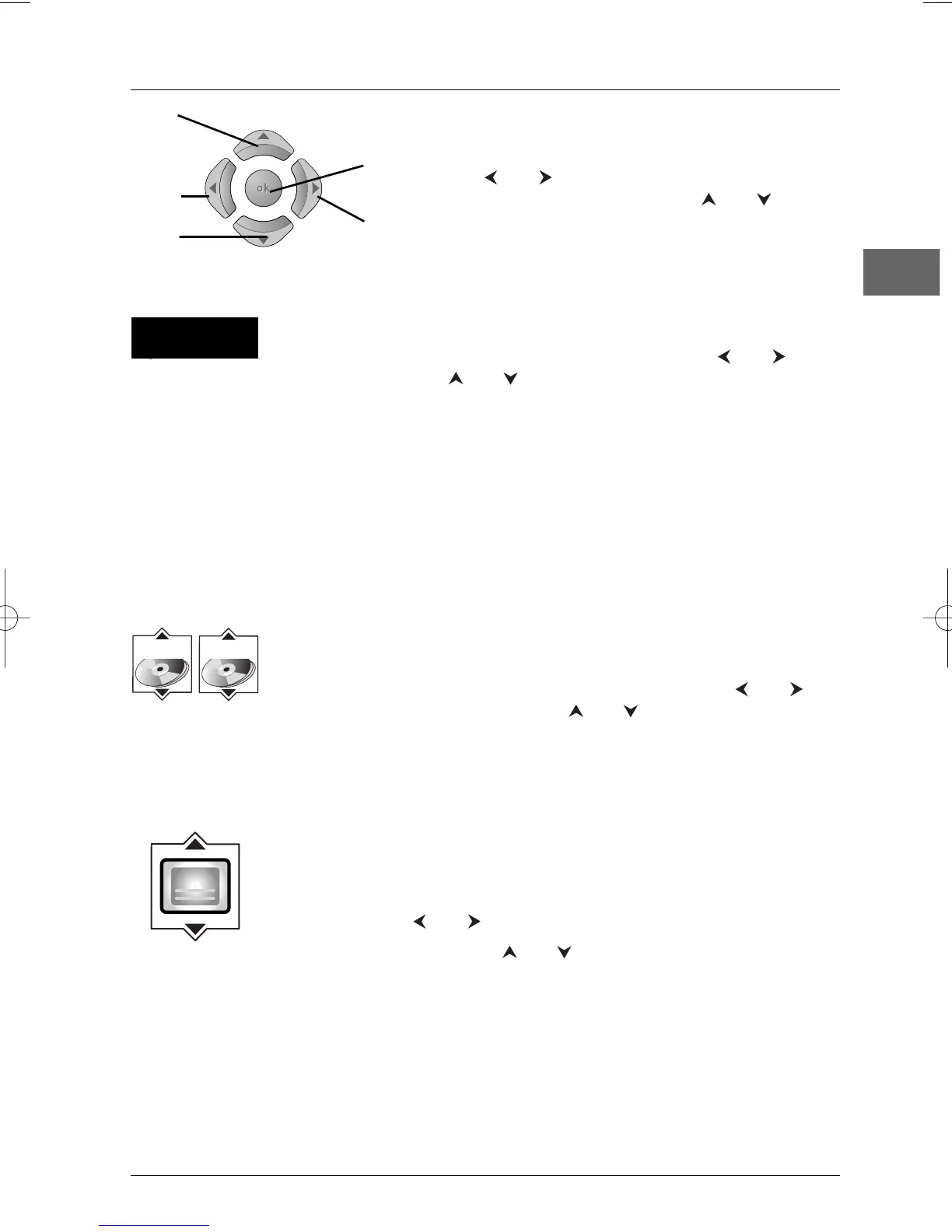
Use the and buttons on the remote control to
select the icon you want.Then use the and buttons
to select an option and press
OK to confirm your
selection.
Time display
Press the INFO button, select the Time display icon with the and
buttons, then press the and buttons repeatedly to display in turn:
DVD: Chapter elapsed time, Chapter remaining time,Title elapsed time and
Title remaining time;
VCD and audio CD:Track elapsed time and Track remaining time.
To directly access a location on the disc which does not correspond to the
start of a title or chapter, enter a time with the numeric buttons (format
hh:mm:ss).
Note:This function may not be available on all discs.
Title/Chapter (DVD) / Track (audio CD and VCD)
To directly access a title or a chapter (DVD), or a track (audio CD and VCD),
press the
INFO button, then select one of these icons with the and
buttons, and choose a number using the and buttons or enter a number
directly with the numeric buttons.
Note: Many discs only have one title.
Subtitles (DVD and DivX)
Subtitles are disabled by default.You enable the subtitle function as follows:
1. While the disc is playing, press the INFO button, then select the Subtitles
icon using the and buttons.
2. Select a language using the and buttons.
3. To disable the subtitle function, select the Off option.
Notes:
When you change the language of the subtitles using the Info menu your choice of
language only applies for the disc currently being played.When you eject the disc and
switch off the player, the subtitles will be displayed again in the subtitle language you
selected in the Languages menu (see page 25).
This function may not be available on all discs.


 To Next Page