Player menus
23
EN
Display settings
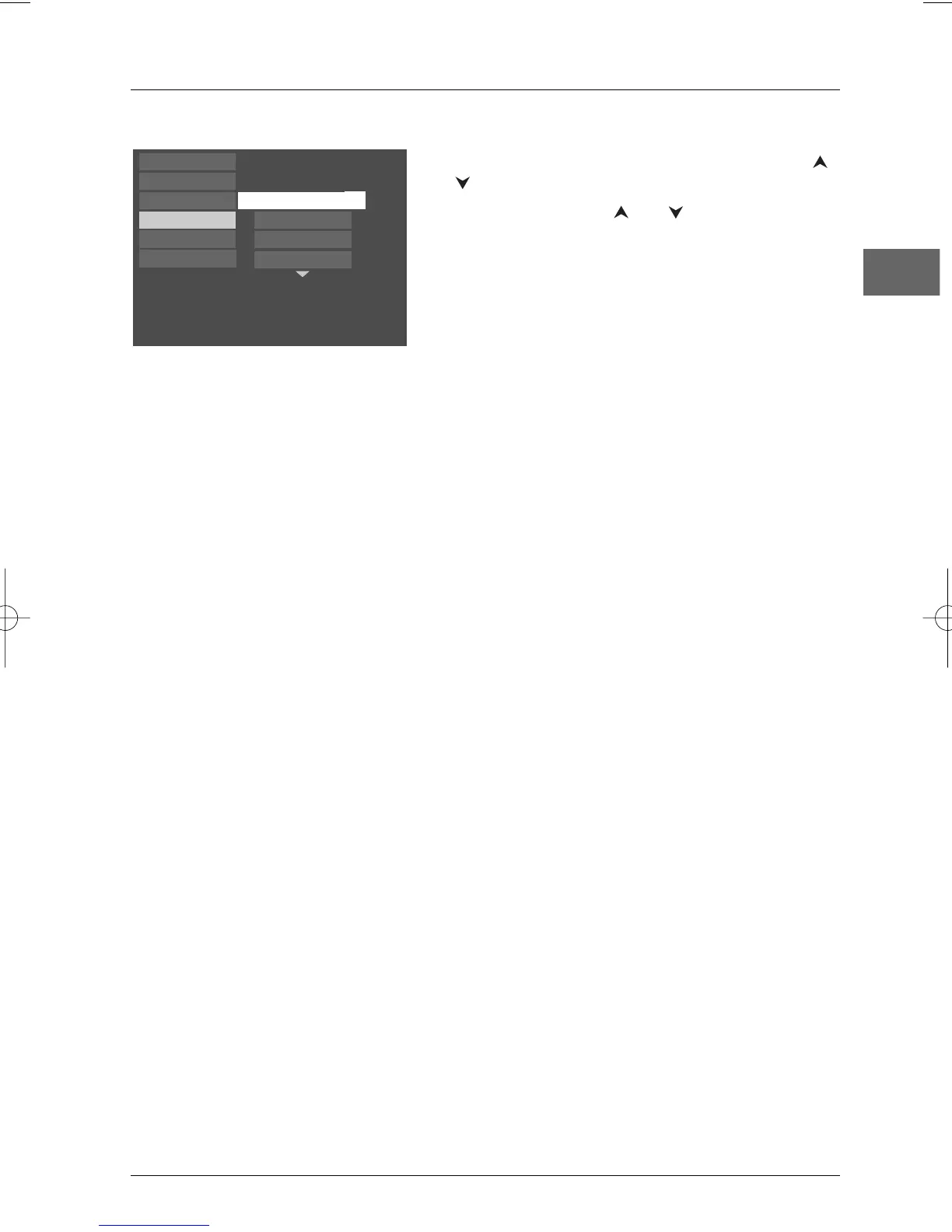
Select the Display option in the main menu using the
and buttons, and press
OK to confirm.
Select an option using the and buttons, and press
OK to confirm.
4x3
standard
Dim
Normal
PAL
Play
Play Mode
Parental Control
Display
Sound
Languages
Front display
Black level
PAL/NTSC
TV Image
TV Image
Depending on the format of the DVD disc, you
can choose the picture format best suited to
the format of your TV screen:
4x3 Letterbox: gives best reproduction
of pictures recorded in this format (i.e.
with horizontal bands at the top and
bottom of the screen) or in 16x9,
4x3 Standard: reproduces a 4x3 picture
without distortion,
16x9 Widescreen: reproduces 16x9
format films in full on a 16x9 screen.
Front Display
This option lets you choose how the front
display of the DVD player appears.Three
settings are available:
Auto: the front display brightness dims
when a disc is playing,
Bright: the front display is always bright,
Dim: the front display is always dim.
Black level
This option lets you adjust the video brightness
level.
Three settings are available: Normal, Dark
and Light.
PAL/NTSC
In addition to PAL DVDs and VCDs, you can
enjoy NTSC films as well (a 60Hz PAL
compatible TV set is required). If the pictures
from the DVD being played appear in black and
white on your screen, try changing the colour
standard.
Set the function to PAL or NTSC.
Video
This option lets you select the video output of
your appliance: Component if your TV is
connected to the component video socket of
the player, or RGB if your TV is connected to
the Scart socket of the player.
Progressive Scan
Progressive Scan provides high-quality pictures
with less flicker.Turn on Progressive Scan if you
used the Component Video sockets of the
player to connect a TV or monitor compatible
with a progressive scan signal.
Press
OK to activate Progressive Scan.
Caution! Once Progressive Scan has been
activated, an image will only be visible on a
progressive scan TV or monitor. If you activate
Progressive Scan by mistake, you should take the
following steps to reset the unit: open the disc
tray, press and hold the SUBWOOFER button
on the front panel.The video output will be
restored to the standard setting and a picture will
once again be visible on a conventional analogue
TV or monitor.


 To Next Page