Player menus
25
EN
Language settings
With this menu, you can set the language for player
menus, dialogue, subtitles and the disc menus.
If you chose "English" during initial set-up, the main menu
is displayed in English, any menus generated by the disc are
in English, as is the language used in dialogue (if this
language is available on the disc).
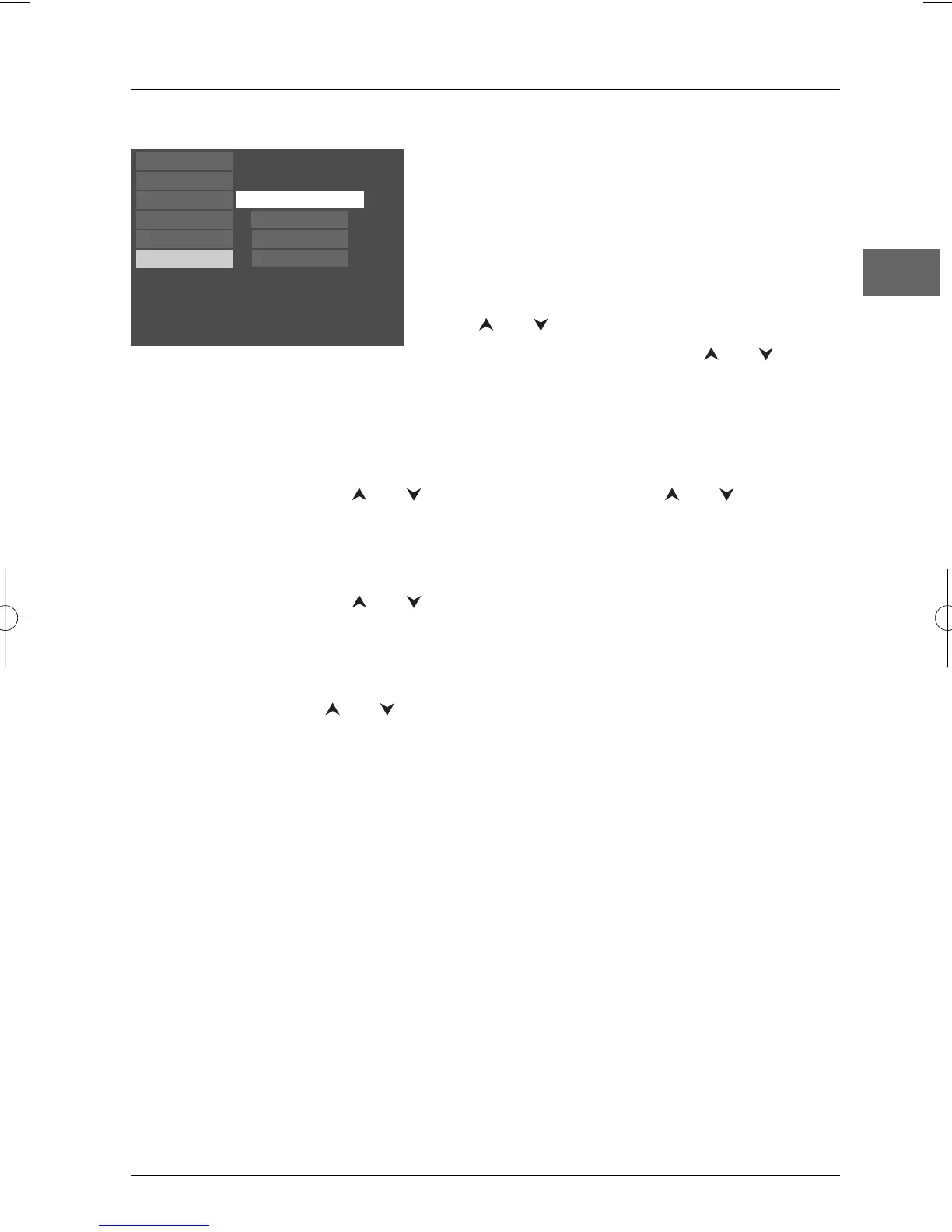
1. Select the Languages option in the main menu using
the and buttons and press
OK to confirm.
2. Select one of the options using the and
buttons, and press
OK to confirm.
English
English
English
English
Play
Play Mode
Parental Control
Display
Sound
Languages
Disc Menus
Player Menus
Subtitles
Audio
Player Menus
To change the language of the player menus,
choose the language using the and
buttons and press
OK to confirm.
Disc Menus
To change the language of the disc menus,
choose the language using the and
buttons and press
OK to confirm.
Audio
1.
To change the dialogue language, choose
the language using the and buttons
and press
OK to confirm.
Note: If the selected language is not available on
a disc, the disc’s default language will be used
instead.
2. To change the language during play, display
the Audio icon by pressing the
AUDIO
button on the remote control (see page 14).
Subtitles
1.
To change the subtitle language, choose the
language using the and buttons and
press
OK to confirm.
Note: If the language chosen is available, it is
automatically selected when you display the
subtitles (see page 13). Otherwise, the subtitle
language indicated on the disc is selected instead.
2. To change the language of the subtitles
during playback, display the Info menu by
pressing the
INFO button on the remote
control (see page 13).


 To Next Page