OUTDOOR 1080P IP WIFI CAMERA
EN
18
D - CONFIGURATION AND USE
Note: it does not matter who the email provider
of the recipient is, as it is the email provider of
the sender that dictates what needs to be entered.
However, you must ensure that the alerts are not
treated as spam by the recipient's inbox.
Note: some email providers will not accept that the
camera sends notications without authorisation
from you. Refer to your mailbox safety settings for
more details.
Information: Our technical support will not be able
to help you with these settings if you contact them,
as it depends solely on your mailbox. For more
information, please contact your email account
provider.
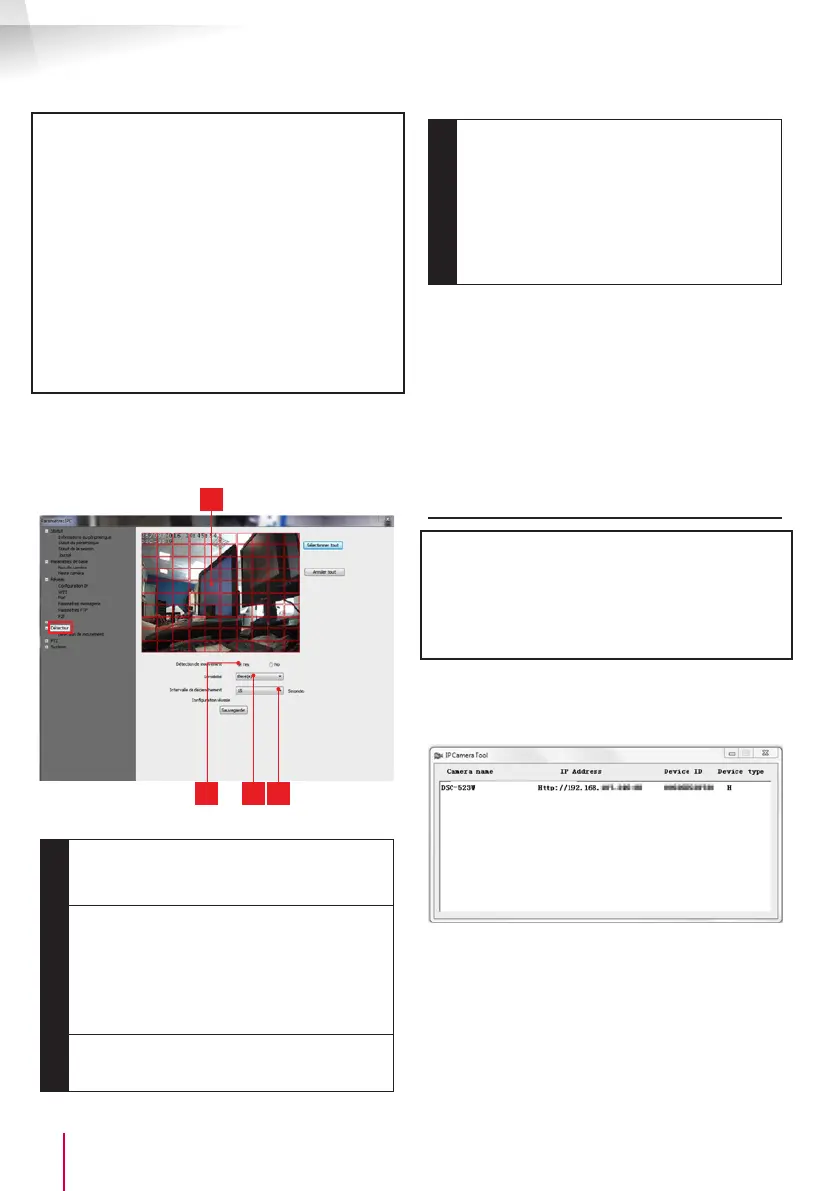
When you have nished conguring your camera,
it will be able to send emails. You must now tell
it when to send them, by clicking "Détection de
mouvement [Movement detection]":
4
2 31
1
Tick "Yes " to activate movement detection
then click "Sauvegarder [Save]" to display the
area grid on the image.
2
Sensitivity: On "élevée [high]", the smallest
movement on the screen triggers an alert.
On "minimum", only the biggest objects
will trigger an alert (for example: a human
being, but not a dead leaf in the camera's
eld of vision). Adjust to suit the camera's
eld of vision and the desired objective.
3
Trigger interval: pause between alerts if
movement is detected over an extended
period
4
Detection zone: The camera feed appears
behind a grid. If movement is detected in a
red box, an alert is triggered. If movement
is detected in a blank box, no alert is
given. Click boxes to activate them (red)
or deactivate them (blank), for example,
so as not to focus on a window and to
prevent anything on the outside from being
unnecessarily triggered.
IMPORTANT: When you have nished conguration,
do not forget to click "Sauvegarder [Save]" at the
top of the screen to save everything you have
entered.
This completes the conguration. From now on, any
movement detected by the camera in the zones
and at the times you have specied will trigger an
email alert.
3 - CONFIGURATION USING A WEB BROWSER
Warning: frequent policy changes made by the
main web browser developers as well as the
number of possible congurations and versions can
make it tricky to congure your camera. If possible,
it is preferable to use a smartphone, tablet or
dedicated software.
• Download the IP Camera Tool software from
our website:
http://www.thomsonsecurity.eu/
docsphp?lang=FR&type=5&ref=512397
• This will detect your camera on the network
and show its IP address.
• Double-click its name to open the camera
conguration in your web browser.


 To Next Page
 Loading...