17
GB
GB
Preferred languages
Set-up menus
Player menu language
ok key
return key
1 If a disc is playing, press STOP (29).
2 Call the “MAIN MENU” with the
menu key (19).
3 Make your selection with the ,
arrows (14, 16, 17, 18).
4 Use ok (15) to confirm a selection
(or use number keys (24) to select and
confirm at once).
5 Use return key (20) to go back to
previous menu.
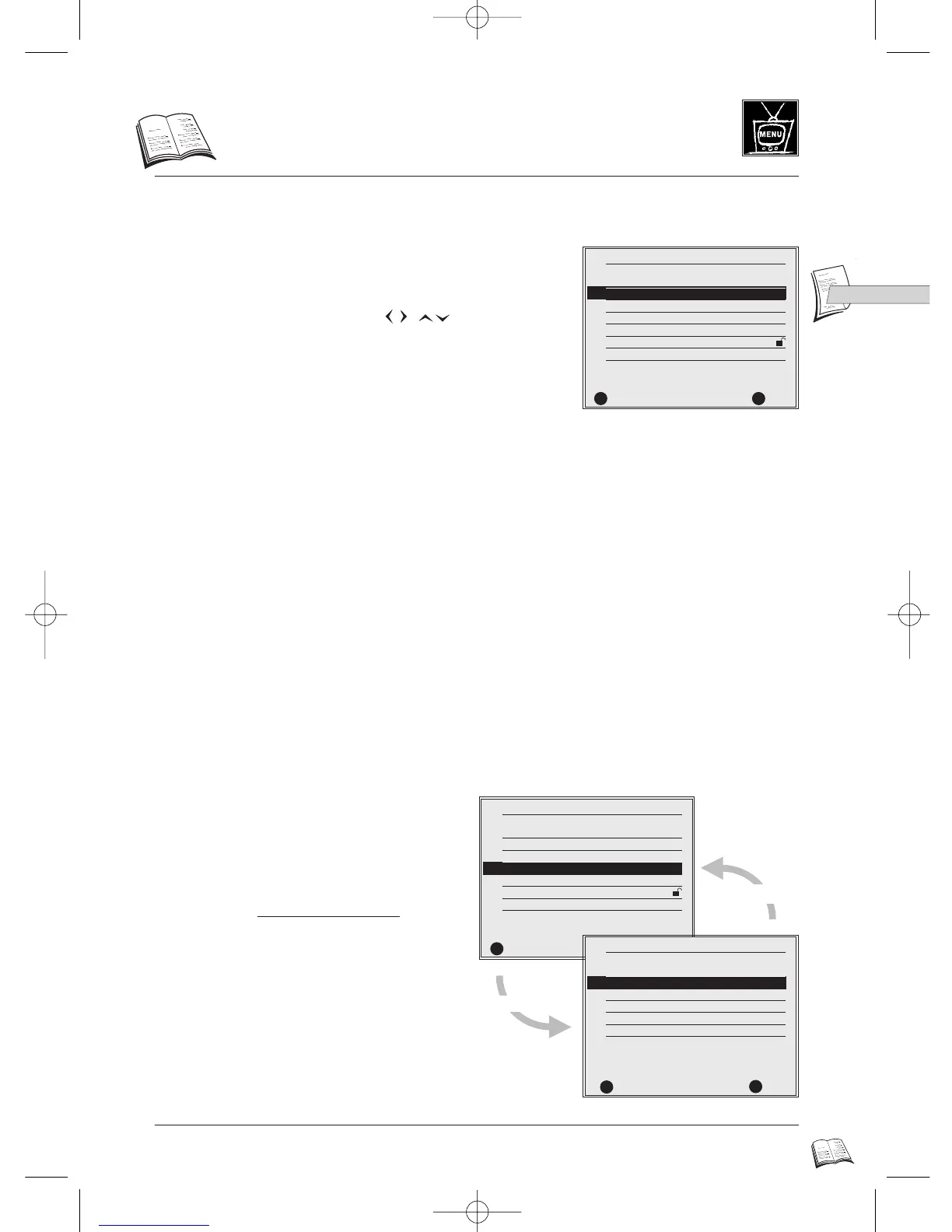
• 1 Audio to set preferred dialogue language.
• 2 Subtitles to set preferred subtitle language.
• 3 Player Menu to set language of the player menu.
• 4 Disc Menu to set language of the disc menu.
• 5 Rating Limit to set parental lock level to skip over scenes that may be unsuitable.
• 6 Audio Options to set audio option according to the connected devices (p 16-36).
• 7 Display Options to set screen options according to the connected TV (p 19-21 / 34-35).
Configure this setting if you want to change the language of the player’s menus (not necessary
after initial set-up, page 5).
1 If a disc is playing, press STOP (29).
2 Call the “MAIN MENU” with the
menu key (19).
3 To change player menu language
, select
“Player Menu”; press key number 3
(24).
4 Make your selection with the
number keys (24).
5 Press return (20) to exit “MAIN MENU”.
• If you want to exit set-up menu, press
return (20) (repeatedly).
MAIN MENU
1 Audio English
2 Subtitles Automatic
3 Player Menu English
4 Disc Menu English
5 Rating Limit Unlocked
6 Audio Options
7 Display Options
RETURN OK
im
RR
✔
MAIN MENU
1 Audio English
2 Subtitles Automatic
3 Player Menu English
4 Disc Menu English
5 Rating Limit Unlocked
6 Audio Options
7 Display Options
RETURN OK
im
RR
✔
PLAYER MENU LANGUAGE
1 English
2 Français
3 Deutsch
4 Italiano
5 Español
6 Svenska
RETURN OK
im
RR
✔
DTH4500-GB 7/09/00 13:33 Page 17



 To Next Page