1 If a disc is playing, press STOP (29).
2 Call the “MAIN MENU” with the menu key (19).
3 Select “Audio Options” with key number 6 (24).
4 Select “Speakers” with key number 6 (24).
5 Move to the items using the arrow keys (18,
16), (14, 17) and press ok (15) to confirm.
6 Select the value to be adjusted with the (14,
17) arrows and press ok (15) to confirm.
7 To save your settings when you have finished,
press return key (20). (Otherwise, all original
settings are restored.)
In this case, the “Audio Options” menu is
displayed.
8 To exit “MAIN MENU”, press twice return (20).
38
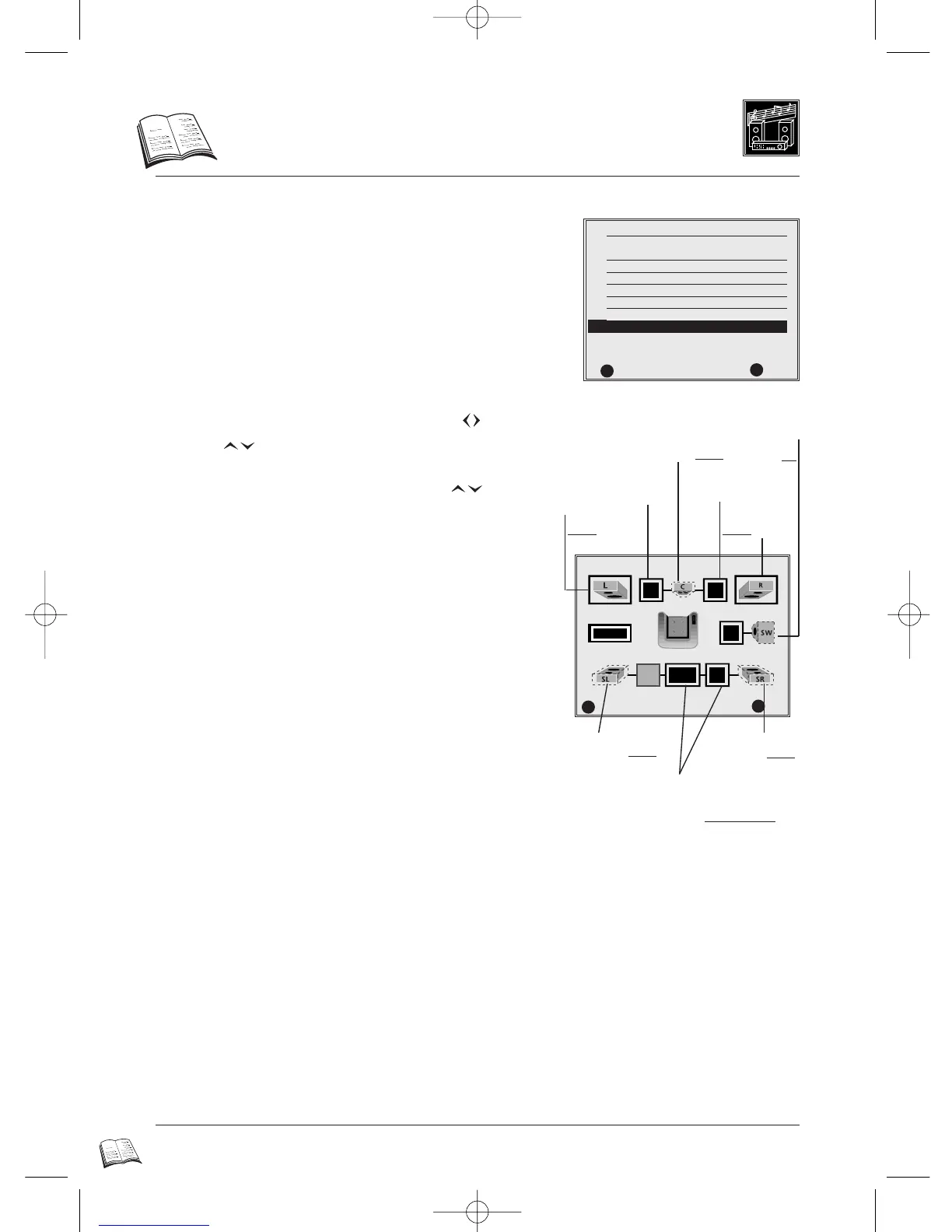
Speakers
Speaker setting principle
Speaker icons display and size
• If the speaker is connected, display the corresponding icon on-screen. If it is not connected, delete
the icon.
• If the speaker restores low frequencies (<100 hz), select the large icon.
• If the speaker provides poor quality at low frequencies (<100 hz), select the smaller icon.
• If the subwoofer is not connected, select the large icon for the front speakers (LH/RH).
Note: The setting speaker icons’ size (large/small) has no effect on DVD discs in Audio
Multichannel MPEG 2.
✔
✔
AUDIO OPTIONS
1 Dolby Digital Out PCM
2 MPEG-2 Digital Out PCM
3 DTS Off
4 Dynamic Compression On
5 2x Playback Audio On
6 Speakers
RETURN OK
im
RR
✔
Surround (L/R)
Delay time



 To Next Page