10
E-DOC-CTC-20051017-0147 v1.0
Chapter 1
Getting to know your SpeedTouch™
1.2.3 Access via FTP
To access the
SpeedTouch™ via the
File Transfer Protocol
(FTP)
You can access the file system of the SpeedTouch™ via the File Transfer Protocol
(FTP), in order to:
Restore or back up configuration files, templates or language packs.
Upgrade your configuration or firmware.
File system The SpeedTouch™ file system is stored on non-volatile memory and contains the
SpeedTouch™ software, service template files and (optionally) default setting files.
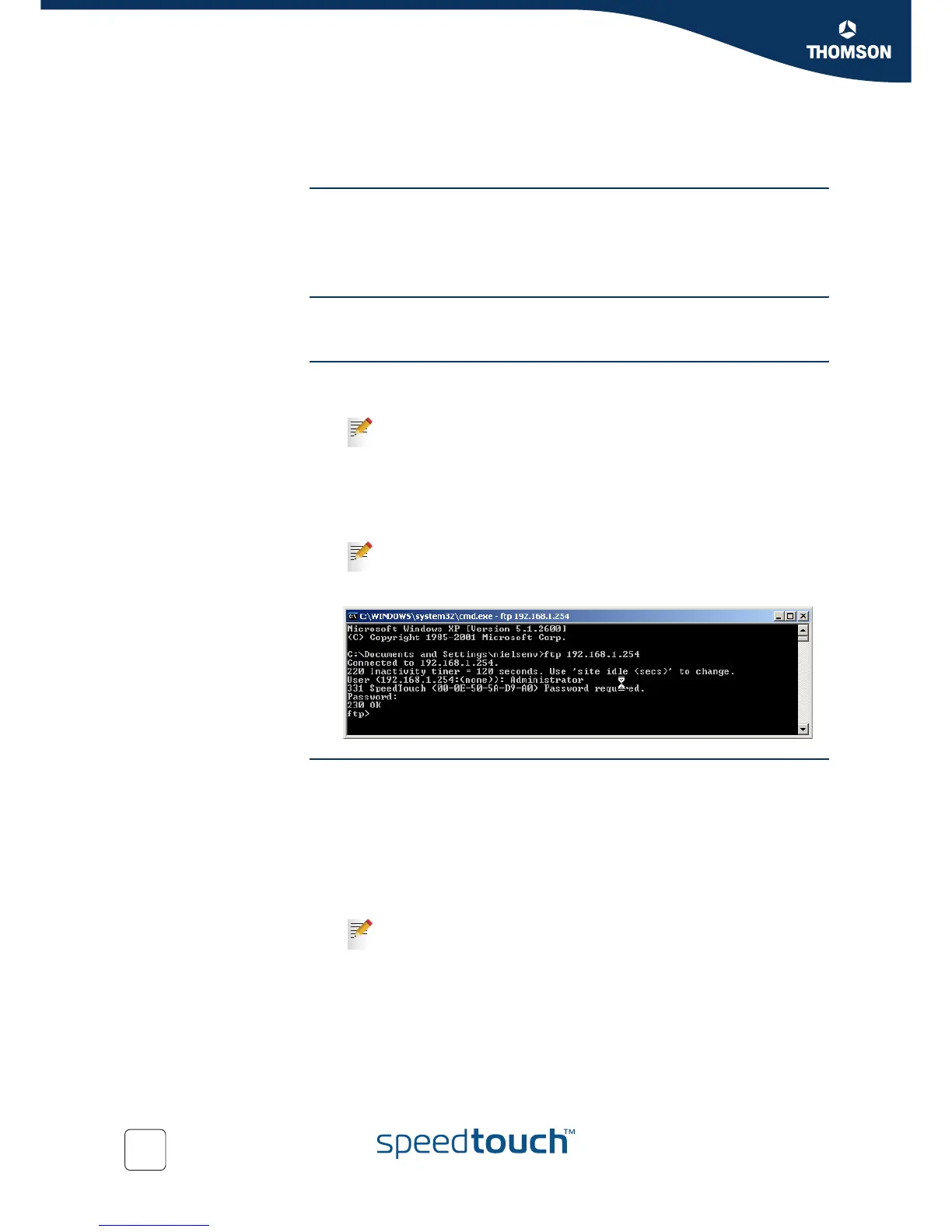
To open an FTP session Proceed as follows:
1 Open a Command Prompt window.
2 At the prompt, type ftp followed by the IP address of your SpeedTouch™
(192.168.1.254 by default).
3 Enter your SpeedTouch™ security user name and password.
The example below shows an FTP session to the SpeedTouch™ file system.
File system structure The structure of the file system is very simple: it consists of a single root directory
called root and two subdirectories called active and dl (download).
The root directory contains:
all the necessary files for the SpeedTouch™ to start correctly
the active and the dl directories
The active directory contains the active software image.
The dl directory contains the passive software image.
In Microsoft Windows XP for instance:
1 On the Windows taskbar, click Start.
2 Select
(
All) Programs > Accessories > Command Prompt
.
The default user is ‘Administrator’ and the default password is blank.
If you made changes to the SpeedTouch™ configuration and saved
them, a user.ini configuration settings file is created in the dl
subdirectory.





 To Next Page