Page 43 ETN040053-D02
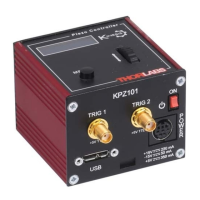
K-Cube Inertia Piezo Motor Driver
Go To Position - Deflecting the wheel starts a move from the current position to
one of the two predefined “teach” positions. The teach positions are specified in
the Preset Pos. 1 and Preset Pos. 2 parameters, and are measured in number of
steps from the home position. In this mode, move the joystick left (Ch1 and 3) or
up (Ch 2 and 4) to go to position 1, and right or down to go to position 2.
Note. The motor can be zeroed by clicking the ‘Zero’ button on the GUI panel. Doing
this will zero the position counter, and subsequent moves will be measured from the
position the motor was at when the counter was zeroed.
Direction Sense
The direction of a move initiated by the joystick is specified as follows:
Disabled - The joystick is disabled to remove any unwanted motion due to
accidental movement of the wheel.
Direction Sense Positive - Upwards (CH2 and CH4) and left (CH1 and CH3)
movement of the joystick results in a positive motion (i.e. increased position
count).
Note. The following option applies only when the Mode is set to Velocity Control.
If set to Position Jogging or Go to Position Mode, the following option is ignored.
Direction Sense Negative - Upwards (CH2 and CH4) and left (CH1 and CH3)
movement of the joystick results in a negative motion (i.e. decreased position
count).
Maximum Step Rate
This parameter specifies the maximum velocity (step rate) used when moves are
instigated via the joystick, in the range 1 to 1,000 steps per second.
Display Brightness
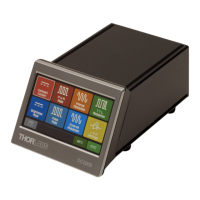
In certain applications, it may be necessary to adjust the brightness of the LCD display
on the top of the unit. The brightness is set in the Active Level parameter, as a value
from 0 (Off) to 100 (brightest). The display can be turned off completely by entering a
setting of zero, however, pressing the MENU button on the top panel will temporarily
illuminate the display at its lowest brightness setting to allow adjustments. When the
display returns to its default position display mode, it will turn off again.
Persist Settings to Hardware
Many of the parameters that can be set for the Piezo Driver K-Cube can be stored
(persisted) within the unit itself, such that when the unit is next powered up these
settings are applied automatically. This is particularly important when the driver is
being used manually in the absence of a PC and USB link. The joystick settings
described above are good examples of settings that can be altered and then persisted


 To Next Page
 Loading...