14
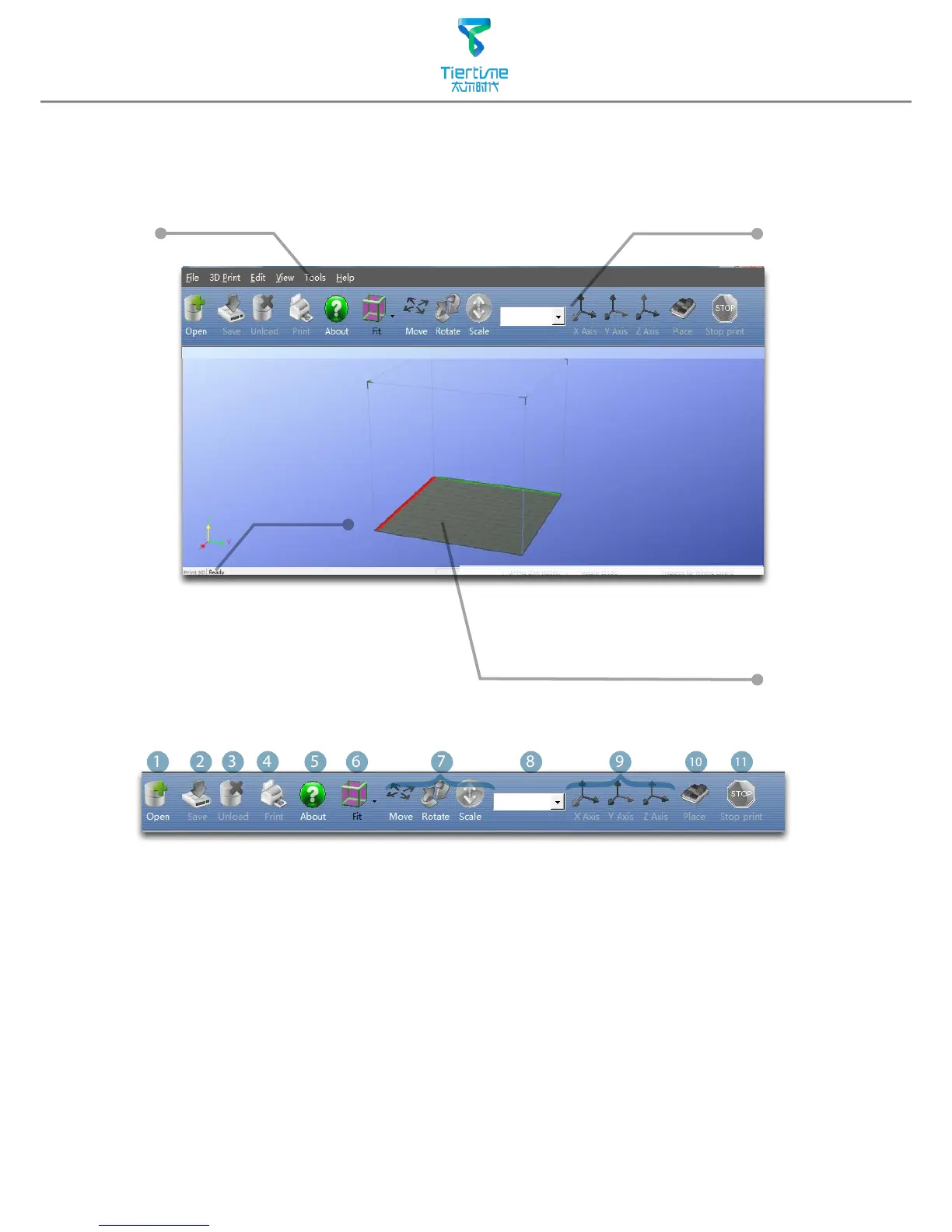
Quick functional Buttons
Main Menu
Status Bar
Display the statsu
of printer and
software.
Software Interface
1. Open: Load a model
.
2. Save
:
Save the model into .UP3, a propritory 3D le format for UP printers.
3. Unload: Unload the selected model.
4. Print
:
Print the current print plate.
5. About
:
Display software version, printer model, rmware version and etc.
6. View Perspective: A variety of pre-set of perspective.
7. Adjustments
:
Move, Rotate, Scale.
8. Set the value of adjustments.
9. Set the orientation of adjustments.
10. Place
:
Place the model to the center of the print plate. If more than one model exist
software will optimize their positions and distances to each other.
11. Stop: If connected to printer, click this will stop the printing process. (cannot be
resumed)
Print Plate
- left mouse click and hold, moving
mouse to adjust camera angle.
- Right mouse click and hold, moving
mouse to move print plate.
-Mouse wheel could scale the print
plate view.
- The print plate size depend on
the printer model connected to
computer.



 To Next Page