10
Tilgin HG2300 series Quick Guide
4.4.2.1 Configuring WLAN Client for computer devices
The Wireless LAN configuration is dependent on your computer/operating
system. For more detailed instructions refer to your computer operating systems
Help.
If you have received instructions from your operator regarding WLAN security
level settings, you should follow these instructions when running the WLAN
configuration.
If the configuration fail, and/or your operator do not recommend specific WLAN
settings, use the default WLAN port settings below.
Default WLAN port settings
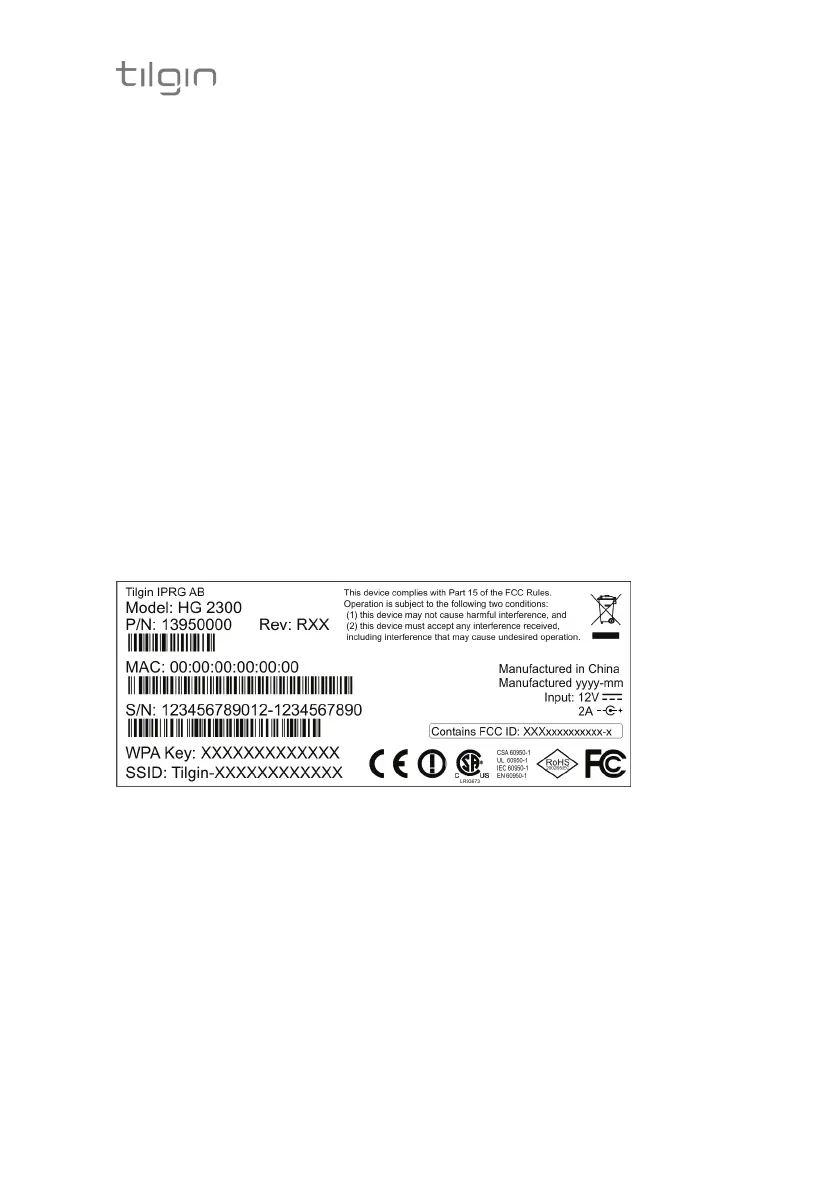
Check that the parameters for WLAN are set according to SSID and WPA key
found on the casing label on the back of the home gateway.
SSID = Tilgin-<12 random characters>
Example: Tilgin-1wa23sbg9skm
Channel = Auto
Note: Your operator may instruct you to use a WPA key that they provide to
you, or use the WPA key printed on the label on the backside of the home
gateway.
Make sure your WLAN profile is saved, and make sure your computer network
settings are configured properly.
4.5 Configuring your computer/device
Your computer must be configured properly to be able to connect to the Internet
and the computers network card and network properties must be configured to
obtain an IP address from the home gateway’s built-in DHCP server.
This means that you must check that your computer network settings are set to
TCP/IP protocol and that the IP address will be obtained automatically.
For detailed instructions how to set up your home network check
instructions/Help for your operating system on your computer.


 To Next Page