Need help?
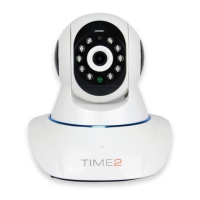
Do you have a question about the Time2 Oscar3 and is the answer not in the manual?
A working internet connection on a 2.4Ghz frequency channel.
An Apple or Android Smartphone or Tablet PC.
Download the Clan at Home app and register.
Direct access to an indoor power socket.
A power drill with Phillips driver bit.
To install on surfaces such as brick or concrete.
Turn Oscar on and complete set up indoors before taking it outside.
Explains the meaning of the LED indicator lights during startup and connection.
Steps to add the camera to the Clan at Home app for initial setup.
Guidance on selecting an optimal location for mounting the camera.
Check Wi-Fi strength in the desired installation area before mounting.
Troubleshooting advice if the live stream is not working due to Wi-Fi signal.
View the current Wi-Fi signal strength of the camera within the app.
Access additional settings and configurations for the camera within the app.
Expand the camera's live view to a full-screen display.
Control the audio output of the camera, enabling or disabling the speaker.
Enable two-way audio communication by speaking through the app.
Capture still images from the live feed and save them to your device.
Access and view video recordings stored in the cloud.
Access and view video recordings stored locally on the SD card.
Save live video streams directly to your smartphone's storage.
Configure the camera to send push notifications for detected movement.
Configure settings for detecting sound and triggering alerts.
Configure settings for detecting motion and triggering alerts.
Adjusting sensitivity to reduce unnecessary motion or sound detection notifications.
Control the audio output of the camera, enabling or disabling the speaker.
Temporarily stop the video playback or recording.
Expand the camera's view to a full-screen display.
Navigate through recorded footage by selecting a specific time.
Choose a specific date to view recorded footage.
Capture a still image from the video feed and save it to the photo gallery.
Manually start or stop video recording and save it to the photo gallery.
Access camera settings by clicking the pencil icon.
Navigate to the option for purchasing Video Cloud Storage services.
Initiate the subscription process for cloud storage services.
Select the desired cloud storage plan based on your needs.
Navigate to the 'Me' section in the app to manage account settings.
Access additional services, including cloud storage, from the 'More Services' menu.
Select the 'Cloud Storage for Cameras' option to manage bundled storage plans.
Initiate the subscription process for bundled cloud storage services.
Select the desired bundled cloud storage plan and proceed to payment.
Access the cloud storage section to view recorded footage.
Control the audio output of the camera, enabling or disabling the speaker.
Temporarily stop the video playback.
Expand the camera's view to a full-screen display.
Navigate through recorded footage by selecting a specific time.
Select specific recorded events triggered by motion detection.
Manually start or stop video recording.
Capture a still image from the video feed and save it.
Choose a specific date to view recorded footage.
Access the setting to define a specific surveillance area for motion detection.
Define and save the custom area for the camera to monitor.
Access the scheduling feature to set detection times.
Initiate the process of adding a new scheduled event.
Configure the schedule details and save the settings.
Access the Home Management section by clicking the current home name.
Choose the 'Home Management' option to manage your connected devices and settings.
Select your specific home to view and manage its associated devices.
Modify home settings, update location, or add new family members to the account.
Initiate adding a family member by selecting 'Add Member' and then 'App Account'.
Enter the new member's name and account details, then save.
Select the specific Oscar camera you wish to share.
Access camera settings by clicking the settings icon.
Navigate to the option for sharing the camera with others.
Initiate the process of adding a user to share the camera with.
Input the email address associated with the recipient's Clan at Home account.
The shared device will be listed under the recipient's account.
The recipient receives a notification confirming the shared device.
The shared camera is now visible in the recipient's 'Received devices' list.
Indicates which camera is currently selected for control or focus.
Enable audio playback to listen to sounds captured by the camera.
Capture and save still images from the live feed to your device.
Activate two-way audio to speak through the camera's speaker.
Save live video streams directly to your smartphone's storage.
Expand the camera view to occupy the entire screen.
Navigate to the specified website URL on your computer.
Access the 'Me' section of the Clan at Home app.
Click the icon to enter the web view interface.
Scan the displayed QR code with your phone's app to log in.
Confirm the login process after scanning the QR code.
Choose the desired home from the list to view associated cameras.
Choose a specific camera from the list to view its feed.
Enable audio to hear sounds from the camera's location.
Expand the camera view to the full screen.
Access recorded footage stored in the cloud.
Choose to view multiple cameras simultaneously.
Launch the Amazon Alexa application on your device.
Navigate to the 'Devices' section within the Alexa app.
Access the 'Smart Home Skills' section to manage connected devices.
Activate the 'Smart Home Skills' feature to discover devices.
Search for the 'Smart Life' skill within the Alexa app.
Select the 'Smart Life' skill and enable its usage.
Log in with Clan at Home credentials to link the account.
Confirm linking the Clan at Home app to Alexa.
Grant permission for Alexa to control your devices.
Close the account linking window after successful connection.
Initiate the discovery of compatible smart home devices.
Alexa scans for devices that can be controlled.
Control discovered devices via voice commands with Alexa.
Launch the Google Home application.
Locate and tap the 'Add' icon to manage devices.
Select the 'Set up device' option to add new devices.
Choose 'Works with Google' to link services.
Find and select 'Smart Life' from the list of compatible services.
Log in with Clan at Home credentials to link the account.
Grant permission for Google to access and control your devices.
View linked devices and assign them to rooms for voice control.
General safety instructions to prevent danger or property loss during camera use.
Do not open or repair the camera yourself to avoid voiding the warranty.
Use only the manufacturer-provided power adapter and accessories.
Disconnect power before cleaning and use a dry cloth; avoid abrasive cleaners.
Avoid connecting multiple cameras to one power source to prevent overheating and fire hazards.
Do not use harsh chemicals or solvents for cleaning to prevent damage.
Avoid extreme temperatures and damp/dusty conditions; observe operating temperature range.
Handle the camera carefully to avoid physical shock or damage.
In case of smoke, odor, or unusual noise, unplug immediately and contact customer services.
 General
| Resolution | 1080p Full HD |
|---|---|
| Two-way Audio | Yes |
| Night Vision | Yes, up to 10 meters |
| Motion Detection | Yes |
| Connectivity | Wi-Fi |
| Storage | MicroSD card (up to 128GB) |


 To Next Page