26 TimePilot me and a endance systems TimePilot me and a endance systems 27
bu on. In the TimePilot system, the database is where all employee transac ons are stored.
Generally, the database is not kept with the TimePilot so ware fi les, much like a le er that
you write with word processing so ware generally is not saved in the same folder as the word
processing program.
By keeping the data in a separate loca on, you can uninstall or install the TimePilot so ware
without aff ec ng the data that the system has collected. (Note: If you’re re-installing the
so ware, you may see an exis ng database listed; if you wish to use that database, click it to
highlight it and then click “Open.” )
The so ware will suggest a loca on for the new database. You can accept that loca on or
change it to any loca on you want. Once you create your database, you’ll set up your company
using the TimePilot Setup Wizard.
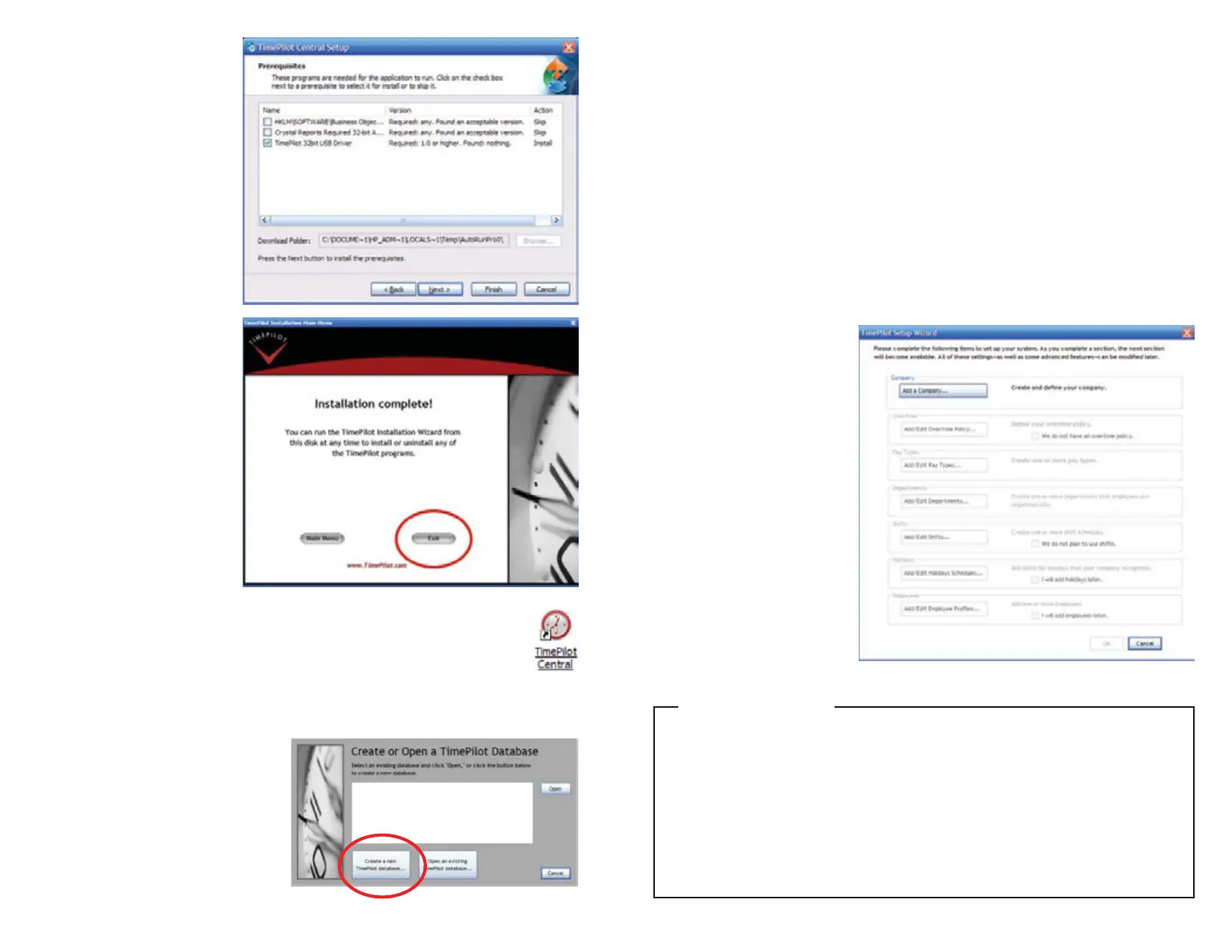
The TimePilot Setup Wizard
A er you set up your database,
you’ll be taken to the TimePilot
Setup Wizard, which guides
the fi rst- me user step-by-step
through the process of se ng
up the system. Simply follow the
steps, and when you complete a
task, the next task will become
available.
The seven-step process includes:
Add a Company: Here’s 1.
where you’ll enter your
company informa on,
including name, your pay
cycle (weekly, bi-weekly,
etc.), whether you want
to have rounding applied
to your employees, etc. If
you have more than one
Click “Next” to see a list 3.
of the missing drivers.
(Shown at right.)
Click the “Next” bu on to 4.
install the drivers. When
you’re done, click “Finish.”
Con nue with the 5.
installa on as guided by
the on-screen instruc ons.
When you see the screen
at right, click “Exit.”
The TimePilot so ware has been installed and you’ll see the TimePilot Central 6.
icon (shown at right) on your desktop.
Se ng up the TimePilot So ware
Once the so ware and drivers are installed
on your PC, you can start se ng up your
so ware. To do so, double-click on the
TimePilot Central icon on your desktop.
The fi rst me you start the so ware, you’ll
be asked if you want to create or open a
TimePilot database. (Shown at right.) Click
the “Create a new TimePilot database...”
Keeping accurate me
TimePilot PC takes its me from the computer where your database is stored. For
example, let’s say you save your data to a server and use a local PC to process employee
hours and run reports. If the me on the server is incorrect, it will be incorrect in
TimePilot PC, too, even if the me on the local computer is correct. To correct the
problem, make sure your server has the correct me.
TimePilot Tip


 To Next Page