28 TimePilot me and a endance systems TimePilot me and a endance systems 29
View: Lets you customize how your •
employees and their transac ons are
displayed in TimePilot Central.
Periods: This is where you extract a •
pay period, open Current Transac ons
or a past pay period.
Setup: This is where you set up the •
so ware to match the work policies
your company has. You also add,
delete and modify employees here.
Edit: The items in the Edit menu •
are used to manipulate employee
transac ons. Generally, you’ll click on
the transac on you want to work with
in the Transac on List, then click on an
item in the Edit menu.
Reports: TimePilot’s Reports func on •
is extremely fl exible. You can
generate printable reports on a single
employee, group of employees or
all employees and specify what data
you want included in each report.
Reports can be printed, converted
to PDF format (within TimePilot
Central) or exported to Microso Excel
spreadsheet format (.xls), Microso
Word format (.doc) or Rich Text
Format (.r ).
Administra ve: This is where you can •
change your password or me format
(from a.m./p.m. to military me) as
well as keep track of TimePilot PC licenses (if you use that TimePilot product).
Help: Want to check to see if there’s an update to the TimePilot so ware? This is where •
to go. It’s also where you can fi nd your so ware’s serial number, version and build
number and where it’s located on your computer. In addi on, you can also fi nd links
to several relevant pages on the TimePilot web site as well as the very detailed online
help system.
Employee List
Down the le side of TimePilot Central is the list of all employees in the system, no ma er
what company they work for.
Click once on an employee’s name to see just his or her transac ons. To return to a •
complete lis ng, click the “All Transac ons” Quick Bu on.
Double-click an employee’s name to view and edit their employee profi le.•
If an employee’s name is in red, that indicates that there is an “excep on”—the •
TimePilot system has no ced that there is a clock-in with no corresponding clock-
out or vice versa. To correct the problem, click the person’s name to see just their
transac ons. In the list of transac ons, clock-ins are iden fi ed by a triangle to the
pay cycle, you can create a second “company” with diff erent se ngs.
Add/Edit Over me Policy: Do you pay over me to your employees? You can have 2.
mul ple over me policies, each with a diff erent set of criteria and payment rates.
Add/Edit Pay Types: This is where you’ll set up how your employees will be treated 3.
in terms of whether they get over me, vaca on pay, holiday pay, etc. You can have
mul ple pay types; for instance, one for salaried employees and another for hourly
employees.
Add/Edit Departments: You’ll enter your company’s departments here. Later, when 4.
you’re using the system, you can generate reports grouped by department.
Add/Edit Shi s: This is where you create your employees’ shi s. The system uses shi 5.
schedules to determine if an employee is early or late.
Add/Edit Holiday Schedules: You’ll set up your company holiday schedule here. You can 6.
have more than one schedule.
Add/Edit Employee Profi les: You’ll add your employees here. 7.
When you fi nish the process, click OK and the TimePilot Central screen will appear.
Want to add or delete an employee, modify an over me policy or make other changes to your
setup? Click the “Setup” menu at the top of the TimePilot Central screen, and all the categories
men oned above will be available.
Ge ng started in TimePilot Central
TimePilot Central is the place you’ll be spending most of your me when you use the TimePilot
so ware. In TimePilot Central, which is password-protected, you can set up employees, create
or change your company’s policies (over me, holiday schedule, etc.), monitor employee
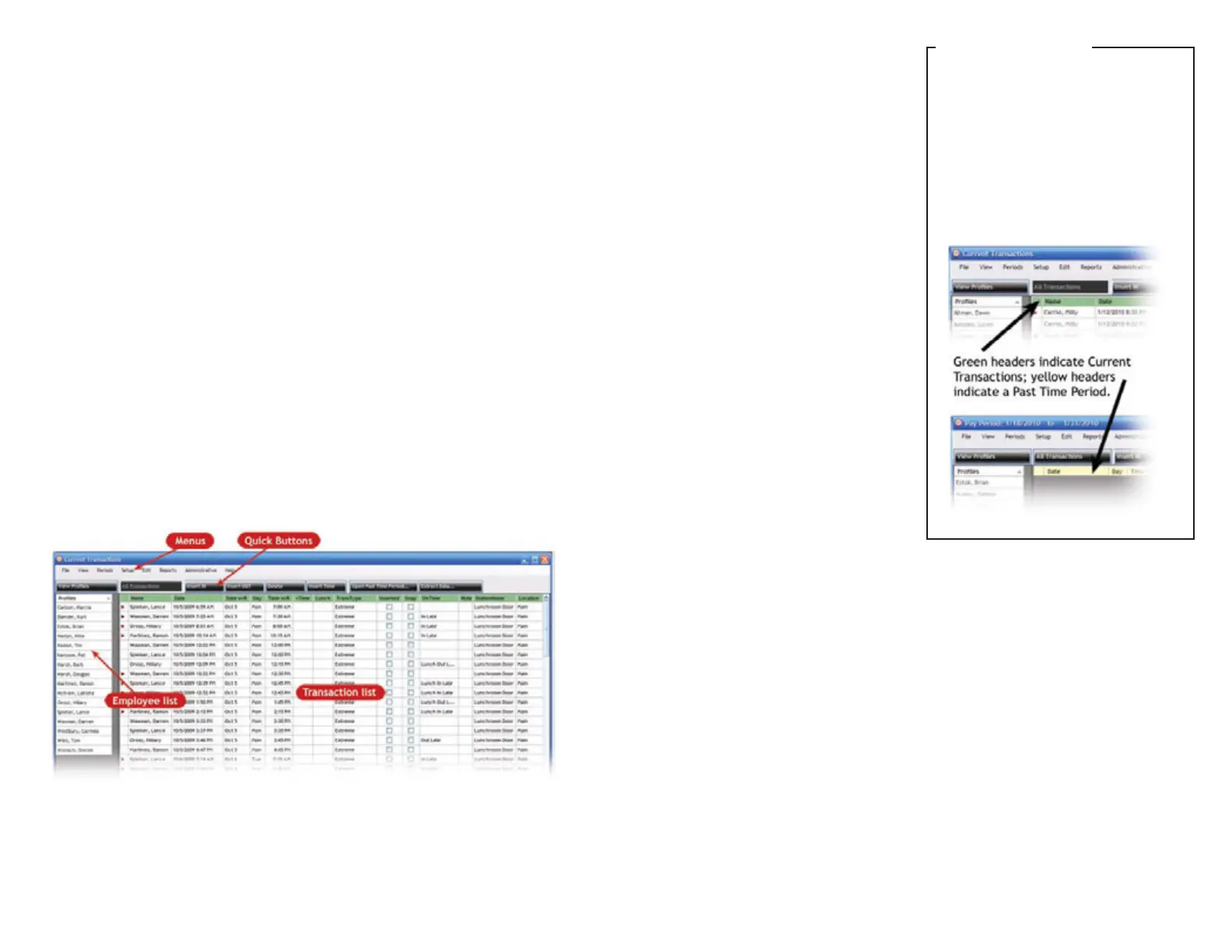
transac ons and generate reports. Let’s take a look at the TimePilot Central screen:
(Note: For a detailed explana on of each item, please see the Help system in TimePilot Central.
You’ll fi nd it in the menu bar at the top of the TimePilot Central screen.)
Menus
Across the top of TimePilot Central are eight drop-down menus:
File: Allows you to export your payroll informa on to a payroll so ware package or •
service (see Page 32 for details) and exit the program.
Green or yellow?
How can you know instantly whether
you’re looking at a list of Current
Transac ons or at a Past Time Period?
Look at the header in the Transac on
List. It will be green in Current
Transac ons and yellow in a Past Time
Period.
TimePilot Tip


 To Next Page
 Loading...