30 TimePilot me and a endance systems TimePilot me and a endance systems 31
le of the employee’s name; clock-outs are blank. A perfect set of transac ons for an
employee will have lines with a red triangle alterna ng with blank lines.
Quick Bu ons
The Quick Bu ons are shortcuts that allow you to make changes to, add or delete transac ons,
change your view in TimePilot Central and open or extract pay periods. You can use the Edit
menu for all of these ac ons, but the Quick Bu ons are faster. Here’s how and when each
bu on can be used (see the help fi les in the TimePilot Central so ware for even more detail):
View Profi les/View Transac ons: Depending upon what’s displayed in the Transac on •
List, this bu on switches iden es between “View Profi les” and “View Transac ons.”
Clicking “View Profi les” brings up a summary of every employee’s profi le and changes
the bu on to “View Transac ons”; clicking “View Transac ons” shows all Current
Transac ons and changes the bu on to “View Profi les.”
All Transac ons: Displays all Current Transac ons in the Transac on List. If you click •
once on an employee’s name in the Employee List, you’ll see just that employee’s
transac ons; to return to all Current Transac ons, click the “All Transac ons” Quick
Bu on.
Insert IN and Insert OUT: These bu ons are o en used by supervisors to insert a •
transac on when an employee has forgo en to clock in or out (see the example
above). You’ll be able to specify the employee who “owns” the transac on and
the date and me of the transac on. In addi on, you can indicate the employee’s
loca on, shi , department and company, as well as the me clock they used for that
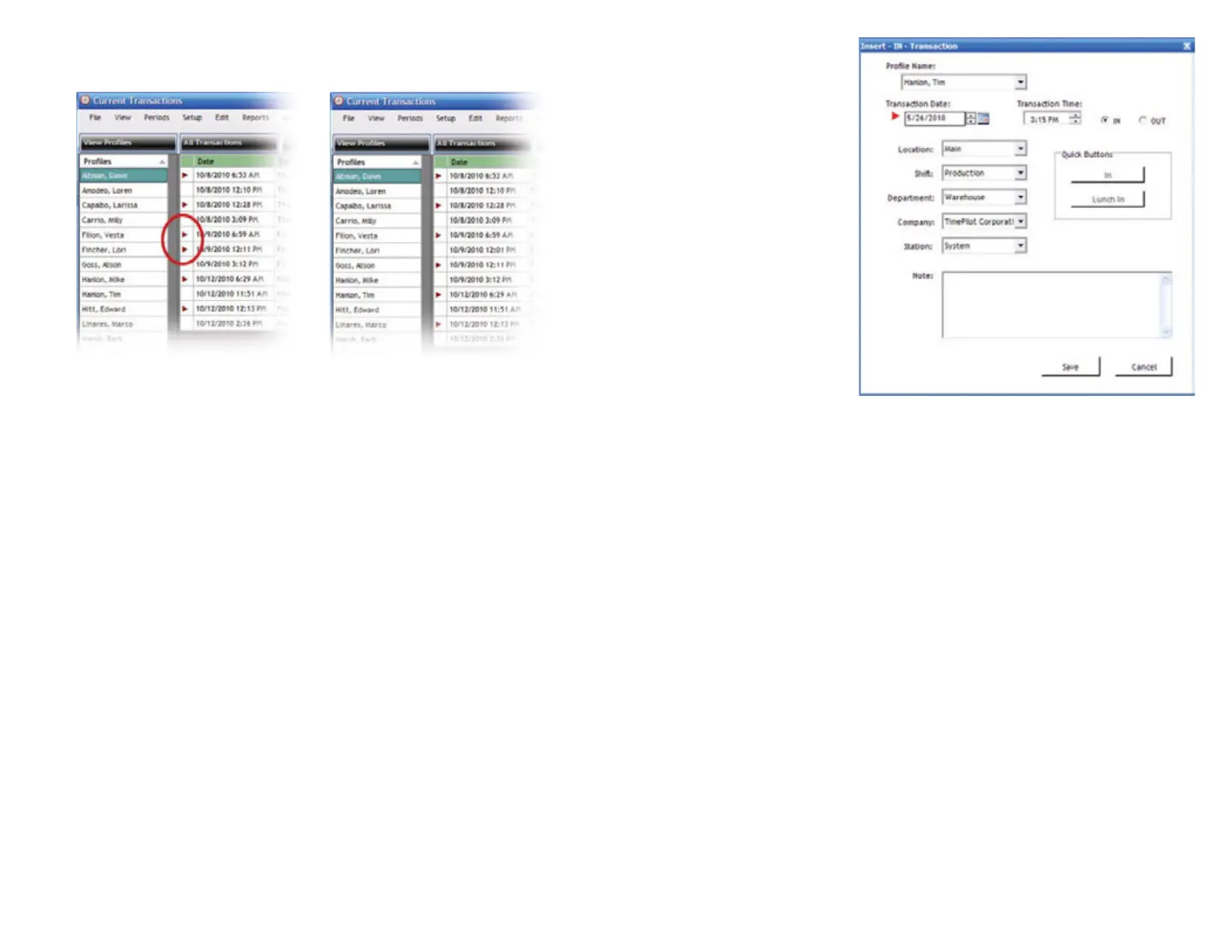
You can’t see it here because her name is
highlighted, but Dawn Altman’s name is in
red, indica ng an excep on. When you click
on her name, you see two triangles in a row,
indica ng two clock-ins without a clock-out
between them. In this case, Dawn forgot to
clock out for lunch on 10/9/10. A supervisor
can make a correc on easily by inser ng an
Out transac on with the Quick Bu ons (see
below).
A perfect set of transac ons: lines with
a red triangle (clock-ins) alternate with
blank lines (clock-outs).
transac on, as shown in
the screenshot at right.
You also can add a note
to the transac on; for
example, “Forgot to clock
out.” To read the note,
double-click the note icon
() in TimePilot Central.
Please note that any
changes you make to an
employee’s loca on, shi ,
department or company
will appear only with that
individual transac on;
they won’t change the
employee’s profi le.
Delete: To delete a •
transac on, fi rst click on
it to highlight it, then click
the “Delete” bu on.
Insert Time: The TimePilot •
so ware also allows
you to add me to an
employee’s work hours. This might be done if an employee calls in sick and is paid for
sick me. You can also delete me by clicking the “nega ve” checkbox.
Open Past Time Period: Need to see a pay period that you’ve already extracted? Click •
this Quick Bu on, then choose the company and the pay period and click OK. You’ll
know you’re in a past pay period by the yellow bar at the top of the screen (Current
Transac ons—those transac ons that haven’t been extracted yet—have a green bar.)
Extract Data: Clicking this bu on allows you to extract, or remove, all the transac ons •
for a specifi c company and me period from the Current Transac ons and place them
in a separate fi le (database). Extrac ng your data is a key procedure in the TimePilot
system. It’s explained further in the next sec on.
Closing out a pay period
You’ve set up your clocks and your so ware, assigned your employees their iBu ons and
started collec ng their clock-ins and clock-outs. Now the pay period has ended and it’s me to
collect your data and get it ready for payroll. This is where the TimePilot so ware really shines.
Here’s how it works: When your pay period is complete and it’s me to process your payroll,
you use TimePilot Central to take, or “extract,” all the transac ons that occurred during
that me and place them in a separate fi le (database). If you need to make any correc ons
that weren’t made during the pay period—if, for instance, an employee forgot to clock in or
out—and add transac ons for vaca ons, holidays, etc., to create a complete record of each
employee’s workweek. Then you can create and print reports for further review. Op onally,
you can “export” the fi le to your payroll service or accoun ng so ware.
Note: You can also export your data to a spreadsheet (.xls format, commonly used by Microso
Excel) or word processing document (.doc, commonly used by Microso Word, or .r , Rich
Text Format). In addi on, you can print your data or create a PDF version of the data with


 To Next Page
 Loading...