The CB236 Control Box for Clifford is a residential-use control box designed to manage gate operations, offering a range of features for customization, safety, and remote control.
Function Description
The CB236 control box serves as the central unit for managing gate movements. It integrates various functions including push/pull switch control, APP override, stall force adjustment, and auto-close timing. It supports both single and dual gate configurations and offers different operational modes like pedestrian mode and condominium mode. The system is designed to provide precise control over gate speed, direction, and safety features.
Important Technical Specifications
The control board features several terminals for electrical connections.
- Power Supply:
- Lit+/-: Max36V/Max5A
- M1+/M1- (Motor 1): Max36V/Max5A
- M2+/M2- (Motor 2): Max36V/Max7A
- Lat+/-: Max36V/Max7A
- 5V: Max5V/Max50mA
- S1/S2: Max5V/Max0.5mA
- LMT 1/2: Max5V/Max0.5mA
- LMT 3/4: Max5V/Max0.5mA
- Control Signals:
- STOP: Max5V/Max1mA
- DKEY: Max5V/Max1mA
- SKEY: Max5V/Max1mA
- PH1: Max12V/Max1.2mA
- PHVCC: Max14V/Max0.5A
- PH2: Max12V/Max1.2mA
- PHVCC: Max14V/Max0.5A
- Radio Frequency: The control board uses a 433 MHz RF receiver, offering limited compatibility with other remotes that use 433 MHz bandwidth.
- Safety Features: The system includes overcurrent protection for both opening and closing, with adjustable sensitivity and reaction distances. It also supports safety edges and photocells.
- Parameter Settings: The control box allows for extensive parameter adjustments (F1-F19, FA, FB, FC, FD, FE, FF, FG, FH, FI, FJ, FK, FL) to fine-tune gate behavior.
Usage Features
1. Control Board Setup:
The control board is equipped with various LEDs (LED1, LED2, LED3, LED4, RF-LEARN, STATUS, TIMER, STALL) to indicate power, battery status, push/pull switch position, override status, remote learning, and system status. Dials for STALL FORCE and AUTO-CLOSE TIME allow for manual adjustment of these parameters.
2. Push/Pull Switch:
This dial controls the direction in which the gates open. Users can set their gates to be PUSH-TO-OPEN or PULL-TO-OPEN by adjusting the dial to the ON position.
3. APP Override Switch:
The APP OVERRIDE SWITCH allows for control of all settings through the "Chow! App". When the switch is in the ON position, the app has priority over all settings. Changes made in the app will not affect the settings unless the APP OVERRIDE SWITCH has been changed.
4. Stall Force Dial:
This dial adjusts the force required to trigger the stall mechanism. Turning the dial to the left (MIN) sets the stall force to the minimum, while turning it to the right (MAX) sets it to the maximum. This is important for safety and preventing damage to the gate.
5. Autoclose Dial:
The AUTO-CLOSE DIAL determines the time before the gate closes automatically. Turning the dial to MIN turns AUTO-CLOSE OFF, while setting it to MAX sets the AUTO-CLOSE TIMER to 300 seconds.
6. Pairing Remotes:
- Using Factory Remotes:
- Ensure the control board is properly powered (LED2 should be on).
- Check that remote controllers have batteries installed and are working.
- Verify the remote is properly powered (LED lights up on the remote).
- Press the LEARN REMOTE button on the control board for three seconds; the LEARN REMOTE LED will light up.
- Press the RF-Learn button on the remote for three seconds.
- Press Button 1 on the remote until LED 4 on the remote blinks three times.
- After LED 4 blinks and turns off, the remote controller is learned.
- Repeat for additional remotes.
- When the remote is properly connected, the blue LED will blink three times every time the control board receives a signal from the remote.
- Unpairing Remotes:
- Hold the LEARN REMOTE button for 10 seconds.
- After holding the LEARN REMOTE button, the LED should light up, indicating the control board is in learning mode. Continue to hold until the LEARN REMOTE LED turns off, then you have managed to unpair all remotes.
7. Connecting Other Controllers:
The control board uses a 433 MHz RF receiver, offering limited compatibility with other remotes that use 433 MHz bandwidth.
8. System Learning Using the Controller:
- First-time learning: Press the LEARN REMOTE button once.
- Initiate system learning:
- For single gate openers, hold Button 2 and Button 3 on the remote simultaneously for at least 3 seconds until LED 1 is turned on. When learning is successfully completed, LED 1 will alternate between 3 seconds on and 1 second off.
- For dual gate openers, hold Button 2 and Button 4 on the remote simultaneously for at least 3 seconds until LED 1 is turned on. When learning is successfully completed, LED 1 will stay on.
- The system will operate by itself and attempt to learn its own. During this time, do not press any buttons on the remote or set off the D-KEY or S-KEY of the control board.
- If system learning is interrupted, then LED 1 will continue to flash.
9. Using the Remote:
After the remote has been successfully connected and the system has completed learning, the remote has several functions:
- Button 1 controls the gate opening and closing.
- Button 2 controls pedestrian mode.
- In Learning Mode, press Button 2 and Button 3 together for system learning of a single gate.
- In Learning Mode, press Button 2 and Button 4 together for system learning of a dual gate.
- Hold Button 3 and Button 4 together for 10 seconds to reset the system.
- After having a remote pair, additional remotes can be paired without opening the control box by holding Button 1 and Button 2 together. Hold Button 1 and Button 2 together for five seconds until a click can be heard from the control box, then press any button on the remote that you wish to pair.
10. Condominium Mode:
Condominium Mode supports many remotes without the risk of clashes. This mode ensures that your command will not be interrupted by another controller.
- To select Condominium Mode, hold Button 3 on a paired remote. After holding Button 3 for 10 seconds, the siren should beep twice.
- To return to normal mode, hold Button 3 on a paired remote until the siren beeps once.
11. System Reset Via Remote:
The remote is capable of resetting the system. To do this, you can hold Button 3 and Button 4 simultaneously for 10 seconds. When the system is restored to the factory setting, the POWER LED will flash for 5 seconds before returning into the blinking state to indicate that system learning has yet to be completed.
12. Parameter Table (F1-F19, FA, FB, FC, FD, FE, FF, FG, FH, FI, FJ, FK, FL):
The control box offers a comprehensive set of parameters for fine-tuning gate operation. These parameters cover:
- F1 (Motor Type): Overcurrent (Default setting), Limit Switch, Hall Sensor.
- F2 (Overcurrent for gate opening): Current limits from 0.5A to 5A (3A is default).
- F3 (Overcurrent for gate closing): Current limits from 0.5A to 5A (3A is default).
- F4 (Operation Direction): Open outward, Open inward (Default setting).
- F5 (Motor speed for opening): 40% to 100% (100% is default).
- F6 (Motor speed for closing): 40% to 100% (100% is default).
- F7 (Deceleration Speed): 40% to 70% (50% is default).
- F8 (Time gap b/w two gates (Opening)): 0 to 55 seconds (2 seconds is default).
- F9 (Time gap b/w two gates (Closing)): 0 to 55 seconds (2 seconds is default).
- F10 (Auto-Closing): Function off (Default setting), 3 to 300 seconds.
- F11 (Overcurrent Reaction when Open): Reverse 2/3/4 seconds and stop, Reverse to the end (Default setting).
- F12 (Overcurrent Reaction Distance when Open): 99.5% to 75% travel overcurrent reverse, with varying deceleration speeds (85% is default).
- F13 (Overcurrent Reaction when Close): Reverse 2/3/4 seconds and stop, Reverse to the end (Default setting).
- F14 (Overcurrent Reaction Distance when Close): 99.5% to 75% travel overcurrent reverse, with varying deceleration speeds (85% is default).
- F15 (Overcurrent sensitivity): 0 to 0.5 (0 is default).
- F16 (A Button): Function OFF (Default setting), Open/Stop/Close, Pedestrian Mode, Open, Stop, Close.
- F17 (B Button): Function OFF (Default setting), Open/Stop/Close, Pedestrian Mode, Open, Stop, Close.
- F18 (C Button): Function OFF (Default setting), Open/Stop/Close, Pedestrian Mode, Open, Stop, Close.
- F19 (D Button): Function OFF (Default setting), Open/Stop/Close, Pedestrian Mode, Open, Stop, Close.
- FA (Flashing Light): Function OFF (Default setting), Gate will start operation after flashing light blinking for 3 seconds.
- FB PH1 Functions (Safety Device Logic):
- FB-0 (PH1 Function off): No function (Default setting).
- FB-1 (Photocell -Close): Not allow to open/close.
- FB-2 (Photocell -Open): Not allow to open/close.
- FB-3 (Safety edge): Not allow to open/close, Open for 2 seconds.
- FB-4 (Fast close): Auto close after 2 seconds, Not allow to open/close.
- FC PH2 Functions (Safety Device Logic):
- FC-0 (PH2 Function off): No function (Default setting).
- FC-1 (Photocell -Close): Not allow to open/close.
- FC-2 (Photocell -Open): Not allow to open/close.
- FC-3 (Safety edge): Not allow to open/close, Open for 2 seconds.
- FC-4 (Fast close): Auto close after 2 seconds, Not allow to open/close.
- FD (Pedestrian Mode): No function, On (Default setting).
- FE (Function Mode): Standard Mode (Default setting), Condominium Mode, Stander gate opening.
- FF (Latch release mode): Release gate tension before opening (gate reversing for 0.25s), Single gate.
- FG (Dual / Single gate): Single gate, Dual gate (Default setting).
- FH (Overcurrent Reverses Time when Close): Function OFF (Default setting), 0.1 to 0.6 seconds.
- FI (Dkey Terminal Function): Function OFF (Default setting), Dual Gate Open/Stop/Close, Single Gate Open/Stop/Close, Stop, Pedestrian Mode, Open, Stop (NO), Stop (NC), Close.
- FJ (Skey Terminal Function): Function OFF (Default setting), Dual Gate Open/Stop/Close, Stop, Pedestrian Mode, Open, Stop (NO), Stop (NC), Close.
- FK (Stop Terminal Function): Function OFF (Default setting), Dual Gate Open/Stop/Close, Stop, Single Gate Open/Stop/Close, Stop, Pedestrian Mode, Open, Stop (NO), Stop (NC), Close.
- FL (SE Terminal Function): SE Terminal Function OFF (Default setting), When gates closing, it will stop when SE terminal is triggered, When gates closing, it will reverse for 2 sec when SE terminal is triggered, When gates closing, it will reverse to fully open position when SE terminal is triggered.
Maintenance Features
Troubleshooting:
The manual provides a detailed troubleshooting guide for common issues:
- LED lighting: Explains what happens if the LED is lighting up or not, and how to check power supply and solar panel connections.
- Power connection: Guides on how to check if the power is properly connected and if the solar panels are connected.
- AUTO-CLOSE control: Instructions on how to turn off AUTO-CLOSE using the control board.
- APP OVERRIDE dial: Explains what to do when the APP OVERRIDE dial is set to ON and how it affects settings.
- Limit switches: Describes how to check if limit switches are working correctly.
- Fuse: Provides instructions on how to tell if the fuse is blown and how to replace it.
- POWER LED: Explains why the POWER LED might be flashing.
PROP 65 WARNING:
This product can expose you to chemicals including lead, which is known to the State of California to cause cancer. For more information, go to www.P65Warnings.ca.gov.

 Need help?
 General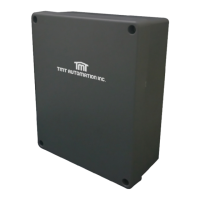

 To Next Page