8 Navigation and track selection
Select and play a track
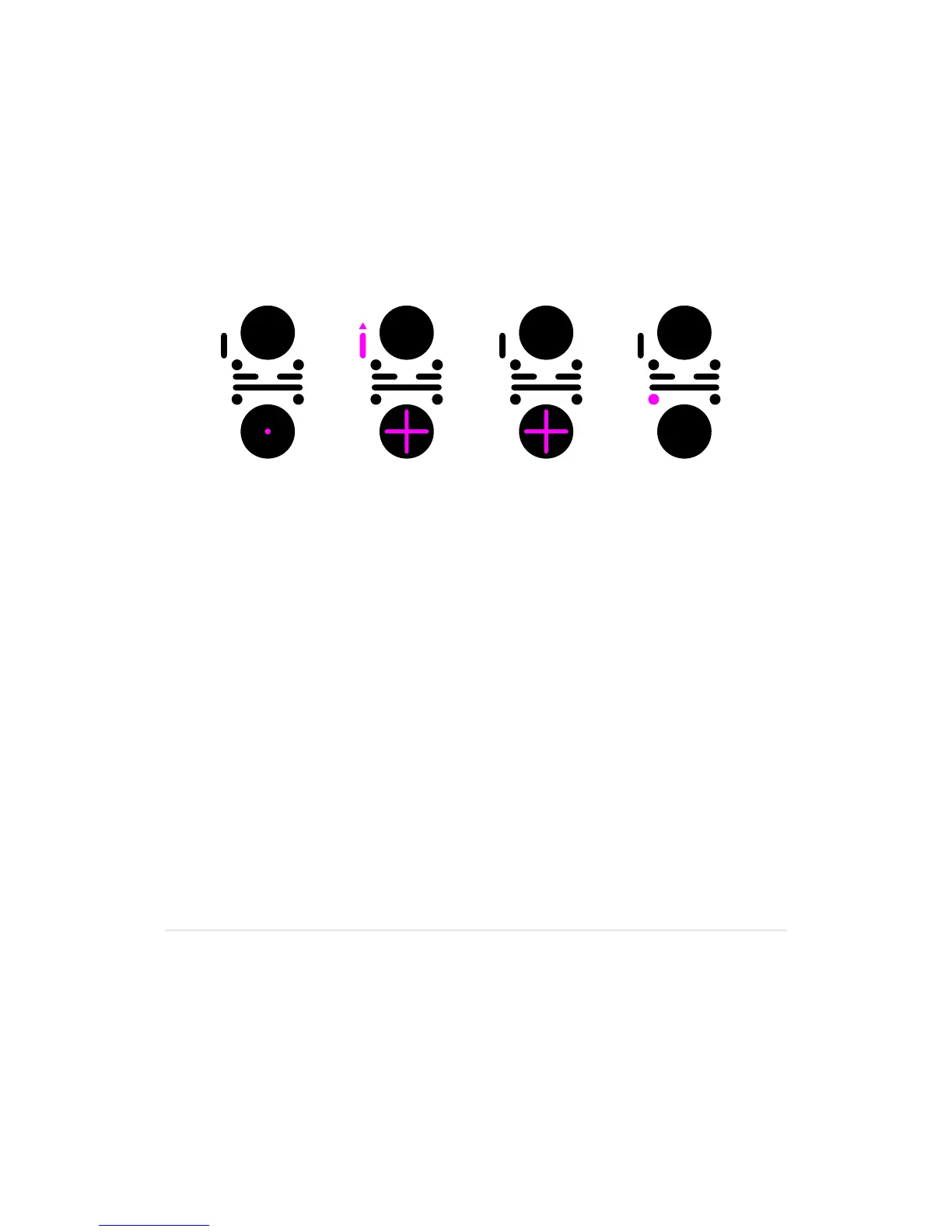
1. Double-tap the centre of the Touchpad to access the track list.
2. Stroke the Touchpad vertically to move the cursor up and down the list.
3. Press Play to load and start playback of the selected track.
Optionally:
•PressCuetoloadthetrack,andcueitatrstbeat.
•Strokethetouchpadhorizontallytoloadthetrack.Dependingonwhether
thesettingAutocueisenabledornot,thetrackiscuedorplaybackisstarted.
Access track navigation filters
1. Enter the track list by double tapping the centre of the Touchpad.
2.PressandholdtheP-switchuptoaccesstracknavigationlters.
3.Navigatebetweenthedifferentltersbyslidingyourngerleftorright
onthetouchpad.YoucanlteronGenre,Artist,AlbumandBPM,orany
combination of these.
4.Browsethroughtheactiveltercriteriabyslidingyourngerupordownon
the Touchpad.
5.SelectlterbyslidingyourngerleftorrightontheTouchpadtoapplyanother
lter,orletgooftheP-switchtoaccesstherenderedtracklist.
Disable filters
Disableapreviouslyselectedlterbyselectingthe
<
All
>
entryintheactivelterlist.
Each channel’s track navigation is independent of the other’s.
Double-tap menu Filter library Select track Play


 To Next Page