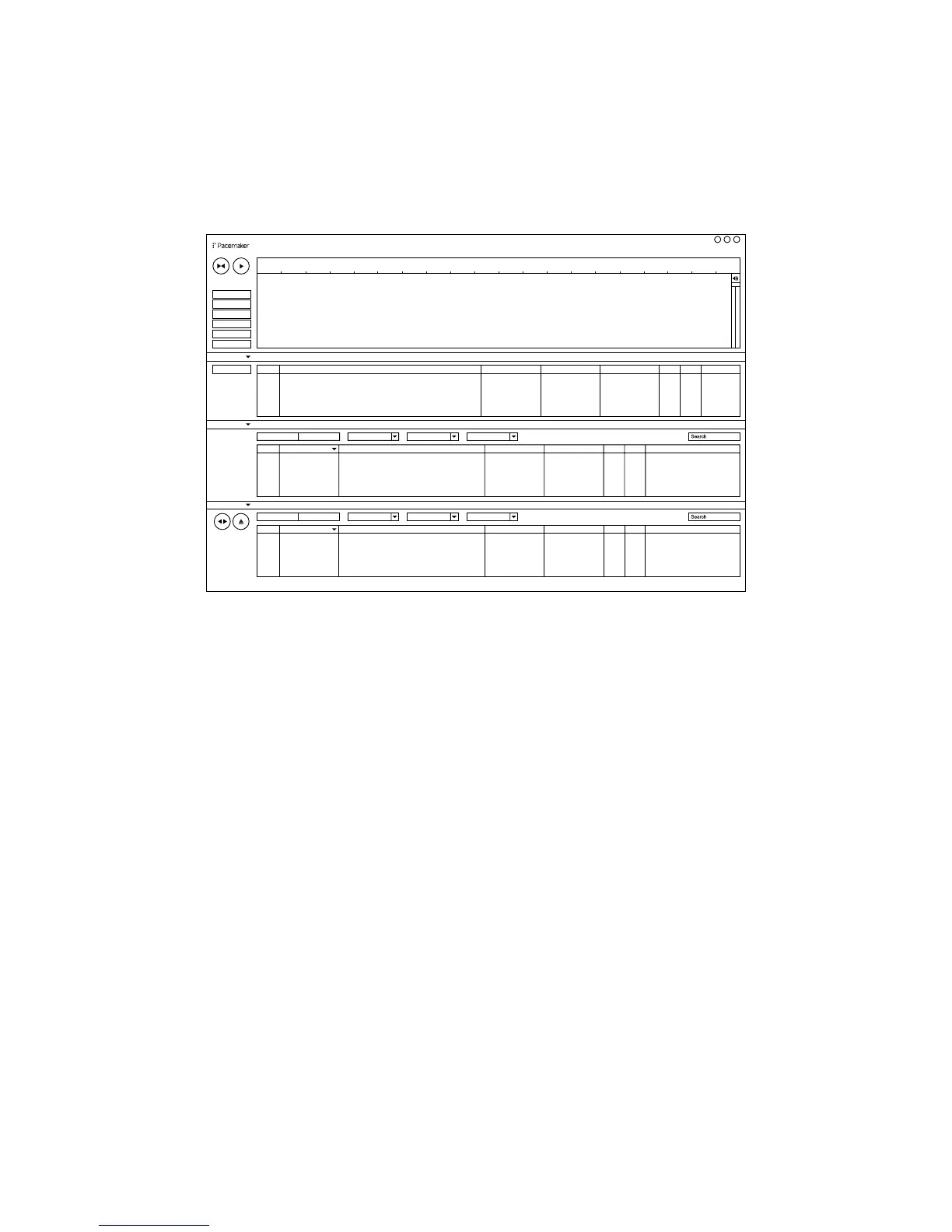
Transferring music between Editor and Pacemaker
ConnectyourPacemakertoyourcomputerwiththefeaturedUSBcableandstart
the Editor.
Transfer tracks from the Editor to your Pacemaker
1. Select the tracks that you want to transfer from the Editor to your Pacemaker.
2. Drag and drop the selected tracks from the Editor to the Pacemaker track
library.
Remove tracks from your Pacemaker
1. Select the tracks that you want to remove from your Pacemaker track library on
the Editor.
2. Press the Delete button on your computer and the tracks are removed.
Eject Pacemaker
1. Click the Eject button to the left of the Pacemaker library on the Editor.
2.WaitforyourPacemakertoclearthe‘Donotdisconnect!’screenbeforepulling
theUSBplug.
3.DonotdisconnecttheUSBcablewhiletransferringdata,asthismaybepoten-
tially damaging to your Pacemaker.
Publish a mix on Pacemaker.net
1. Select the mix you want to upload from the Editor.
2. Click the Publish button to start the uploading process.
3. Follow the instructions to publish your mix on Pacemaker.net
It is not possible to transfer tracks from your Pacemaker to the Editor.
It is not possible to transfer mixes from your Editor to your Pacemaker.
This will be offered in a soon-to-come upgrade.
You can only transfer music to your Pacemaker via the Editor software.
For a full feature list of the Editor, please go to www.pacemaker.net/editor
GENRE TITLEARTISTALBUM BPM TIME
Dance
Dance
Dance
Dance
Dance
01.
02.
03.
04.
05.
Cardiac Arrest
Ghostfriend Remix
Power Ballard
Gone
Overman
Teddybears
Krister Linder
VDB
Illuminum
Swedish Ti ger
Pacemaker
Pacemaker
Pacemaker
Pacemaker
Pacemaker
114.0
126.0
127.0
130.0
137.0
03:33
06:53
03:53
06:24
03:25
Dance
Dance
Dance
Dance
Dance
01.
02.
03.
04.
05.
Cardiac Arrest
Ghostfriend Remix
Power Ballard
Gone
Overman
Teddybears
Krister Linder
VDB
Illuminum
Swedish Ti ger
Pacemaker
Pacemaker
Pacemaker
Pacemaker
Pacemaker
114.0
126.0
127.0
130.0
137.0
03:33
06:53
03:53
06:24
03:25
Cardiac Arrest
Ghostfriend Remix
Power Ballard
Gone
Overman
01.
02.
03.
04.
05.
Dance
Dance
Dance
Dance
Dance
Teddybears
Krister Linder
VDB
Illuminum
Swedish Tiger
Pacemaker
Pacemaker
Pacemaker
Pacemaker
Pacemaker
114.0
126.0
127.0
130.0
137.0
03:33
06:53
03:53
06:24
03:25
GENRE TITLEARTISTALBUM BPM TIME
GENRETITLE ARTISTALBUM BPM TIME
FILEEDIT SETTINGS COMMUNITY HELP
New Mix
00:00
00:05
00:10
00:15
00:20
00:25
00:30
00:35
00:40
00:45
00:50
00:55
01:00
01:05
01:10
01:15
01:20
01:25
01:30
01:35
X
-
FADE
EQ
FIL T ER
FX
LOOP
REVERSE
PUBLISH
TRACKS
GENRE
-
All ARTIST
-
AllALBUM
-
Pacem...
MIXES
MIX LIST
EDITOR
DEVICE
(
T otal time 00:01:00
)
TRACKS
GENRE
-
All ARTIST
-
All ALBUM
-
Pacem...
MIXES


 To Next Page