En
9
English
Connections
! Be sure to turn off the power, disconnect the USB cable from this unit, and unplug the power cord from the power outlet whenever making or
changing connections.
! Connect the power cord and a USB cable once all the connections between devices have been completed.
! Be sure to use the included power cord and AC adaptor.
! Refer to the operating instructions for components to be connected.
! Use a USB cable which complies with USB 2.0.
! The unit is powered by either the AC adapter or USB-bus power.
The unit can be operated by just connecting the unit and your PC/Mac via a USB cable without connecting the AC adaptor.
If the AC adapter is connected at the same time, the USB-bus power can be used as a backup power source. If the AC adapter is disconnected
while using the unit, the unit automatically switches the power drive to the USB-bus power.
Special notes when using USB-bus power
! There are some restrictions in functions such as dimming on buttons, LEDs for pads, and display.
! Connect the unit directly to a USB 2.0/3.0 port on your PC/Mac using a USB cable.
! We recommend using a USB certified USB cable that is 2 meters (6.56 feet) or shorter.
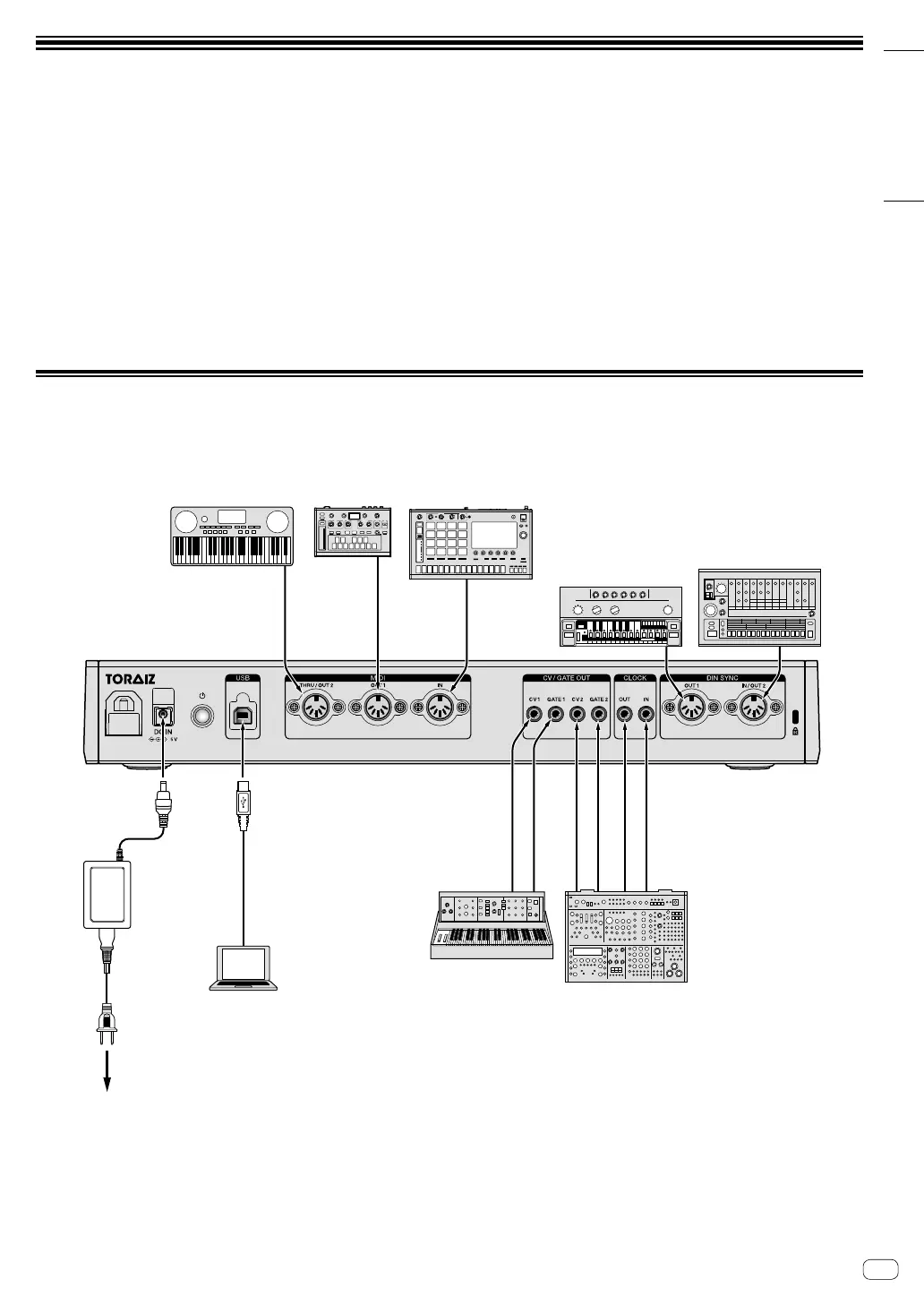
Connecting inputs and outputs
To power outlet
AC adaptor
(included)
PC/Mac
Power cord
(included)
MIDI-compatible synthesizer,
drum machine, sound module, etc.
synthesizer,
drum machine,
sound module,
MIDI keyboard, etc.
DIN SYNC-compatible synthesizer,
drum machine, sound module, etc.
CV/GATE/CLOCK-compatible synthesizer,
drum machine, sound module, etc.


 To Next Page
 Loading...