23
Setting Up the dynadock™ and Connecting Peripherals
In the Network Connections folder, double-click the Connection
icon for the dynadock’s Ethernet adaptor, which is indicated by
dynadock. This opens the Local Area Connection Properties
window, allowing you to configure the network settings as required
according to your network environment. If you are unsure about the
settings, consult your network administrator for assistance.
The dynadock's Network port does not support Wake-up-on-LAN.
The Local Area Connection icon in the system tray/notification area
of your Windows
®
desktop may not show a connection. Open
"Network Connections" to view the Ethernet Connection status.
Connecting audio devices
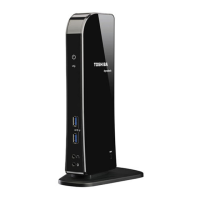
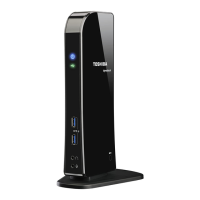
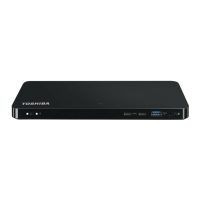
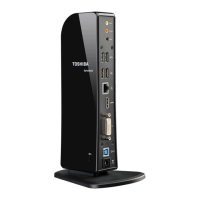
The dynadock™ provides multiple audio ports, as shown in the
following illustration.
(Sample Illustration) dynadock™ audio ports
The following table indicates which port to use for each type of
audio activity:
Use this port: Audio Device: Activity:
Headphone jack Headphone/headset/
speakers
Audio playback
Microphone jack Microphone/headset Audio recording
Microphone
Headphone jack
5.1 Channel audio
output ports
jack


 To Next Page
 Loading...