34
Using the dynadock™ and Adjusting Settings
If the icon is not visible in your system tray/notification area, make
sure the dynadock™ is connected and docked, and then click the
Show Hidden Icons button ( ), if necessary, to display hidden
icons.
2 Select Audio Setup from the menu.
3 On the Recording tab of the dialog box, select one of the
following:
❖ To use the dynadock's microphone in jack, select
dynadock Audio device.
❖ To use the docked computer's microphone in jack, select
the appropriate recording device (other than dynadock
Audio device).
4 Click Set Default.
5 Click OK.
You may need to restart your media player for the audio changes to
take effect.
Charging USB devices using Toshiba USB Sleep and Charge
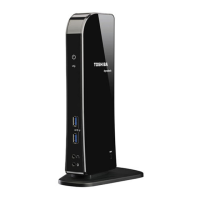
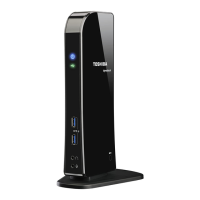
Your dynadock can supply USB bus power (DC 5V) and can charge
select USB devices (such as MP3 players and mobile phones) using
the dynadock's front USB ports (“USB Sleep and Charge” ports)
even when your computer is undocked or disconnected from the
dynadock™, or your computer is off.
The "USB Sleep and Charge" function may not work with certain
external USB devices. Please contact the USB device manufacturer
or check the specifications of the external USB devices for further
details.
This function can only be used for the ports that support the "USB
Sleep and Charge" function (hereinafter called "compatible port").
Compatible USB ports have the ( ) symbol icon.


 To Next Page
 Loading...