© 2018 Touchjet™ All Rights Reserved 13
A. Download the free Touchjet App using your smartphone or tablet. You will use this as a
smart remote to complete the setup process for the WAVE.
B. Turn on your TV and set its input source to the HDMI channel connected to the WAVE.
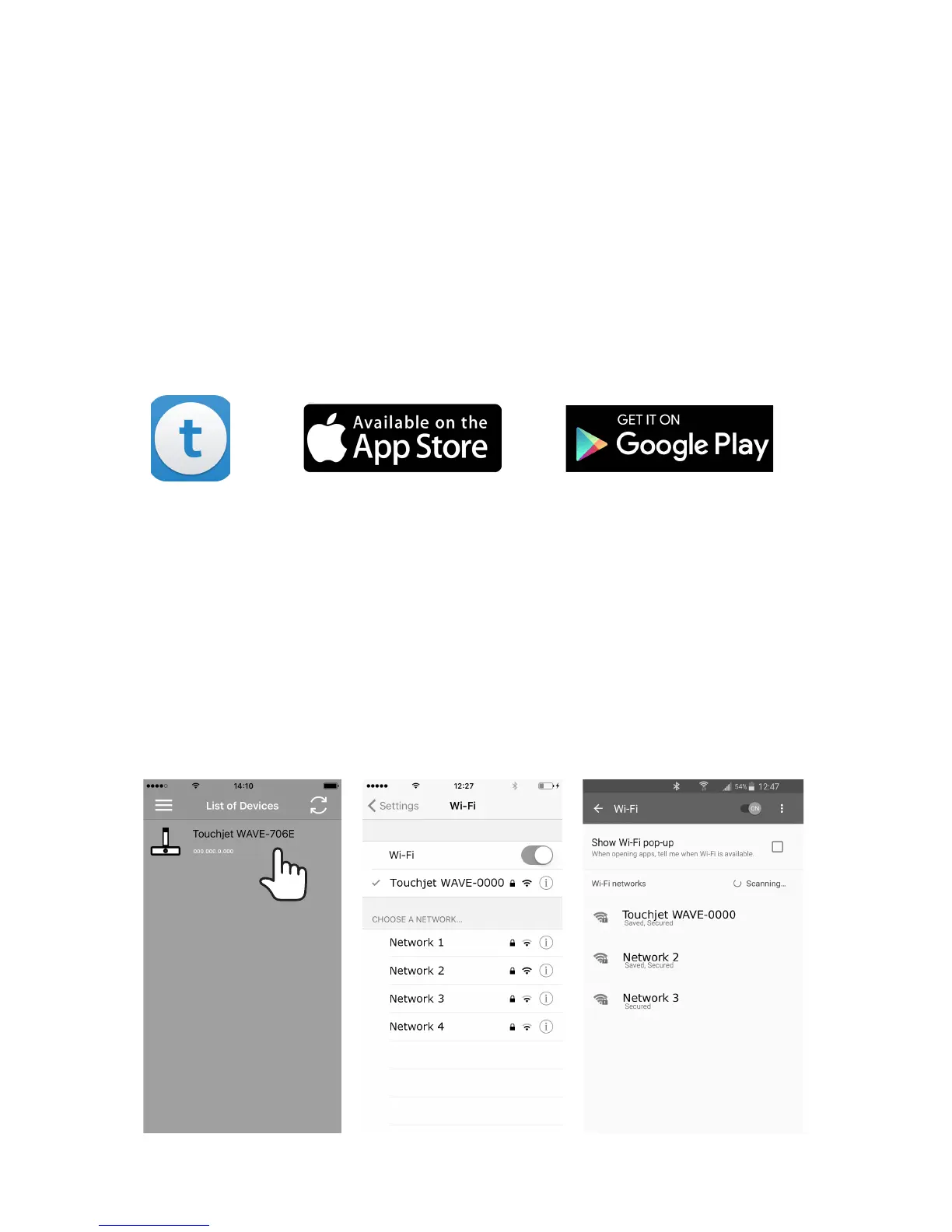
C. Go to your phone or tablet’s WiFi settings menu and connect to the WiFi hotspot broadcast by
your WAVE (see left and center images below). Note: The name of this network should also
appear in the top right corner of the WAVE screen.
D. Open the Touchjet App on your smartphone or tablet. Under Touchjet Devices, you will
see your WAVE listed. Tap Touchjet WAVE-XXXX to connect the two devices (see right
image). You may need to refresh the page using the button in the top right corner and wait a
moment for the WAVE to appear on the device list.
Step 5
Pairing the WAVE with your phone or tablet



 To Next Page