10 of 12
Define pricing
In this step you test the coin and bill acceptors, set pricing levels for
credits, and define the number of service and promotional credits that are
available.
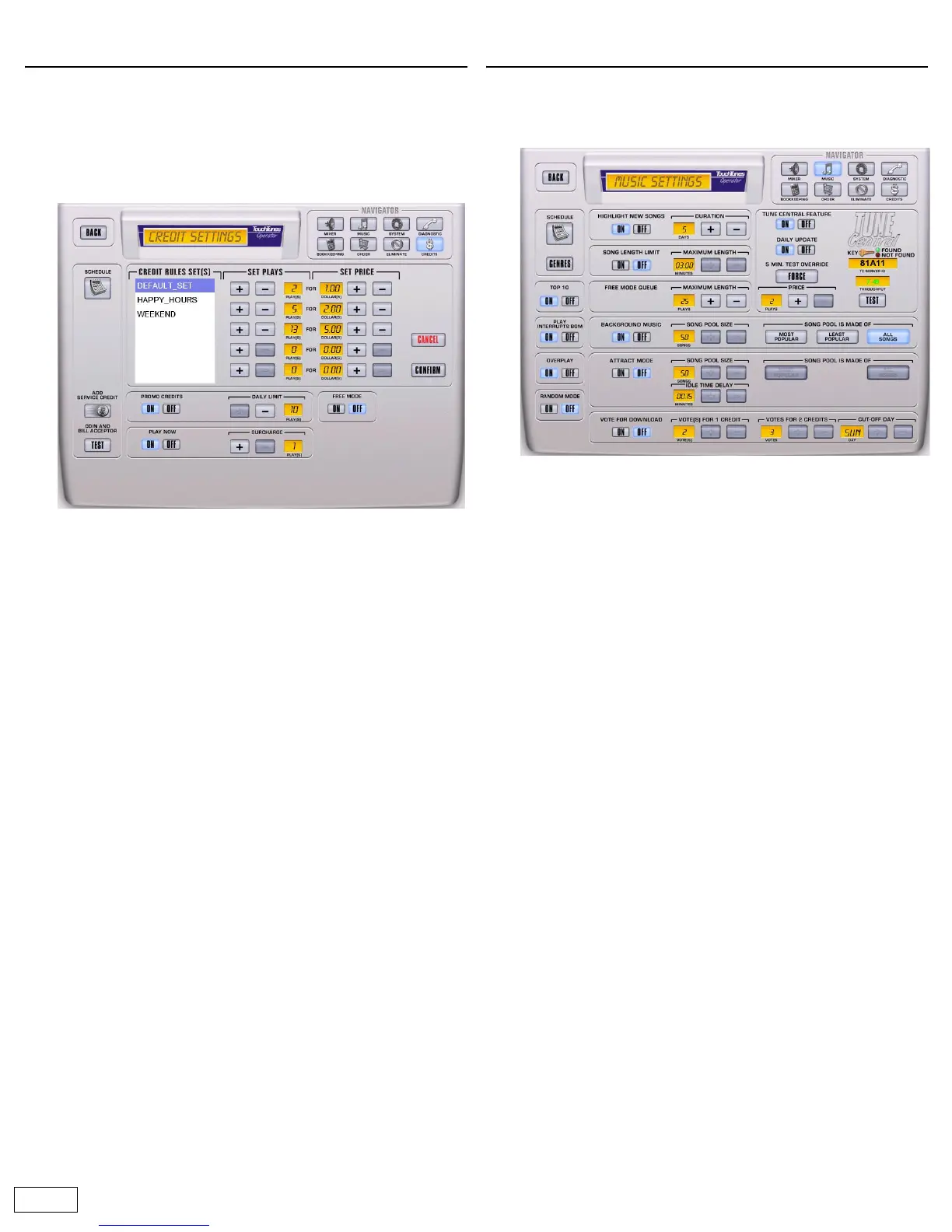
1 Open the Credit Settings screen
On the Operator menu, touch CREDIT SETTINGS. The Credit
Settings screen opens.
2 Set pricing levels
The jukebox features a flexible pricing system which enables you to
create multiple pricing schemes for use at different times of the day.
For example, you could use a different pricing structure during
Happy Hour or on Friday and Saturday nights. For details on this
feature, see the Ovation Operator’s Manual.
To set default prices, do the following:
a.
In the CREDIT RULES SET box, touch DEFAULT_SET.
b. In the SET PLAYS column, set the number of plays for each
level.
c. In the SET PRICE column, set the dollar amount for each level.
Note: The average price per song must decrease at each level.
The jukebox will automatically determine if the pricing you set
follows this rule. If not, the prices that are in error are displayed
in red and the BACK button disappears. You cannot exit this
screen until all price levels are valid.
d. Once you have set valid plays and pricing for all levels, touch
CONFIRM to store them, or touch CANCEL to return to
previously saved prices.
3 When you are done
Touch BACK to return to the Operator menu.
Define music settings
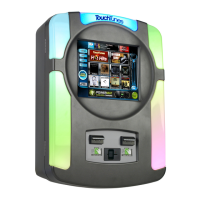
1 Open the Music Settings screen
On the Operator menu, touch MUSIC SETTINGS. The Music Settings
screen opens:
2 Adjust play queue options
a. Turn on OVERPLAY to have the jukebox ignore multiple plays
of a song. If the same song is added to the play queue more
than once, it is only played once. (Note that the currently
playing song is not counted.)
b. Turn on RANDOM MODE to have the jukebox play back songs
randomly, rather than in the order they were selected.
3 Configure Attract mode
When enabled, this feature causes the jukebox to automatically play
a song when it has been idle for a specified amount of time. For
details on scheduling, see the Ovation Operator’s Manual.
4 Configure Background music
This feature lets you define certain times during the week that the
jukebox will randomly play songs. You have control over the day and
time songs are played, how they are selected, and the volume level at
which they are played. Background music automatically stops if a
customer plays a song. It will automatically resume once the play
queue is empty. For details on scheduling background music, see the
Ovation Operator’s Manual.
5 Configure the Vote for download feature
When this feature is enabled, customers are prompted to vote for
their favorite song not currently on the jukebox, after they make a
paid selection. When the voting period expires, the song with the
most votes is downloaded.
6 Enable the Top 10 feature
When this feature is enabled, customers are able to select a song
from the ten most popular songs on the jukebox. The Top 10 icon is
only visible when a minimum of 10 songs on the jukebox have been
played at least once. This ensures that at least ten “top” songs exist.
7 Set the Song length limit
This option enables you to limit the playing time of songs.
When a song reaches the limit you set, it is faded out.


 To Next Page