9
Chapter 2
Connect the Hardware
2. 2. Connect Your Router
Before you start:
1 ) Turn off your modem, if any, and remove the backup battery if it has one.
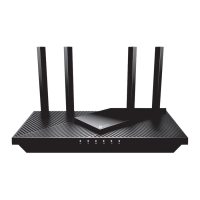
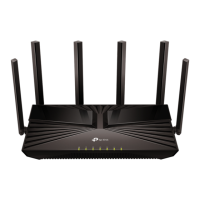
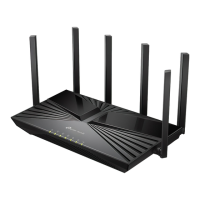
2 ) Place the router horizontally and orient the antennas vertically.
If your internet comes from an Ethernet outlet instead of a DSL / Cable / Satellite
modem, connect the router’s WAN port to it, then follow steps 3 and 4 to complete the
hardware connection.
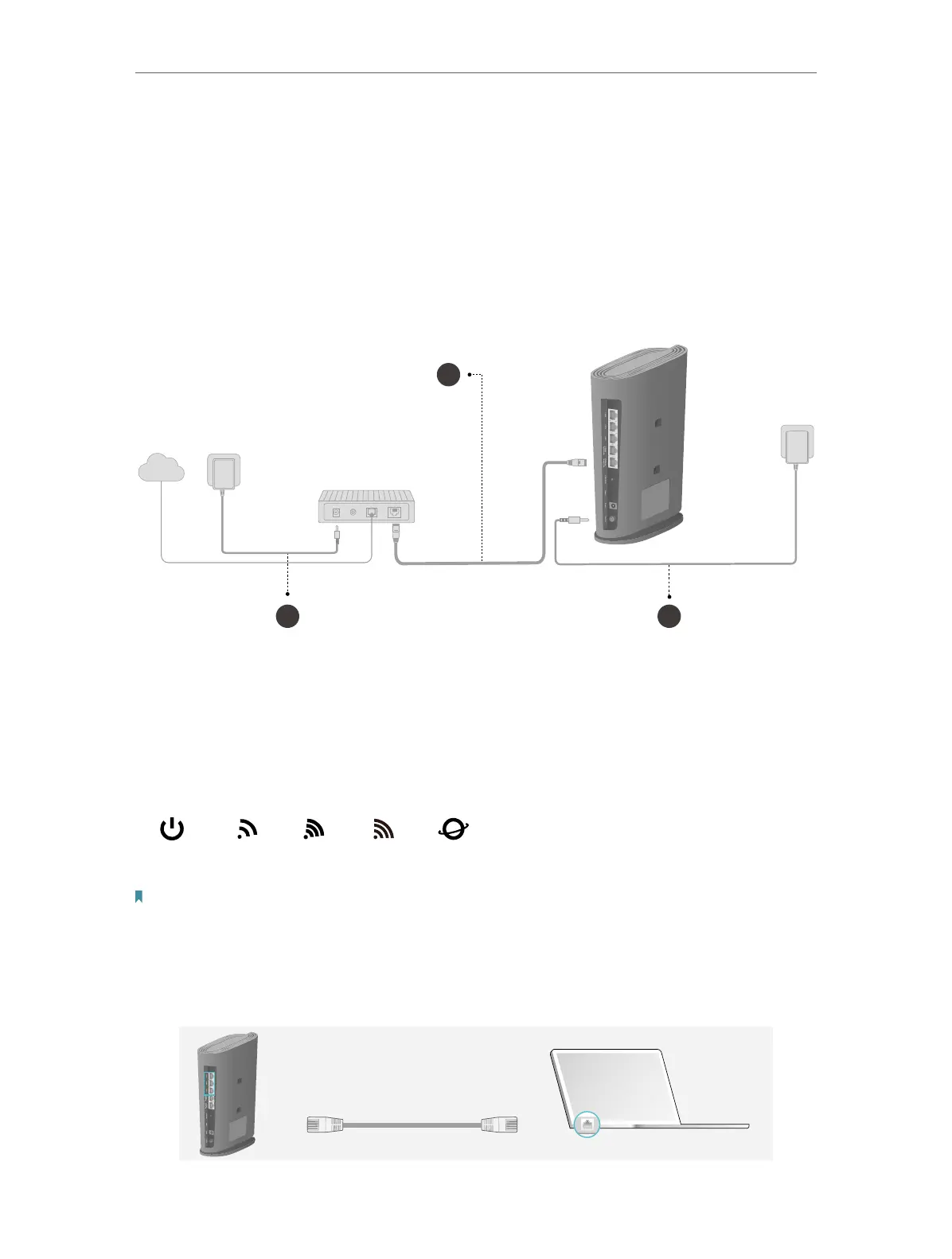
2 3
Internet
1
1. Connect the powered-off modem to the router’s 2.5 Gbps WAN/LAN port with an
Ethernet cable.
2. Turn on the modem, and then wait about 2 minutes for it to restart.
3. Connect the power adapter to the router and turn on the router.
4. Verify that the hardware connection is correct by checking the following LEDs.
6GHz
2.4GHz
5GHz
Internet
Note: If the 2.4 GHz, 5 GHz, and 6 GHz LEDs are off, press and hold the Wi-Fi button on the back for more than 2
seconds. These LEDs should turn solid on.
5. Connect your computer to the router.
• Method 1: Wired
Turn off the Wi-Fi on your computer and connect the devices as shown below.
Ethernet cable


 To Next Page