24
Chapter 6
Network Security
1 ) Select Block wireless access from the devices in the list
below and click Save.
2 ) Select the device(s) to be blocked in the Devices Online
table.
3 ) Click Block above the Devices Online table. The selected
devices will be added to Devices List automatically.
To allow specific device(s)
1 ) Select Allow wireless access only from the devices in the
list below and click Save.
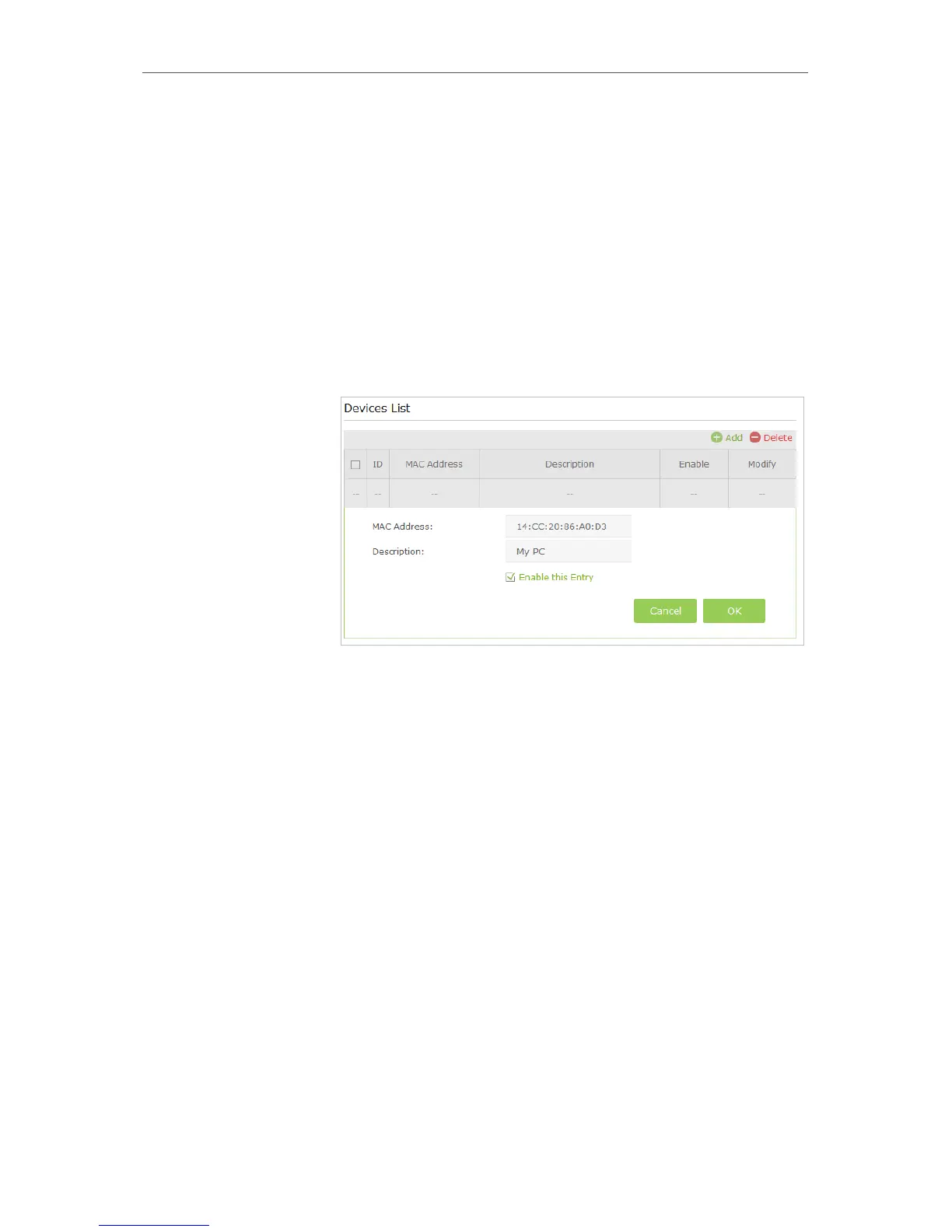
2 ) Click Add.
3 ) Enter the MAC Address (You can copy and paste the
MAC Address from Devices Online list if the device is
connected to your wireless network).
4 ) Enter the Description of the device.
5 ) Select the checkbox to enable this entry, and click OK.
Now MAC Filtering is implemented to protect your wireless
network.
6. 2. Access Control
Access Control is used to block or allow specific client devices to access your network
(via wired or wireless) based on a list of blocked devices (Blacklist) or a list of allowed
devices (Whitelist).
Block or allow specific client devices to access my network (via
wired or wireless).
1. Visit http://tplinkmodem.net, and log in with the password
you set for the router.
Done!
I want to:
How can I
do that?






 To Next Page