68
Chapter 12
Administrate Your Network
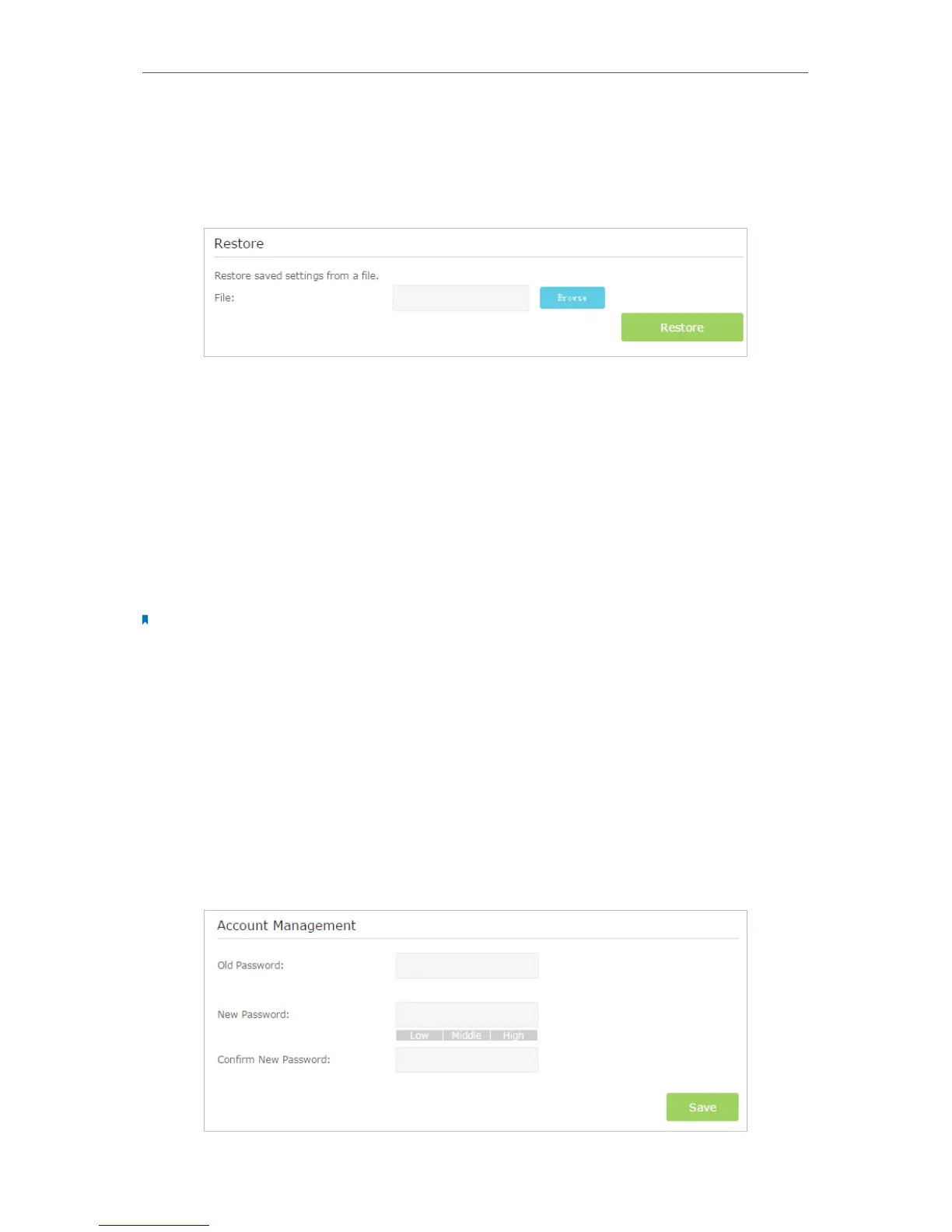
To restore configuration settings:
1. Visit http://tplinkmodem.net, and log in with the password you set for the router.
2. Click Advanced > System Tools > Backup & Restore page.
3. Click Browse to locate the previous backup configuration file, and click Restore.
4. Wait for the restoring and then the router will automatically reboot.
To reset the router to factory default settings:
1. Visit http://tplinkmodem.net, and log in with the password you set for the router.
2. Click Advanced > System Tools > Backup & Restore page.
3. Click Factory Restore to reset the router.
4. Wait for the resetting and then the router will automatically reboot.
Note:
1. Do not interrupt or turn off the router during the resetting process.
2. We strongly recommend you to back up the current configuration settings before resetting the router.
12. 4. Change the Administrator Account
Admin account is used to log in to the router’s web-based management page. You are
required to set the admin account at the first login. You can change it on the web page.
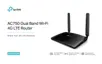
1. Visit http://tplinkmodem.net, and log in with the password you set for the router.
2. Go to Advanced > System Tools> Administration page. Locate the Account
Management section.






 To Next Page