EasyManua.ls Logo

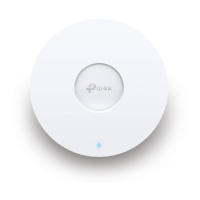
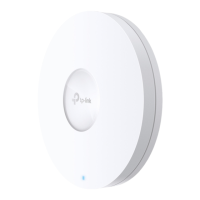
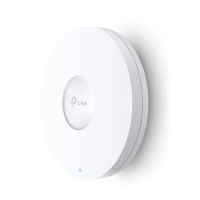
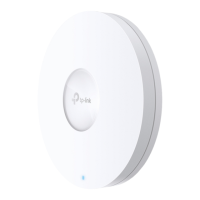
TP-Link EAP660 - User Manual

TP-Link EAP660
2 pages
Print Icon
To Next Page IconTo Next Page
Loading...
Quick Installation Guide
Wireless Access Point
Setup with videos
Visit https://www.tp-link.com/support/setup-video/ or scan the QR code to search for
the setup video of your product model.
Note: For simplicity, we will take EAP660 HD for example throughout the Guide. The image may dier from the
actual product.
Hardware Overview
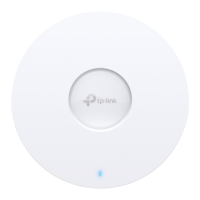
1
On:
Working normally/Initializing.
Off:
Working abnormally/Power o/LED is turned o.
Flashing:
Initialization
: The LED ashes twice after initialization is completed.
Upgrade
: The LED ashes once per second while upgrading.
Reset
: The LED ashes quickly during the reset. The EAP will then reboot.
Locate
: When the Locate feature is activated in the Omada controller, the LED ashes quickly to locate and
identify the device. The LED will ash for 10 minutes, or you can disable the feature manually to stop it ashing.
LED Indicator
RESET
With the device powered on, press and hold the button for about 5 seconds until the LED flashes quickly . Then release the
button. The device will restore to factory default settings.
The port is used to connect to a router or a switch to transmit data, or to a PSE (Power Sourcing Equipment), such as a PoE switch,
for both data transmission and Power over Ethernet (PoE) through Ethernet cable. The port supports transmission speed of
10/100/1000/2500 Mbps for EAP660 HD and 10/100/1000 Mbps for EAP610 / EAP620 HD.
Ethernet Port: 2.5G ETH (PoE) (for EAP660 HD) | ETH (PoE) (for EAP610 / EAP620 HD)
Plug one end of the provided power adapter to this port and the other end to a standard electrical wall outlet to power the EAP.
Power Port: 12V 2A (for EAP660 HD) | 12V 1A (for EAP610 / EAP620 HD)
2
Insert the plastic wall anchors into the 6 mm
diameter holes.
4
Connect the Ethernet cable to the Ethernet port on
the EAP.
5
Attach the EAP to the mounting bracket, then
rotate the EAP until it locks into place, as shown on
the left.
M3×20 Self-tapping Screws (Qty.4)
M3×28 Plastic Wall Anchors (Qty.4)
1
If your Ethernet cable feeds through the wall, you
can position the mounting bracket below the cable
hole. Mark four positions for the screw holes and
then drill four 6 mm diameter holes at the marked
positions.
3
Secure the mounting bracket to the wall by driving
the self-tapping screws into the anchors. Make
sure that the shoulders of the mounting bracket are
on the outside.
1
Remove the ceiling tile.
2
Place the mounting bracket in the center of the
ceiling tile. Mark four positions for the screw
holes and a position for the Ethernet cable hole.
Drill four 4 mm diameter holes for the screws and
a 25 mm diameter hole for the Ethernet cable at
the marked positions.
3
Secure the mounting bracket to the ceiling tile
using four M3x30 pan-head screws, washers and
wing nuts, as shown on the left.
4
Feed the Ethernet cable through the hole and set
the ceiling tile back into place.
5
Connect the Ethernet cable to the Ethernet port.
Attach the EAP to the mounting bracket, then
rotate the EAP until it locks into place, as shown on
the left.
Note: Make sure that the ceiling tile is bigger than the EAP.
Wing Nuts (Qty.4)Washers (Qty.4) M3×30 Pan-head Screws (Qty.4)
The EAP can be ceiling-mounted or wall-mounted. Choose a mounting method according to your
needs. Follow the steps below for the appropriate installation.
Hardware Installation
2
Drill Hole for Ethernet cable
X4
X4
Front Panel
Rear Panel
Option 1: Ceiling Mounting Option 2: Wall Mounting
Option1: Ceiling Mounting
Option2: Wall Mounting
Question and Answer IconNeed help?

Do you have a question about the TP-Link EAP660 and is the answer not in the manual?

Summary

Hardware Overview

Front Panel Components

Details the EAP's front panel, including the LED indicator status and function.

Rear Panel and Reset

Covers rear panel connections, ports, and the reset button function for factory defaults.

Hardware Installation

Ceiling Mounting

Step-by-step guide for mounting the EAP on a ceiling tile.

Wall Mounting

Step-by-step guide for mounting the EAP on a wall.

Power Supply Options

PoE Switch Power

Connecting the EAP using an 802.3at compliant PoE switch for power and data.

Power Adapter

Powering the EAP using the provided power adapter and a wall outlet.

Software Configuration Methods

Standalone Mode

Configure EAPs individually using Omada App or web browser for basic settings.

Controller Mode

Centralized management via Omada Software, Hardware, or Cloud Controllers.

Summary

Hardware Overview

Front Panel Components

Details the EAP's front panel, including the LED indicator status and function.

Rear Panel and Reset

Covers rear panel connections, ports, and the reset button function for factory defaults.

Hardware Installation

Ceiling Mounting

Step-by-step guide for mounting the EAP on a ceiling tile.

Wall Mounting

Step-by-step guide for mounting the EAP on a wall.

Power Supply Options

PoE Switch Power

Connecting the EAP using an 802.3at compliant PoE switch for power and data.

Power Adapter

Powering the EAP using the provided power adapter and a wall outlet.

Software Configuration Methods

Standalone Mode

Configure EAPs individually using Omada App or web browser for basic settings.

Controller Mode

Centralized management via Omada Software, Hardware, or Cloud Controllers.

Overview

This document describes a Wireless Access Point (EAP) designed for robust network connectivity, offering flexible installation and comprehensive management options.

Function Description

The EAP serves as a wireless access point, extending network coverage and providing Wi-Fi connectivity to clients. It can be deployed in various environments, from small networks requiring individual management to large-scale setups demanding centralized control. The device facilitates data transmission and, when powered via Power over Ethernet (PoE), also receives power through the same Ethernet cable, simplifying deployment. It supports different Ethernet speeds depending on the model, ensuring compatibility with various network infrastructures.

Usage Features

Installation Flexibility:

The EAP offers two primary mounting methods: ceiling mounting and wall mounting.

  • Ceiling Mounting: This method involves securing a mounting bracket to a ceiling tile. The process includes marking and drilling holes for screws and the Ethernet cable, then attaching the bracket with pan-head screws, washers, and wing nuts. The Ethernet cable is then fed through the hole, and the ceiling tile is reinstalled. Finally, the EAP is attached to the bracket and rotated to lock it into place. This method is ideal for discreet installations in environments with suspended ceilings.
  • Wall Mounting: For wall installations, the mounting bracket is positioned on the wall, and screw holes are marked and drilled. Plastic wall anchors are inserted into these holes, and the bracket is secured using self-tapping screws, ensuring the bracket's shoulders face outwards. The Ethernet cable is connected to the EAP's port, and the EAP is then attached to the bracket and rotated to lock it into position. This method is suitable for direct wall installations where ceiling access might be limited or undesirable.

Powering Options:

The EAP can be powered in two ways:

  • PoE Switch: The device can receive power directly from a PoE switch that complies with the 802.3at standard, eliminating the need for a separate power adapter and simplifying cabling.
  • Power Adapter: Alternatively, the EAP can be powered using a standard electrical wall outlet via a provided power adapter.

Software Configuration Modes:

The EAP supports two distinct software configuration modes to cater to different network sizes and management preferences:

  • Standalone Mode: This mode is recommended for smaller networks with a few EAPs, where individual device management is preferred.
    • Via Omada App: Users can download the TP-Link Omada App on their mobile device, connect to the EAP's default SSID, and then configure the device through the app's intuitive interface. The app allows for quick setup of common settings.
    • Via a Web Browser: Users can also connect to the EAP's default SSID, launch a web browser, and access the device's web interface by entering http://tplinkeap.net. Here, they can set up a new username and password, modify wireless parameters, and configure basic functions. For advanced functions, Controller Mode is recommended.
  • Controller Mode: This mode is ideal for large-scale networks with multiple devices, enabling centralized configuration and monitoring.
    • Via Omada Software Controller: Users can download and install the Omada Software Controller on a Windows or Linux PC. After installation, the controller allows for quick setup, network configuration, and remote access via the Omada Cloud Portal. The Omada App can also be used for local and remote management of the software controller.
    • Via Omada Hardware Controller (OC200/OC300): For users who prefer not to dedicate a PC to run the software controller, a dedicated Omada Hardware Controller (like OC200/OC300) can be used. This device comes pre-installed with the Omada Software Controller and provides a robust, always-on solution for network management.
    • Via Omada Cloud-Based Controller: This option allows for managing devices entirely through a cloud platform. Users log in to https://omada.tplinkcloud.com, add their controller, register devices by serial number, and assign licenses to manage and configure them. The Omada App can also be used to manage the cloud-based controller.

LED Indicator:

The EAP features an LED indicator that provides visual feedback on its operational status:

  • On: Indicates normal operation or initialization.
  • Off: Signifies abnormal operation, power off, or the LED being turned off.
  • Flashing:
    • Initialization: Flashes twice after completing initialization.
    • Upgrade: Flashes once per second during a firmware upgrade.
    • Reset: Flashes quickly during a reset, followed by a reboot.
    • Locate: When the "Locate" feature is activated in the Omada controller, the LED flashes quickly for 10 minutes to help identify the device. This feature can be manually disabled.

Maintenance Features

Reset Functionality:

The device includes a reset button that allows users to restore it to factory default settings. To perform a reset, the user must press and hold the button for approximately 5 seconds while the device is powered on, until the LED flashes quickly. Releasing the button will initiate the device's reboot with factory defaults. This is a crucial feature for troubleshooting or reconfiguring the device from scratch.

Firmware Upgrades:

While not explicitly detailed in the provided text, the "Upgrade" LED flashing pattern suggests that the device supports firmware upgrades. This is a standard maintenance feature for network devices, allowing for performance improvements, bug fixes, and new feature additions over time. These upgrades are typically managed through the Omada controller or the device's web interface.

Troubleshooting and Support:

The manual directs users to various resources for support and troubleshooting:

  • TP-Link Community: For questions, answers, and interaction with other users or engineers.
  • TP-Link Support Website: For technical support, user guides, and other information, accessible via URL or QR code.
  • Email Support: For suggestions or needs regarding product guides.

Safety Information:

The manual includes important safety guidelines to ensure proper device operation and user safety:

  • Keep the device away from water, fire, humidity, or hot environments.
  • Do not attempt to disassemble, repair, or modify the device; contact support for service.
  • Do not use the device where wireless devices are prohibited.
  • Use only recommended chargers and USB cables.
  • Ensure the adapter is installed near the equipment and is easily accessible.

GPL Compliance:

TP-Link acknowledges that its products may contain software code developed by third parties under the GNU General Public License (GPL). Information on obtaining access to this GPL Code is provided, emphasizing that these programs are distributed without warranty and are subject to the copyrights of their authors.

TP-Link EAP660 Specifications

General IconGeneral
Frequency Band2.4 GHz and 5 GHz
PoE802.3at PoE+
MU-MIMOYes
OFDMAYes
BeamformingYes
Operating Humidity10% to 90% non-condensing
Wireless Standard802.11ax
Antenna TypeInternal
ManagementOmada SDN
Dimensions243 × 243 × 64 mm
MountingCeiling/Wall Mounting
SecurityWPA3
Antenna Gain2.4 GHz: 5 dBi, 5 GHz: 6 dBi
Operating Temperature0–40 ℃ (32–104 ℉)

Related product manuals