EasyManua.ls Logo

TP-Link RE380D - User Manual

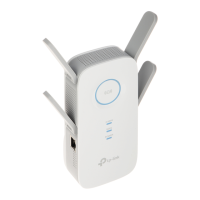
TP-Link RE380D
37 pages
Print Icon
To Next Page IconTo Next Page
Loading...
19100112
RE
1910011476
REV 1.0.0

Other manuals for TP-Link RE380D

Questions and Answers

  • L
    Lauren FranklinAug 11, 2025
    How do I restore my TP-Link RE380D Extender to factory default settings?
    • M
      Mark WestAug 11, 2025
      To restore your TP-Link Extender to its factory default settings: * With the extender powered on, use a pin to press and hold the Reset button until all LEDs turn on momentarily, then release the button. * Alternatively, log into the extender's Web-based Management page, go to System Tools > Restore & Backup, and click Factory Restore.
  • H
    heather71Aug 17, 2025
    What to do if I forget my TP-Link RE380D Extender login password?
    • B
      Brandy BrockAug 17, 2025
      If you forget your TP-Link Extender login password, you can restore the extender to its factory default settings. Alternatively, try using the default username 'admin' and password 'admin' to log in. You can also reconfigure your extender by following the instructions in the guide.
  • F
    Faith ThompsonAug 26, 2025
    What to do if I cannot access the web management page of my TP-Link RE380D?
    • D
      Daniel RodriguezAug 26, 2025
      If you cannot access the web management page of your TP-Link Extender: 1. Check to verify all the connections (either wireless or wired ones) are proper. 2. Try to obtain an IP address and gateway; if successful, open your web browser and log into http://tplinkrepeater.net. 3. If the problem persists, reset the device and then use the default IP address to log into the web management page to reconfigure the device.
  • K
    kevin25Sep 1, 2025
    Why does the wireless transmission rate speed down on my TP-Link RE380D?
    • M
      Michele MaddenSep 1, 2025
      The wireless transmission rate slows down because, in compliance with the wireless transmission protocol, all extender devices are set to work in half-duplex instead of full-duplex mode. TP-Link recommends connecting to the extender when your home network connection is poor, or when you want larger wireless coverage to eliminate "dead zones".

TP-Link RE380D Specifications

General IconGeneral
Device TypeRange Extender
WPS SupportYes
ButtonsWPS Button, Reset Button
Antennas2 x External Antennas
Frequency Bands2.4 GHz, 5 GHz
Ports1 x 10/100Mbps Ethernet Port

Related product manuals