EasyManua.ls Logo

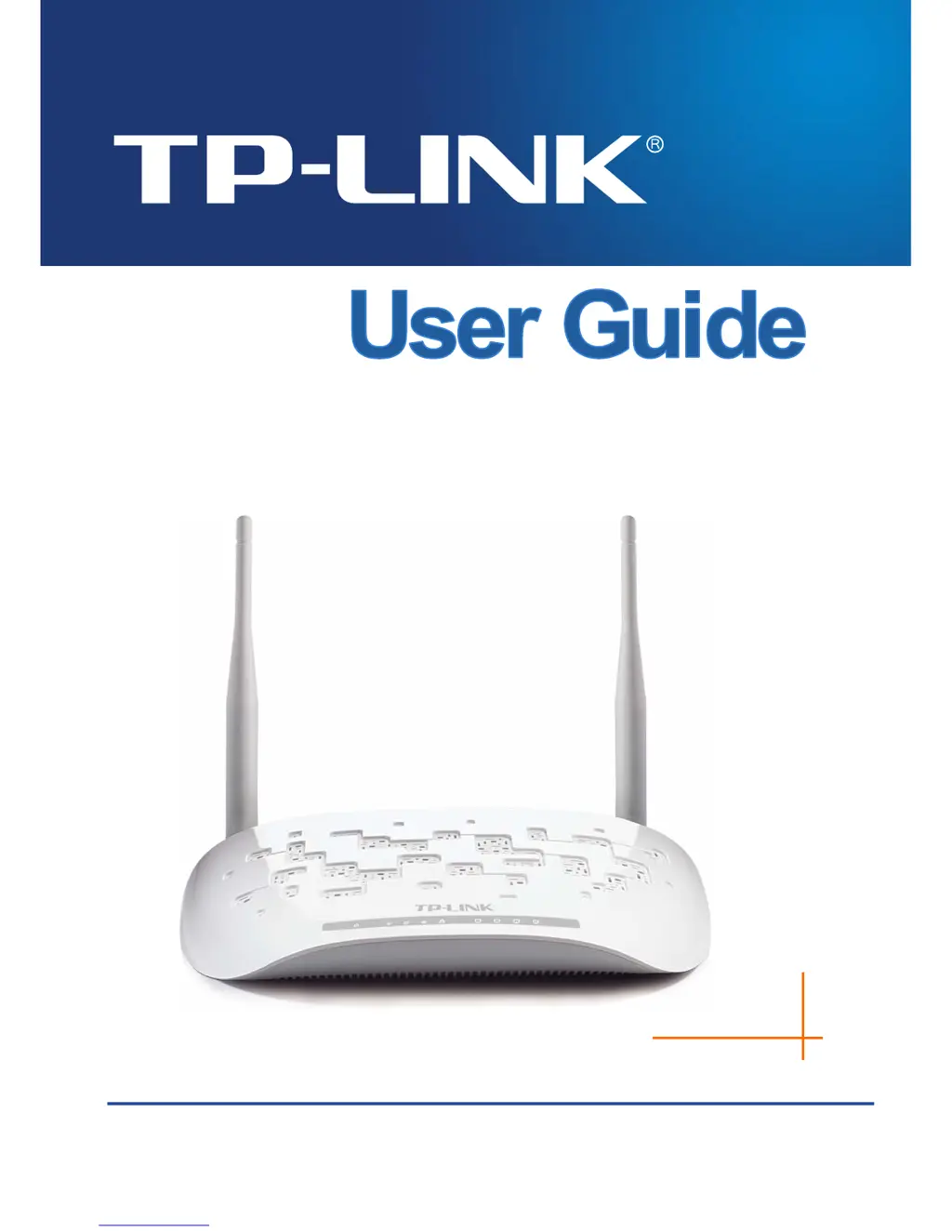
TP-Link TD-W8961ND - User Manual

TP-Link TD-W8961ND
87 pages
Print Icon
To Next Page IconTo Next Page
Loading...
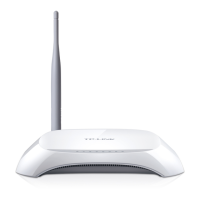
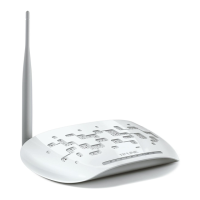
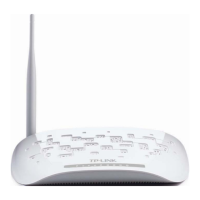
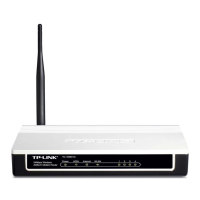
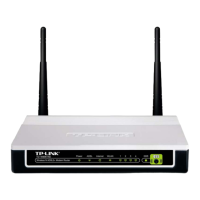
TD-W8961ND
300Mbps Wireless N ADSL2+ Modem Router
Rev: 2.0.1
1910010531

Other manuals for TP-Link TD-W8961ND

Questions and Answers

  • M
    miguelsmithAug 12, 2025
    What to do if I cannot access the Internet with my TP-Link Wireless Router?
    • J
      jasmine13Aug 13, 2025
      First, verify that all connectors, including the telephone line, Ethernet cables, and power adapter, are securely connected. Next, confirm with your ISP that the VPI/VCI, Connection Type, account username, and password are correct. As an additional step, you can restore your modem router to its factory default settings and reconfigure it.
  • P
    Paul CooperAug 16, 2025
    How to reset the password on a TP-Link TD-W8961ND Wireless Router if I forgot it?
    • E
      Eddie StrongAug 16, 2025
      If you've forgotten your password, check the 'Wireless Password/PIN' label on the bottom of the modem router for the default wireless password. Alternatively, reset the modem router and use the default username and password: admin/admin.
  • F
    Felicia HinesAug 20, 2025
    What to do if my TP-Link TD-W8961ND Wireless Router cannot access the internet?
    • L
      Lynn LeeAug 20, 2025
      If you cannot access the internet using your TP-Link Wireless Router, first, check that all connectors, including the telephone line, Ethernet cables, and power adapter, are securely connected. Then, verify with your ISP that your VPI/VCI, Connection Type, account username, and password are correct. If issues persist, restore your router to factory default settings and reconfigure it following the instructions in the QIG. If the problem continues, contact Technical Support.
  • O
    ofrancisAug 25, 2025
    What to do if I forgot my TP-Link TD-W8961ND Wireless Router password?
    • R
      Robert OlsenAug 25, 2025
      If you've forgotten your password for your TP-Link Wireless Router, you can restore the router to its factory default settings. Alternatively, try using the default username and password: admin, admin. If neither works, try to configure your router once again by following the instructions in the QIG.
  • K
    Kevin BallAug 27, 2025
    How to reset my TP-Link Wireless Router to factory settings?
    • T
      Timothy PrattAug 27, 2025
      To restore your TP-Link Wireless Router to its factory default settings, ensure the router is powered on, then press and hold the RESET button on the rear panel for 8 to 10 seconds before releasing it.
  • B
    Brandi PhillipsAug 31, 2025
    What to do if my TP-Link Network Router won't connect to the internet?
    • D
      David BrowningAug 31, 2025
      First, verify that all connectors, including the telephone line, Ethernet cables, and power adapter, are securely connected. Next, check if you can access the web management page of the Modem Router. Then, consult your ISP to ensure that the VPI/VCI, Connection Type, account username, and password are correct. If issues persist, restore your Router to its factory default settings and reconfigure it.
  • I
    ismithSep 4, 2025
    What to do if I can't access the web-based configuration page on my TP-Link Network Router?
    • R
      Randy AndersonSep 4, 2025
      First, configure your computer’s IP Address. After configuring the settings, try logging on to the web-based configuration page again. If you still cannot access the configuration page, restore your Router’s factory default settings and reconfigure your Router.
  • B
    barbara57Sep 8, 2025
    How to reset my TP-Link Network Router password if I forgot it?
    • V
      vincent49Sep 8, 2025
      You can restore the Router’s configuration to its factory default settings. Alternatively, try using the default username and password: admin, admin. As another option, try to configure your Router once again.

Summary

Chapter 1 Introduction

Product Overview

Detailed description of the TD-W8961ND ADSL modem router and its capabilities.

Main Features

Lists key functionalities and specifications of the TD-W8961ND, including ports, ADSL support, and wireless features.

Chapter 2 Hardware Installation

Front Panel Overview

Explains the status indicators (LEDs) on the front panel of the TD-W8961ND modem router.

Back Panel Ports and Functions

Details the physical ports and buttons located on the back of the TD-W8961ND modem router.

Connecting the Router

Step-by-step guide on how to physically connect the TD-W8961ND modem router to the ADSL line and network devices.

Chapter 3 Quick Installation Guide

Configure PC for Setup

Instructions on configuring your computer's network settings to communicate with the TD-W8961ND for initial setup.

Router Login Procedure

Steps to access and log into the web-based utility of the TD-W8961ND modem router.

Chapter 4 Software Configuration

Status Information

Provides access to view device status, system logs, and traffic statistics for the TD-W8961ND.

Interface Setup

Configuration options for Internet (WAN) and LAN interfaces on the TD-W8961ND modem router.

Wireless Network Configuration

Guides on configuring wireless network name (SSID), security, and WPS for the TD-W8961ND.

Advanced Setup Options

Access to advanced network configurations like Firewall, NAT, QoS, VLAN, and ADSL settings.

Access Management Controls

Controls access to the router and network using ACL, filters (IP/MAC/Application/URL), SNMP, UPnP, DDNS, and CWMP.

Maintenance and Diagnostics

Functions for managing the router, including administration, time zone, firmware upgrades, system restart, and diagnostics.

Appendix A: Specifications

Appendix B: Troubleshooting

Appendix C: Technical Support

TP-Link TD-W8961ND Specifications

General IconGeneral
VPN supportPPTP, L2TP, IPSec
Ethernet LANYes
Cabling technology10/100Base-T(X)
Networking standardsIEEE 802.11b, IEEE 802.11g, IEEE 802.11n, IEEE 802.3, IEEE 802.3u
Ethernet LAN data rates10, 100 Mbit/s
Ethernet LAN interface typeFast Ethernet
Bandwidth2.4835 GHz
Input current1 A
Input voltage12 V
Rack mountingNo
Dimensions (WxDxH)195 x 135 x 39 mm
Filtering descriptionIP, Packet, Application, URL
Operating temperature (T-T)32 - 104 °F
Compliance industry standardsIEEE 802.3, 802.3u
WLAN data transfer rates supported300 Mbit/s
Non-operating relative humidity (non-condensing)10 - 90 %
DHCP client-
Supported network protocolsPPPoE, PPPoA, IPoA
RJ-11 ports quantity1
Ethernet LAN (RJ-45) ports4
Security algorithms128-bit WEP, 64-bit WEP, WPA-AES, WPA-PSK, WPA-TKIP, WPA2-PSK
Storage temperature (T-T)-40 - 70 °C
Storage relative humidity (H-H)5 - 90 %
DSL specificationANSI T1.413 Issue 2, ITU-T G.992.1, ITU-T G.992.2, ITU-T G.994.1, ITU-T G.992.3, ITU-T G.992.4, ITU-T G.992.5
Antennas quantity2
Antenna connector typeRP-SMA
Antenna gain level (max)3 dBi
Weight and Dimensions IconWeight and Dimensions
Weight- g

Related product manuals