EasyManua.ls Logo

TP-Link TD-W8980 - User Manual

TP-Link TD-W8980
117 pages
Print Icon
To Next Page IconTo Next Page
Loading...
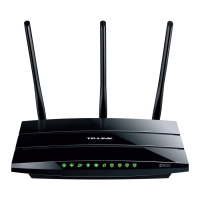
TD-W8980
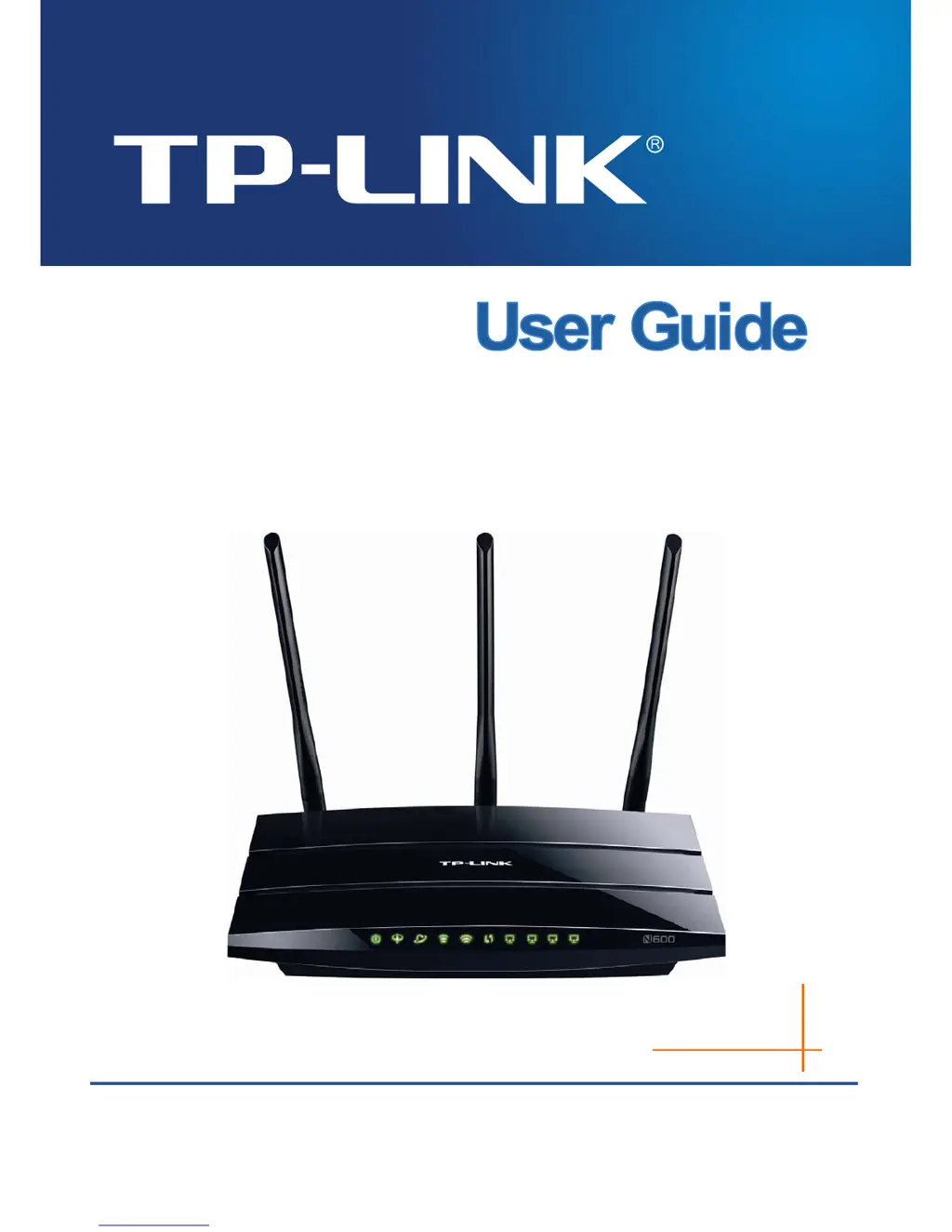
N600 Wireless Dual Band Gigabit ADSL2+ Modem
Router
Rev: 1.0.0
1910010779

Table of Contents

Other manuals for TP-Link TD-W8980

Questions and Answers

  • D
    dsmithJul 26, 2025
    What to do if TP-Link TD-W8980 cannot access the Internet?
    • A
      Amanda WardJul 26, 2025
      If you can't access the internet using your TP-Link Wireless Router, first, check that all connectors, including the telephone line, Ethernet cables, and power adapter, are securely connected. Next, see if you can log in to the web management page of the router. Verify with your ISP that your VPI/VCI, Connection Type, account username, and password are correct. If these steps don't resolve the issue, restore your modem router to its factory default settings and reconfigure it.
  • R
    rbenitezAug 1, 2025
    What to do if I forget my TP-Link TD-W8980 Wireless Router password?
    • N
      nwrightAug 1, 2025
      If you forget your password for the TP-Link Wireless Router, you have a few options. You can restore the router to its factory default settings. Alternatively, try using the default username and password: admin, admin. You can also try to configure your modem router once again by following the instructions in the Quick Installation Guide.
  • M
    Marilyn KleinAug 7, 2025
    How to reset TP-Link TD-W8980 Wireless Router to factory settings?
    • J
      Jose TaylorAug 8, 2025
      To restore your TP-Link modem router’s configuration to its factory default settings, with the device powered on, press and hold the RESET button on the rear panel for 8 to 10 seconds before releasing it.
  • T
    Trevor AndersonAug 13, 2025
    What to do if I cannot access TP-Link TD-W8980 Wireless Router configuration page?
    • A
      Angela HernandezAug 13, 2025
      If you cannot access the web-based configuration page for your TP-Link Wireless Router, configure your computer’s IP Address. If this doesn't work, restore your modem router’s factory default settings and reconfigure your modem router following the instructions in the Quick Installation Guide.
  • C
    Crystal MathisAug 19, 2025
    What to do if I cannot access the Internet with my TP-Link TD-W8980?
    • R
      Ricky WagnerAug 19, 2025
      If you're having trouble accessing the internet with your TP-Link Wireless Router, begin by ensuring all cables (telephone line, Ethernet, and power adapter) are securely connected. Then, check if you can access the router's web management page. Verify with your ISP that your VPI/VCI, Connection Type, account username, and password are correct. As a last resort, you can restore the router to its factory default settings.

Summary

Product Overview

Modem Router Overview

Provides a general overview of the TD-W8980 N600 modem router's features and capabilities.

Main Features

Details the key functionalities and specifications of the modem router.

Panel Layout

Describes the LEDs and their indications on the front panel of the modem router.

Connecting the Modem Router

System Requirements

Lists the necessary hardware and software for setting up the modem router.

Installation Environment

Specifies the ideal conditions and placement for installing the modem router.

Quick Installation Guide

PC Configuration

Guides users on how to configure their PC's IP address for router setup.

Configuring the Modem Router

Login and Status

Instructions for accessing the modem router's web-based configuration interface and viewing status.

Initial Setup and Operation Mode

Guides for initial setup and selecting the device's operational mode.

Network and Internet Configuration

Settings for WAN, LAN, IPv6, DHCP, and IP/MAC binding for network connectivity.

Wireless Network Configuration

Configuration for both 2.4GHz and 5GHz wireless networks, including security and WPS.

Advanced Features and Tools

Settings for USB, Routing, Firewall, Parental Control, and other system tools.

Specifications

General Specifications

Lists general specifications including standards, ports, and data rates.

Physical and Environmental Specs

Details operating temperature, humidity, and storage conditions.

Troubleshooting

Restore Factory Defaults

Steps to restore the modem router's configuration to its factory default settings.

Password and Access Issues

Solutions for forgotten passwords and inability to access the configuration page.

Internet Connectivity Problems

Guides on how to resolve issues preventing access to the internet.

Technical Support

TP-Link TD-W8980 Specifications

General IconGeneral
VPN supportPPTP, L2TP
Ethernet LANYes
Cabling technology10/100/1000Base-T(X)
Networking standardsIEEE 802.11a, IEEE 802.11b, IEEE 802.11g, IEEE 802.11n, IEEE 802.3, IEEE 802.3ab, IEEE 802.3u
VPN tunnels quantity10
Ethernet LAN data rates10, 100, 1000 Mbit/s
Ethernet LAN interface typeGigabit Ethernet
Wi-Fi bandDual-band (2.4 GHz / 5 GHz)
Wi-Fi standards802.11a, 802.11b, 802.11g
Top Wi-Fi standardWi-Fi 4 (802.11n)
WLAN data transfer rate (max)300 Mbit/s
Input current1.5 A
Rack mountingNo
Frequency band2.4 & 5 GHz
USB ports quantity2
RJ-11 ports quantity1
Ethernet LAN (RJ-45) ports4
DHCP client-
Supported network protocolsATM/PPP
Antennas quantity5
Antenna connector typeRP-SMA
Security algorithms128-bit AES, 128-bit WEP, 256-bit AES, 3DES, 64-bit WEP, DES, WPA, WPA-PSK, WPA2, WPA2-PSK
Authentication methodMD5, SHA-1
CertificationCE, FCC, RoHS
Storage temperature (T-T)-40 - 70 °C
Operating temperature (T-T)0 - 40 °C
Storage relative humidity (H-H)5 - 90 %
Operating relative humidity (H-H)10 - 90 %
Cables includedLAN (RJ-45), Phone (RJ-11)
Output voltage12 V
Weight and Dimensions IconWeight and Dimensions
Depth160.6 mm
Width243 mm
Height32.5 mm
Weight- g

Related product manuals