EasyManua.ls Logo

TP-Link td-w8970 - User Manual

TP-Link td-w8970
116 pages
Print Icon
To Next Page IconTo Next Page
Loading...
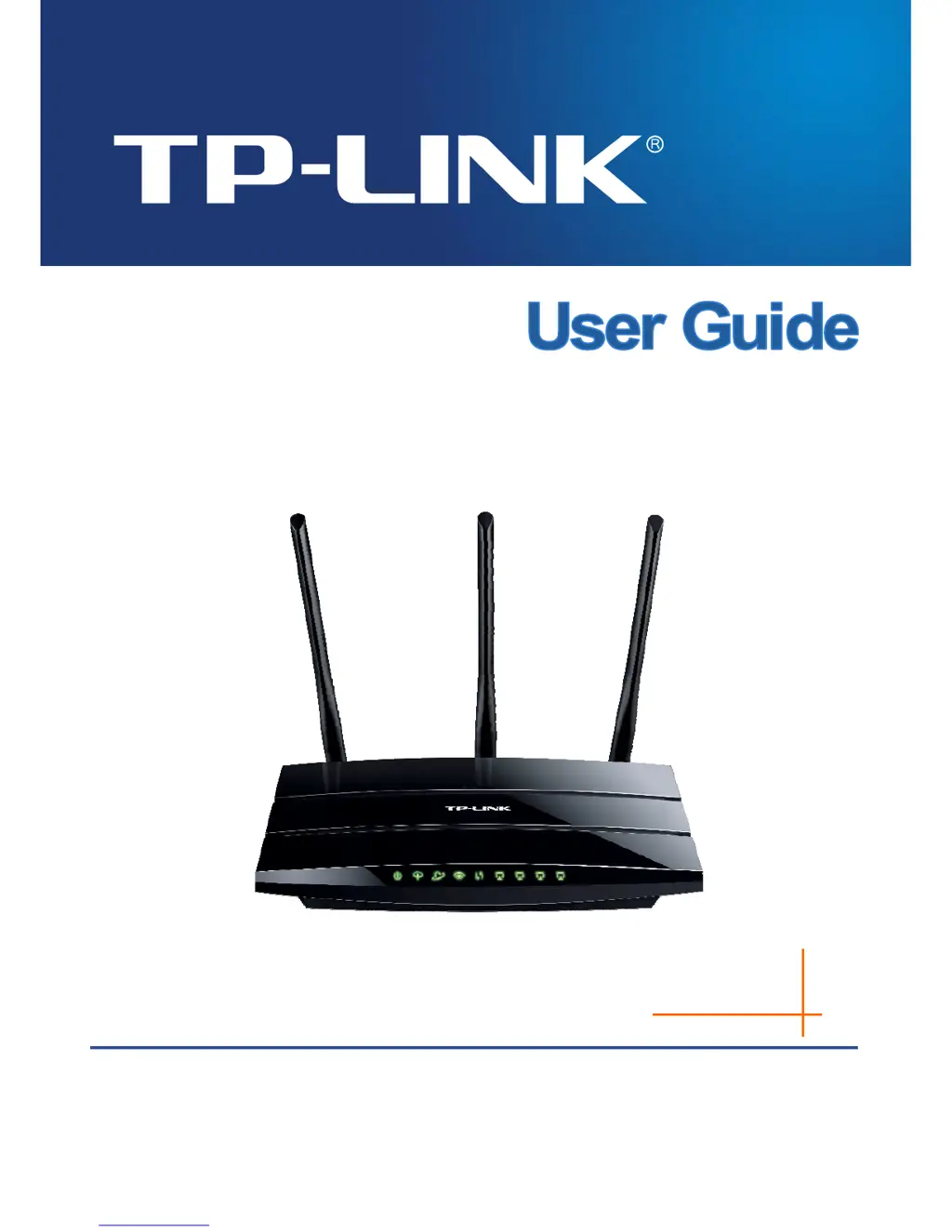
TD-W8970
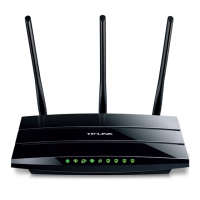
300Mbps Wireless N Gigabit ADSL2+ Modem Router
1910010752
Rev: 1.0.0

Table of Contents

Other manuals for TP-Link td-w8970

Questions and Answers

  • A
    alisonortizJul 26, 2025
    What to do if I cannot access the Internet on my TP-Link Wireless Router?
    • B
      Benjamin ChapmanJul 26, 2025
      If you cannot access the Internet, ensure all connectors, including the telephone line, Ethernet cables, and power adapter, are well-connected. Also, verify with your ISP that the VPI/VCI, Connection Type, account username, and password are correct. As a last resort, restore your modem router to its factory default settings and reconfigure it.
  • A
    Austin HayesJul 31, 2025
    What to do if I forget my TP-Link td-w8970 Wireless Router password?
    • S
      sfoxJul 31, 2025
      If you've forgotten your password, try restoring the modem router to its factory default settings. Alternatively, use the default username 'admin' and password 'admin'. You can also try to configure your modem router once again by following the instructions in the Quick Installation Guide.
  • S
    smithtamiAug 5, 2025
    What to do if I cannot access the web-based configuration page of my TP-Link td-w8970 Wireless Router?
    • D
      David VazquezAug 5, 2025
      If you cannot access the web-based configuration page, configure your computer’s IP Address. Alternatively, restore your modem router’s factory default settings and reconfigure your modem router following the instructions in the Quick Installation Guide.
  • C
    Caitlin RobertsAug 10, 2025
    How to reset TP-Link td-w8970 to factory settings?
    • W
      wtaylorAug 10, 2025
      To restore your modem router’s configuration to its factory default settings, press and hold the RESET button on the rear panel for 8 to 10 seconds before releasing it.
  • S
    Stephanie CrosbyAug 15, 2025
    What to do if TP-Link Wireless Router cannot access the internet?
    • G
      Gary WilliamsAug 15, 2025
      If your TP-Link Wireless Router cannot access the internet, ensure all connectors, including the telephone line, Ethernet cables, and power adapter, are securely connected. Verify with your ISP that the VPI/VCI, Connection Type, account username, and password are correct. If necessary, restore your modem router to its factory default settings and reconfigure it.
  • I
    ihansonAug 20, 2025
    What to do if I cannot access the web-based configuration page of TP-Link Wireless Router?
    • J
      John GonzalezAug 20, 2025
      If you cannot access the web-based configuration page for your TP-Link Wireless Router, configure your computer’s IP Address. Alternatively, restore your modem router’s factory default settings and reconfigure your modem router.

Summary

Chapter 1: Product Overview

1.1 Overview of the Modem Router

Provides a comprehensive overview of the TD-W8970 modem router's integrated features and capabilities.

1.2 Main Features

Lists the key features and specifications of the TD-W8970 modem router, including wireless speed, ports, and supported technologies.

Chapter 2: Connecting the Modem Router

2.3 Connecting the Modem Router

Provides step-by-step instructions for physically connecting the modem router to the telephone line and computer.

Chapter 3: Quick Installation Guide

3.2 Quick Setup Wizard

Explains how to use the Quick Setup Wizard for initial modem router configuration and internet connection.

Chapter 4: Configuring the Modem Router

4.3 Quick Setup

Refers to the Quick Installation Guide for initial setup procedures.

Network Configuration

4.5.1 WAN Settings

Configures Wide Area Network (WAN) connections, supporting various types like Static IP, Dynamic IP, PPPoE, PPPoA, IPoA, and Bridge.

4.5.4 LAN Settings

Manages Local Area Network (LAN) settings, including IP address, subnet mask, and DHCP server configuration.

4.5.5 IPv6 LAN Settings

Configures IPv6 address assignment for LAN clients using RADVD or DHCPv6 Server.

4.5.9 IPSec VPN

Guides users through setting up IPSec VPN tunnels for secure remote access and site-to-site connections.

Wireless Network Settings

4.7.1 Basic Wireless Settings

Configures fundamental wireless settings like SSID, region, mode, channel, and SSID broadcast.

4.7.3 Wireless Security

Sets up wireless network security using WPA/WPA2-Personal, WPA/WPA2-Enterprise, or WEP encryption.

Routing Configuration

Port Forwarding and DMZ

4.10.1 Virtual Servers

Sets up virtual servers to expose specific services on the LAN to the internet by mapping external ports to internal IPs.

Firewall and Access Control

4.12.1 Firewall Rules

Defines and manages access control rules for inbound and outbound network traffic to enhance security.

IPv6 Firewall Settings

4.13.1 IPv6 Rule Configuration

Configures IPv6 access control rules for network traffic, specifying hosts, targets, and protocols.

IP and MAC Binding

4.16.1 Binding Settings

Configures IP and MAC address binding to enhance network security and prevent unauthorized access.

System Tools and Management

4.19.7 Factory Defaults

Restores the modem router's configuration settings to their original factory default values.

4.19.8 Firmware Upgrade

Updates the modem router's firmware to the latest version for improved performance and features.

Appendix B: Troubleshooting

Restore Factory Defaults

Provides steps to restore the modem router's configuration to its factory default settings.

TP-Link td-w8970 Specifications

General IconGeneral
VPN supportPPTP, L2TP, IPSec Pass-through
Ethernet LANYes
Cabling technology10/100/1000Base-T(X)
Networking standardsIEEE 802.11b, IEEE 802.11g, IEEE 802.11n, IEEE 802.3, IEEE 802.3u
VPN tunnels quantity10
Ethernet LAN data rates10, 100, 1000 Mbit/s
Ethernet LAN interface typeGigabit Ethernet
Antennas quantity2
Antenna connector typeRP-SMA
Antenna gain level (max)5 dBi
DHCP client-
Routing protocolsRIP-1, RIP-2
Supported network protocolsDHCP, ATM/PPP
RJ-11 ports quantity1
Ethernet LAN (RJ-45) ports4
Security algorithms128-bit AES, 128-bit WEP, 256-bit AES, 3DES, 64-bit WEP, DES, MD5, SHA-1, SSL/TLS, WPA, WPA-PSK, WPA2, WPA2-PSK, WPS
Authentication methodMD5, SHA-1
Storage temperature (T-T)-40 - 70 °C
Operating temperature (T-T)0 - 40 °C
Storage relative humidity (H-H)5 - 90 %
Operating relative humidity (H-H)10 - 90 %
CertificationCE, FCC, RoHS, IPv6
Cables includedLAN (RJ-45)
USB version2.0
CompatibilityIPv6
Input current1.5 A
Input voltage12 V
Rack mountingNo
Frequency band2.4 GHz
Frequency range2.4 - 2.4835 GHz
Filtering descriptionMAC / IP / URL
WLAN data transfer rates supported300 Mbit/s
Product colorBlack
Wi-Fi standards802.11b, 802.11g, Wi-Fi 4 (802.11n)
Top Wi-Fi standardWi-Fi 4 (802.11n)
Power source typeDC
Weight and Dimensions IconWeight and Dimensions
Depth140 mm
Width225 mm
Height32.5 mm
Weight- g

Related product manuals