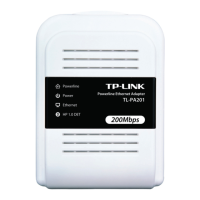
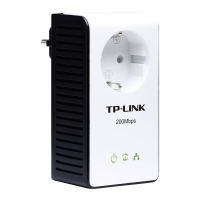
TL-PA201 200Mbps Ethernet Powerline Adapter
17
Chapter 5 Advance Feature: How to Use the Push buttons
5.1 Pair( Secure with 128 bits-AES)
The Powerline AV standard uses 128-bit AES (Advanced Encryption Standard) to safely transmit data
between powerline adapters. For the powerline adapters to communicate with each other they all need
to use the same Network Membership Key (NMK). Otherwise, they cannot unscramble the encrypted
data sent in the powerline network.
The Pair button allows you to set up a secure powerline connection with other HomePlug AV compliant
powerline devices which also support the Pair feature.
5.2 Set Up a Powerline AV Network with the Pair button
You can connect a number of devices on a powerline network, but you can use the Pair button on only
two devices at a time.
Create a Powerline network using the Pair button:
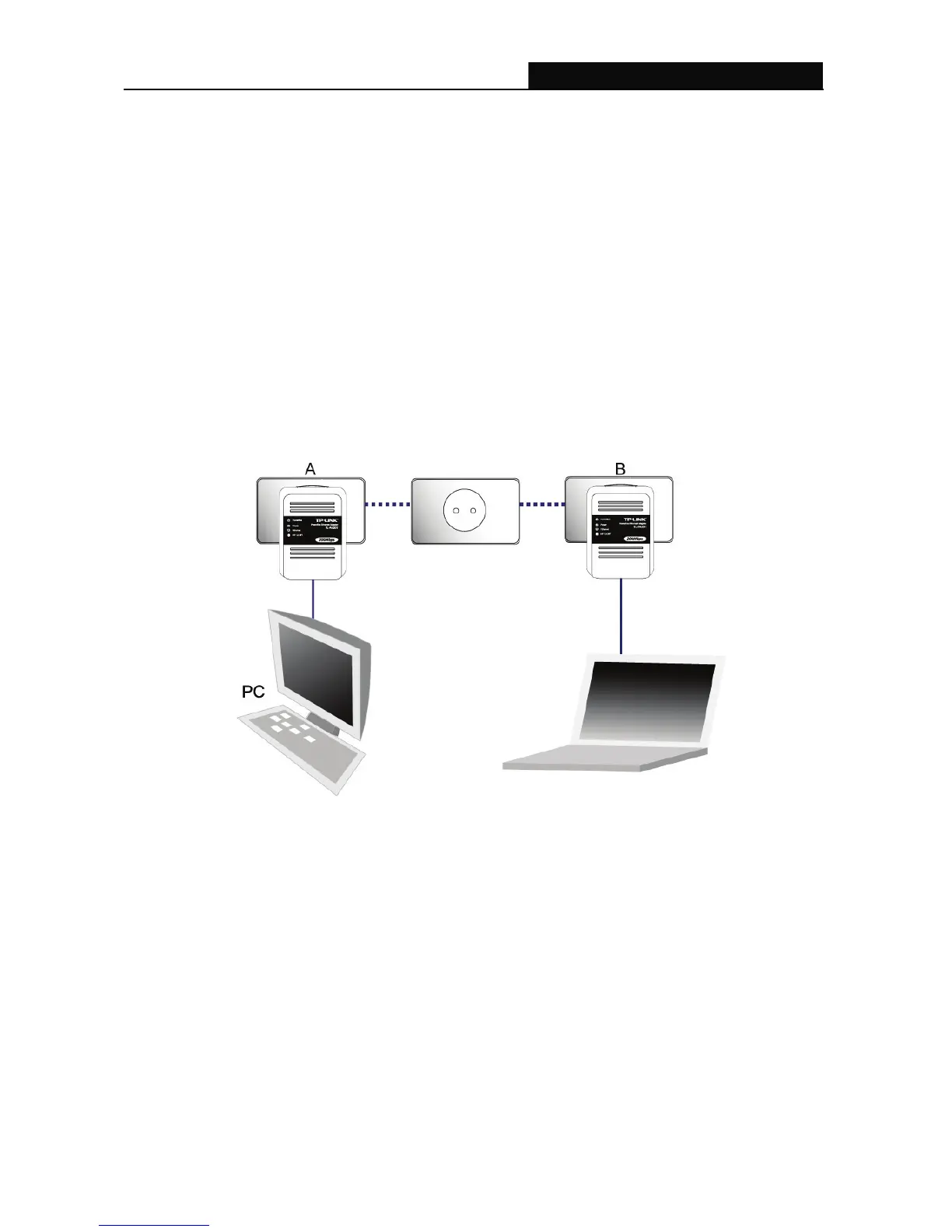
Step 1. Place Powerline adapter A close to another Powerline adapter B . After you set up the
Powerline adapter A, you have 120 seconds to set up the Powerline adapter B.
Step 2. Press the Pair button of Powerline adapter A for 2 seconds, the Power LED will start blinking.
Step 3. Press the Pair button of Powerline adapter B for 2 seconds, the Power LED will start blinking
(This must be done within 120 seconds after pressing the Pair button of Powerline adapter A.)
Step 4. Wait for about 60 seconds while your Powerline adapter A and B are connecting. The Power
LED on both adapters will stop blinking and light up when the connection is made.


 To Next Page