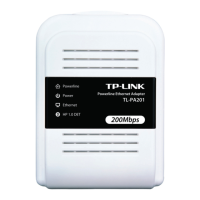
TL-PA201 200Mbps Ethernet Powerline Adapter
3
OFF
Did not detect any HomePlug 1.0 device on the same powerline
network
HP 1.0 DET
Blinking
Another HomePlug 1.0 device is detected on the same powerline
network
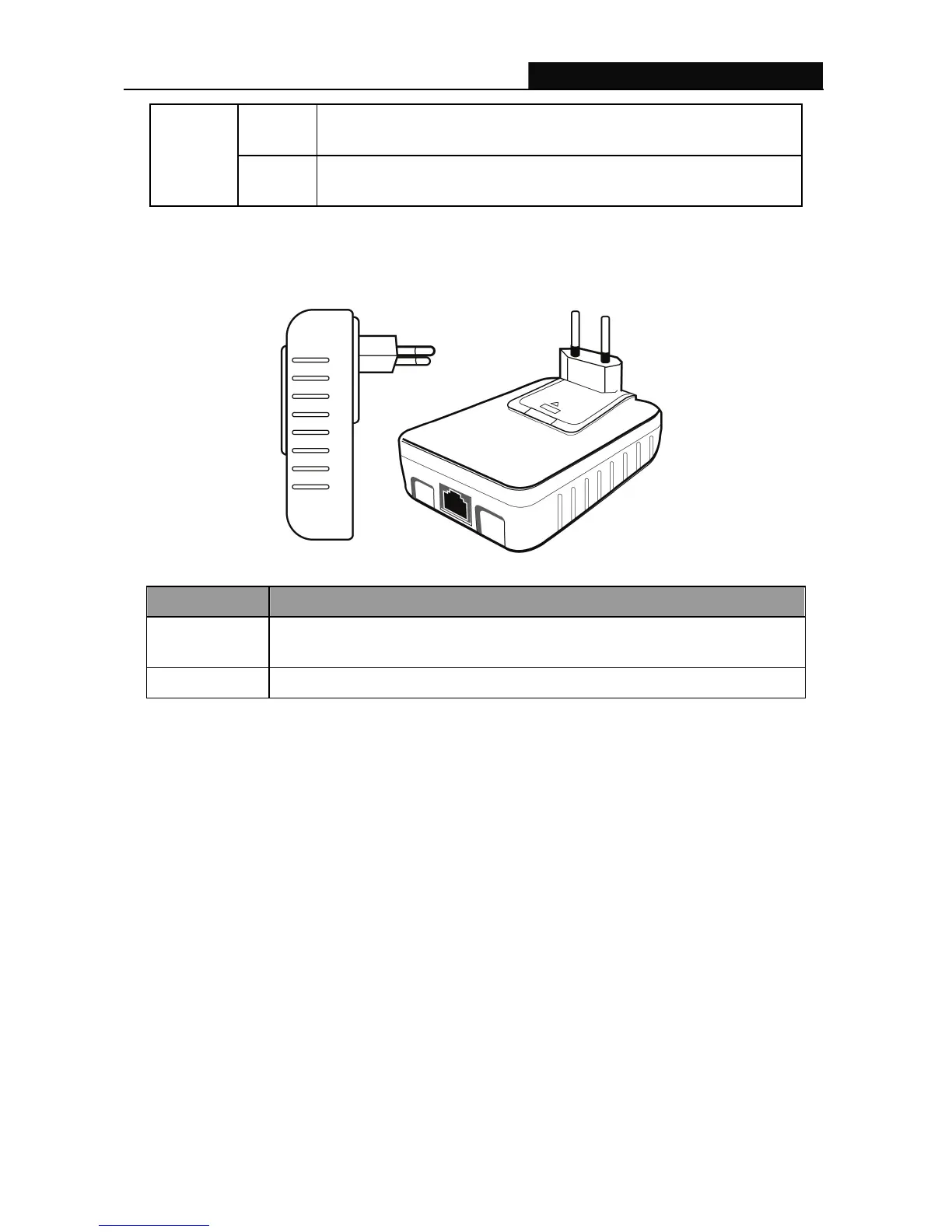
2.3 Physical Interface
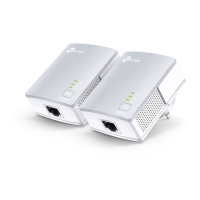
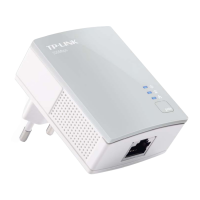
There are two physical interfaces on this Ethernet Powerline Adapter.
Interface Description
Ethernet
One 10/100Mbps Ethernet port connected to PC LAN card or broadband
device.
Power Plug Power Plug connected to any 100V ~ 240V AC power socket.
2.4 Hardware Connection – Computer
For those computers you wish to be networked by Ethernet Powerline Adapter, each of the computers
must be properly connected with an Ethernet Powerline Adapter through an Ethernet (RJ-45) cable.
Following are the steps to properly connect the Ethernet Powerline Adapter to your computer:
1. Power off your PC or Notebook.
2. Connect the provided Ethernet (RJ-45) cable to the Ethernet Powerline Adapter’s Ethernet port.
3. Connect the other end of the Ethernet (RJ-45) cable to you computer’s LAN port.
4. Plug the Ethernet Powerline Adapter into a wall socket next to the computer.
5. Turn on your computer.
6. Check and confirm that the Power and Ethernet LEDs on the Ethernet Powerline Adapter are ON.
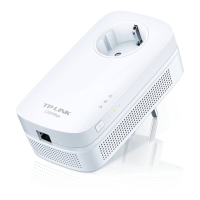
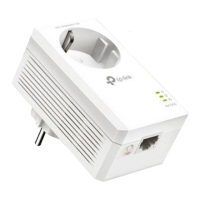
The hardware connection mechanism is shown below:


 To Next Page