To Next Page

B
Brooke AllenAug 8, 2025
How to fix communication loss in Trane Tracer Concierge?
- AAlexis BrownAug 8, 2025
To resolve communication loss in Trane Control Systems, try restarting the display by pressing the power button.

How to fix communication loss in Trane Tracer Concierge?
To resolve communication loss in Trane Control Systems, try restarting the display by pressing the power button.
What to do if changes to site via the System Controller web interface in Trane Tracer Concierge Control Systems?
To address changes made to the site via the System Controller web interface, restart the display by pressing the power button on the back of the display.
What to do if setpoint doesn’t seem to be controlling the HVAC in Trane Tracer Concierge Control Systems?
If the setpoint doesn’t seem to be controlling the HVAC within your Trane Control Systems, verify in the System Controller web user interface that the unit controller is indeed receiving the setpoint.
Why widgets on custom graphics do not follow the setpoint limit range set on the Options tab within Settings in Trane Tracer Concierge Control Systems?
Widgets on custom graphics do not follow the setpoint limit range because the limits for the widgets are set within Tracer Graphics Editor widget property dialog.
What happens if no timer appears for a space that is controlled by an area before unoccupied transition in Trane Tracer Concierge?
No functionality is affected. The system will control as programmed.
What to do if my Trane Tracer Concierge WCI does not join the network?
If your Trane Control Systems WCI does not join the network, consider these potential causes and solutions: * **Not enough time allowed for joining**: Give the WCI more time to join. If the network closes prematurely, reopen it by pressing the OPEN NET button on another member WCI. * **Wrong address**: For factory-addressed WCIs, double-check that the address is correct. Verify each WCI address after installation. * **No power**: Ensure the WCI is wired correctly and that the corresponding controller is wired to the equipment correctly and powered on. * **Too much traffic**: Try a different channel by selecting a different net address or by using Tracer TU. * **Outside of radio range or too many obstacles**: Relocate the WCI or add a repeater. * **Defective WCI**: Replace the ...
Defines the different types of safety advisories used in the manual: Warning, Caution, and Notice.
Details critical requirements for field wiring, grounding, and the mandatory use of personal protective equipment.
Explains how to navigate the Tracer Concierge system and describes the main menu elements.
Describes the three types of zones supported: HVAC only, HVAC and Lighting, and Lighting only.
Provides instructions on how to change the temperature setpoint for individual building zones.
Guides users on how to view all schedules and individual schedule details for HVAC and lighting.
Provides instructions for modifying occupied and unoccupied time periods within the system schedules.
Steps to establish a connection between the Tracer Concierge app and the Tracer SC system.
Instructions on how to select, reorder, and hide zones shown on the main screen.
Details on setting up PINs for administrative access and user zone/setpoint adjustments.
Guidance on enabling and managing system alert notifications.
How to configure limits for setpoint adjustments to promote energy efficiency.
Instructions for changing the system language and accessing local Trane office contact details.
Guides to view instructional videos and understand how to view system alerts.
Procedure for restarting the Tracer Concierge display without impacting HVAC operations.
Instructions for downloading and installing the app on Apple and Android mobile devices.
Steps to connect the Tracer Concierge mobile app to your Tracer SC system.
Explains why setpoint adjustment arrows may be disabled due to setpoint limits.
Discusses reasons why a zone override button might not be available.
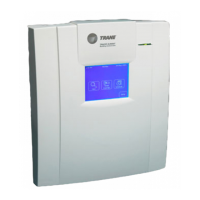
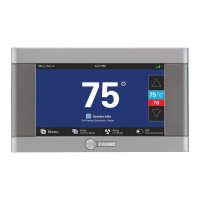
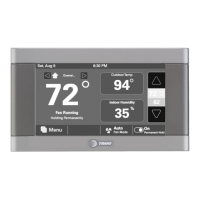
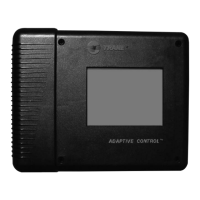
The Trane Tracer Concierge System is a cost-effective building management solution designed for small buildings, simplifying the day-to-day operation of HVAC and lighting systems. It offers advanced capabilities with reduced risk, including built-in functionality for overrides, temperature setpoint changes, and daily monitoring. The system is flexible and user-friendly, accessible via a dedicated 10-inch touch screen display or a mobile application for Apple and Android devices.
The Tracer Concierge System provides a centralized interface for managing various zones within a building. It allows users to monitor and control HVAC equipment and lighting for specific areas. The system utilizes operating hours schedules to optimize energy consumption, automatically adjusting temperatures and turning off lights when the building is unoccupied. Users can temporarily extend operating hours or enable systems outside of scheduled times if needed. The system also features custom graphics for a tailored building overview and provides alerts for abnormal or critical operating conditions.
 General
| Brand | Trane |
|---|---|
| Model | Tracer Concierge |
| Category | Control Systems |
| Language | English |