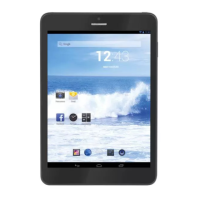
TAB 7 C4
25
TAB 7 C4
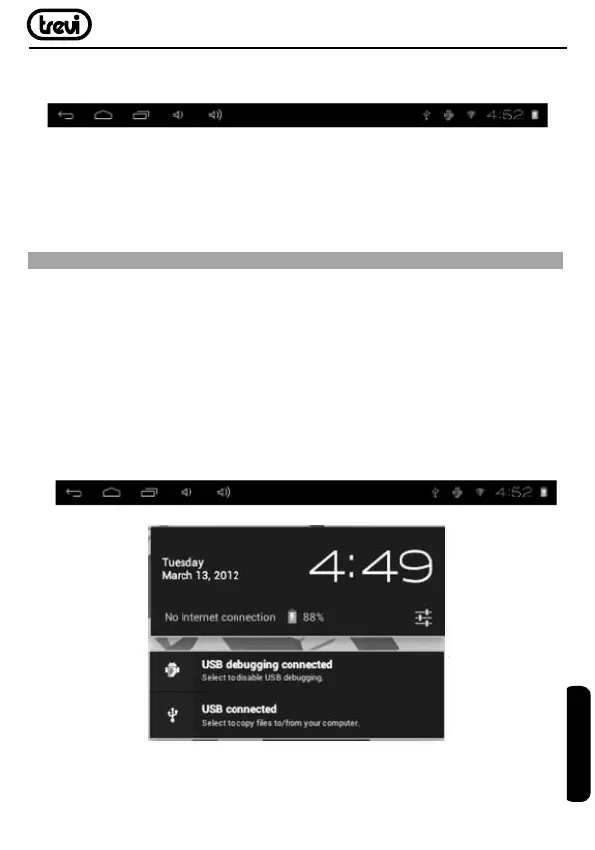
WhenyouhavesuccessfullyconnectedtoaWi-Finetwork,theNotificationsbaratthethelow
ofthescreenwillshowaWi-Fisignalindicator.
Note:TolearnabouthowtoaddaWi-Finetworkwhenitisnotinrangeorwhentherouter
issettoobscurethenetworkname(SSID);ortoconfigureadvancedWi-Fioptions,please
refer to the manual.
OPTIONAL CONNECTIONS
Connecting to a Computer
Connect the tablet to a computer to transfer files.
1.Connect your tablet to the computer.
WiththeincludedUSBcable:PlugthesmallendofthecableintotheUSB2.0highspeed
connector of the tablet. Plug the large end of the cable into an available USB 2.0 high speed port
on the computer.
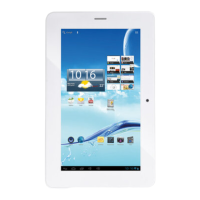
2.When your tablet is connected,slide up the USB icon right down on the screen and then
touch icon USB connected.
3.Mount the storage.
Touch button Turn on USB storage to mount the tablet’s built-in storage. When it is mounted, you
can copy files to or from your tablet.
ENGLISH


 To Next Page