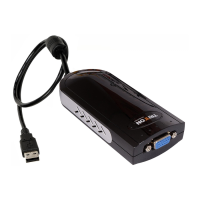
SEE2 UV150 USB 2.0 EXTERNAL VIDEO ADPATER
18
¾
Q&A
This section describes the common Q&A regarding the installation and operation of the
SEE2 UV150.
Q: Why can’t I make the SEE2 UV150 the primary display?
A: Some video cards ship their product with a utility that prevent other video cards
from being set as the primary card. Check the bottom right hand corner taskbar for
the utility. Disable the utility before switching our adapter to be the primary display.
Q: Why won’t my DVD player work when I move it over to the extended display?
A: Some DVD playback software packages do not support playing on a second
display adapter of any kind. Sometimes opening the program in the secondary
display before playing the DVD can help this.
Q: How come my video will not play on Media Player if I move it over to the extended
desktop?
A: Ensure that you have moved the Media Player window completely over to the
second screen, if it is overlapping both screens, this will affect playback
Q: Why does my mouse not move past the right side of the screen, as it should on
extended desktop?
A: Check the display settings and make sure that your displays are oriented correctly.
You have to tell the computer how the monitors are physically positioned on your
desk. From Control Panel > Display Properties (see page 17 for example), click the
“Identify Monitors” button, you will see how the computer has numbered the monitors.
If this does not match how your computer has them oriented on “display properties”,
you must drag-and-drop the monitors in display properties so that the numbers are
oriented the same as displayed when you click the “Identify Monitors” button.
Q: There are lines running horizontally up and down my screen.
A: This is due to a low refresh rate setting. You can change this in the Display
Properties > Settings > Advanced > Monitor. Make sure you select the USB 2.0
VGA Device first and not set the refresh rate higher than what your monitor can
support. This may damage your monitor. You can also try to
reset/refresh/resynchronize your monitor.
Q: Direct3D does not work?
A: This is a current limitation of the adapter. Please check for driver updates in the
future to add support for this. If your application requires this, please use the main
display adapter.


 To Next Page