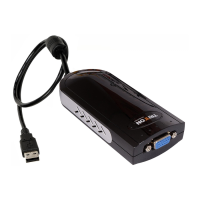
SEE2 UV150 USB 2.0 EXTERNAL VIDEO ADPATER
19
¾
T
ROUBLESHOOTING
T
IPS
The following troubleshooting tips may help if you are experiencing any difficulties
using our device.
- Check to make sure that all connectors are plugged in correctly.
- Make sure that the USB port that you are using is USB 2.0.
- Try a different USB 2.0 port and/or computer
- Check to see that the monitor is connected correctly and the power is ON.
- Try connecting the adapter directly to the computer instead of through a hub, port
replicator, or docking station.
- Unplug all other USB devices from the system.
- Make sure to restart your computer after the driver installation.
- Unplug the adapter, wait a minute, then re-insert it.
- Check the website to make sure you have the latest drivers.
- Reset/refresh/resynchronize your monitor.
- For optimal video playback, an alternate, third-party video player may work better.
We do not endorse one in particular; however several quality players are
available for free.
- Selecting Primary Mode may disable the main system display on certain Intel
graphics solution equipped computer systems.
- If you have problems during the boot up process, start your computer in Safe
Mode and uninstall the driver. Hold the CTRL key until the Windows startup menu
appears and select Safe Mode.
• For immediate support, visit http://www.trittontechnologies.com
to find the latest
documentation, Knowledge Base articles, and software for your device. You can
also chat live with a support technician or submit a trouble ticket.
• For telephone support, please call us at 800-431-1176 and one of our friendly
support technicians will be happy to assist you.
Copyright© 2009 Tritton Technologies Inc. All rights reserved. All trade names are registered
trademarks of their respective owners. Features and specifications are subject to change without notice.
Product may not be exactly as shown in the diagrams.


 To Previous Page