5
trueCall can operate from any telephone socket in the
house.
Unplug your telephone’s lead (or the telephone lead
from the cordless phone base station) from the wall
socket, and replace it with trueCall's telephone lead. If
you have broadband on the home phone line, you must
plug trueCall’s lead into a broadband filter/splitter.
Plug the telephone’s lead (or the lead from the cordless
phone base station), into the socket at the back of
trueCall.
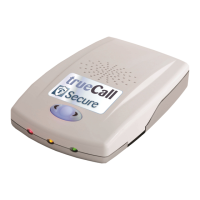
Plug the mains adaptor into the power socket at the
back of trueCall Secure. The lights will flash for about a
minute then stop with just the green light lit and trueCall
will say “Ready”.
a
b
c
d
Setting up trueCall Secure
2. Connect the trueCall Secure unit
The trueCall Secure unit is initially set up with the Filter Profile.
If you would like to use a different profile then select it now
through the handset menu (page 14), or Internet Control Panel
(page 19).
3. Setup online access to manage the unit remotely
4. Select the appropriate profile, and put numbers
onto the Trusted Callers list
It takes just 5 minutes to register for the optional Internet
Control Panel and perform a Weblink to synchronise your
trueCall Secure unit (page 19). Access to the Internet Control
Panel is free for the first 12 months.
phone. If your phone doesn’t have a display window you can
still have the Caller-ID service, however you won’t be able to
directly confirm that it is active. Just check with your network
operator that it has been turned on. If Caller-ID is not turned
on, then many of trueCall Secure’s features won’t be
available.


 To Next Page