14
Go to Table of Contents
Skype® Setup
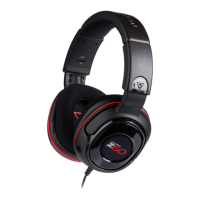
The Z60 is ideal for clear, hands-free Skype communication. Skype setup takes just a few seconds.
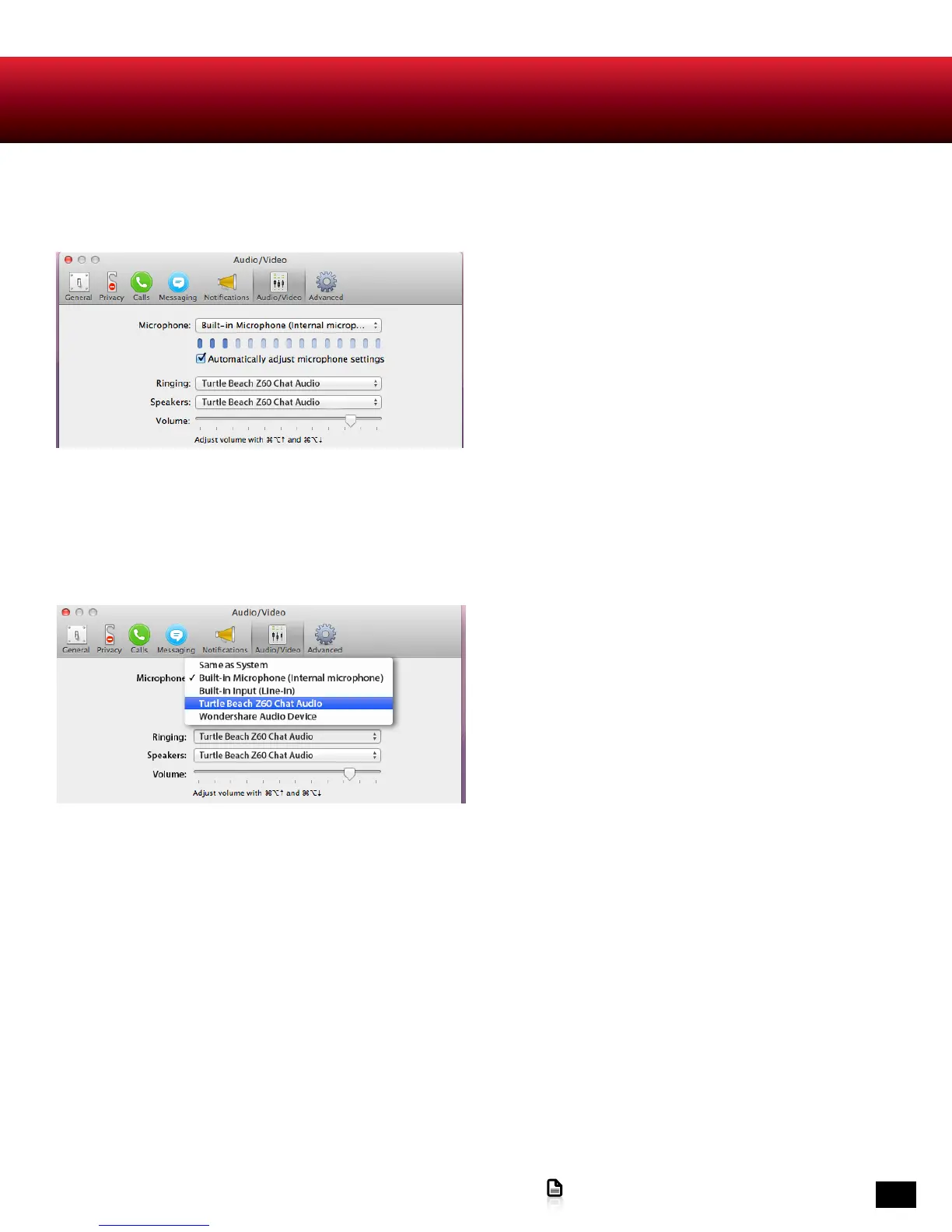
1. For Windows® PCs, in the Skype application menu
bar, click on Call > Audio Settings. For Macintosh®
OSX computers, in the Skype application menu
bar,click Skype > Preferences and then select Audio/
Video.
NOTE: Screens vary by operating system. Mac OSX shown here.
2. In the Audio Settings dialog box, select Turtle
Beach Z60 Chat Audio in the Microphone drop down
box.
3. Select Turtle Beach Z60 Chat Audio in the Speakers
drop down box.
4. To test the microphone, first confirm that the Z60
Removable Mic Boom is attached, the Z60 Mic Mute
Button is set to Off and that Z60 Chat Volume
Control is turned up. Then speak into the headset.
When you speak, look in the dialog box. You should
see the Mic Volume indicator level bars respond.
5. By default, the Skype application adjusts
microphone volume automatically. You can disable
this feature by de-selecting Automatically adjust
microphone settings.





 To Next Page