32
1. Connecting the Machine to Wi-Fi
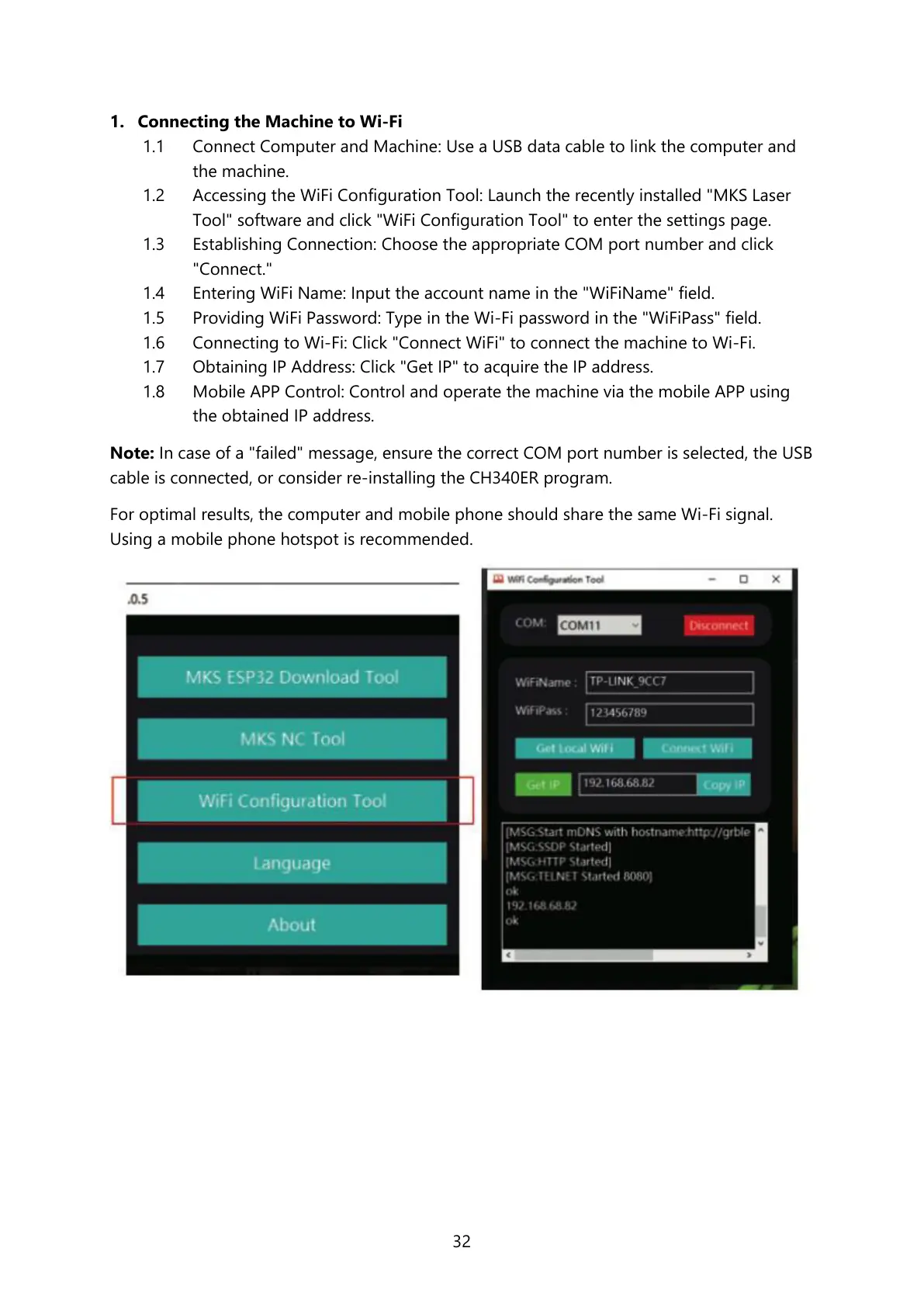
1.1 Connect Computer and Machine: Use a USB data cable to link the computer and
the machine.
1.2 Accessing the WiFi Configuration Tool: Launch the recently installed "MKS Laser
Tool" software and click "WiFi Configuration Tool" to enter the settings page.
1.3 Establishing Connection: Choose the appropriate COM port number and click
"Connect."
1.4 Entering WiFi Name: Input the account name in the "WiFiName" field.
1.5 Providing WiFi Password: Type in the Wi-Fi password in the "WiFiPass" field.
1.6 Connecting to Wi-Fi: Click "Connect WiFi" to connect the machine to Wi-Fi.
1.7 Obtaining IP Address: Click "Get IP" to acquire the IP address.
1.8 Mobile APP Control: Control and operate the machine via the mobile APP using
the obtained IP address.
Note: In case of a "failed" message, ensure the correct COM port number is selected, the USB
cable is connected, or consider re-installing the CH340ER program.
For optimal results, the computer and mobile phone should share the same Wi-Fi signal.
Using a mobile phone hotspot is recommended.


 To Next Page