9
GIMBAL
SPEED REGULATION
This drone can fly at three different speeds.
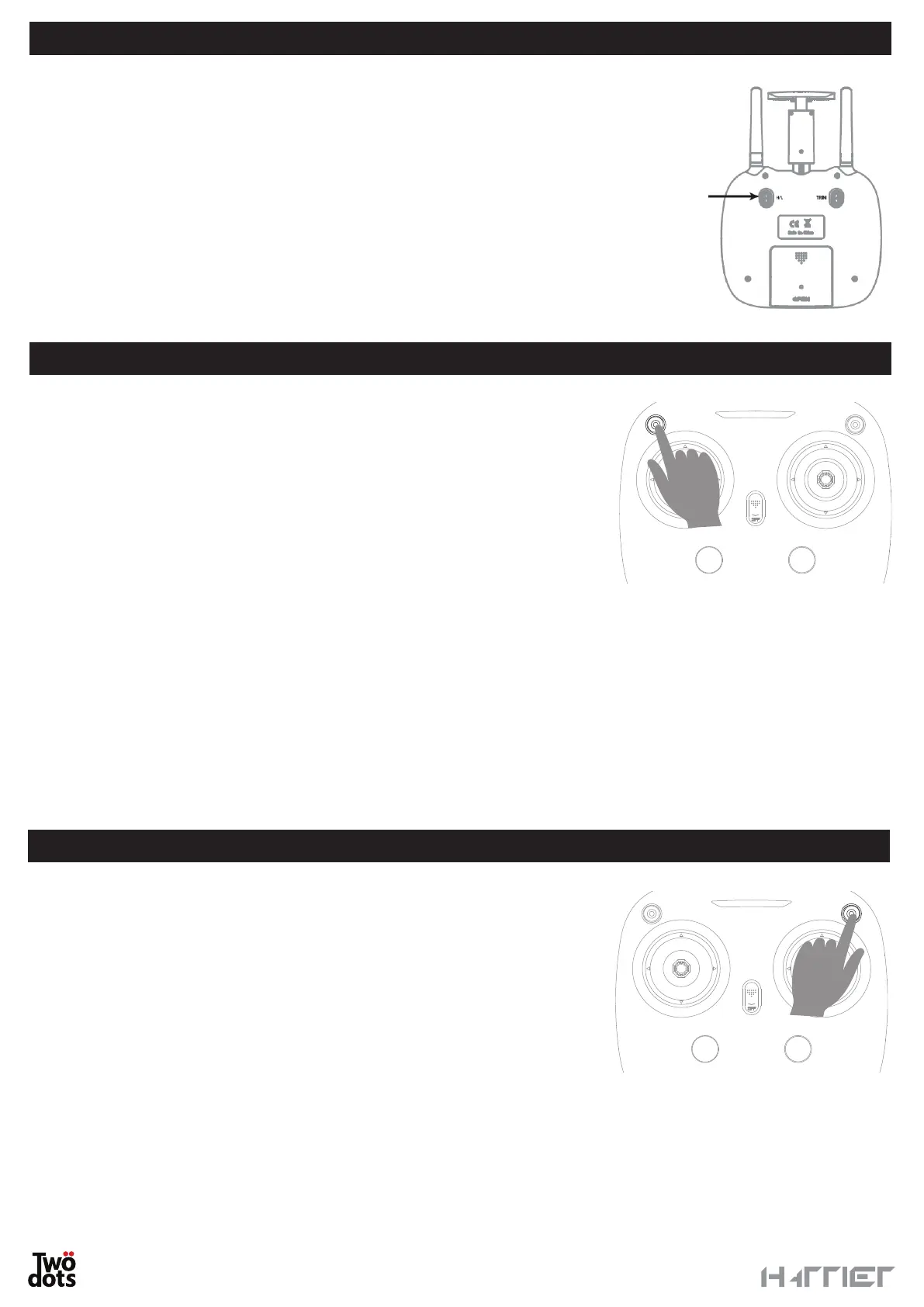
When you press the Speed switch on the controller (button on th
back right), you will hear a double beep and speed will pass to
intermediate. By pressing it again, you will hear three beeps and
speed will be high.
Press the Speed selector one more time to return to low speed.
PHOTOS AND VIDEOS
Hi/Medium/
Low speed mode
button
You can use the remote control to record videos and take photographs
by simply pressing the button on the left.
By pressing the dedicated button, the controller will beep to signal the
beginning of recording/photo shooting.
Press once to take a picture, press and hold for one second to start
recording a video. Press again to stop recording.
WARNING
• When you start to record a video you must stop recording by pressing the dedicated button before you land
the device and remove the drone battery. Otherwise, the video will not be saved on the memory card.
• Put a micro SD memory card (not included) into the dedicated slot to record a video or take a photo.
Photos will be saved on a memory card and on the device memory (if you are using a smartphone), while videos
will be saved on the memory card.
However, you can download or view the video on your smartphone when it is connected via Wi-Fi.
Put your memory card into your computer to view the saved photos and videos.
With Harrier you can change the inclination of the camera by the
one-axis gimbal.
To move the camera during flight, press and hold the button on
the remote control until you reach the desired position.


 To Next Page